
Equipment Booking
How to book faulty or unwanted terminals in for repair or return, and what happens after you raise the ticket
Equipment Booking, found under Tools in the sidebar, lets you book terminals in for repair or return without phoning your payment processor. You pick the terminals, say what is wrong with each one, list the equipment you are sending back, and raise one repair ticket for the whole batch. The ticket goes to the EFT repairs (RMA) team, and you receive a confirmation email with the ticket reference.
Prerequisites:
- Your organisation must be enabled for Equipment Booking. Your EFT account manager sets this up.
- You must have the Admin or Operations role. See Roles and Access.
NoteIf you can't see Equipment Booking in the sidebar, your organisation is not enabled for it or your role doesn't include it. Opening the page directly shows an access message instead.
Who can book what
| You are | You can book |
|---|---|
| Merchant Admin or Operations user | Terminals in your own organisation |
| Operations user limited to a branch | Terminals in your own branch only |
| RAP Admin or RAP Operations user | Terminals belonging to any merchant linked to your RAP organisation, if your RAP organisation is enabled |
Step 1 — Select terminals
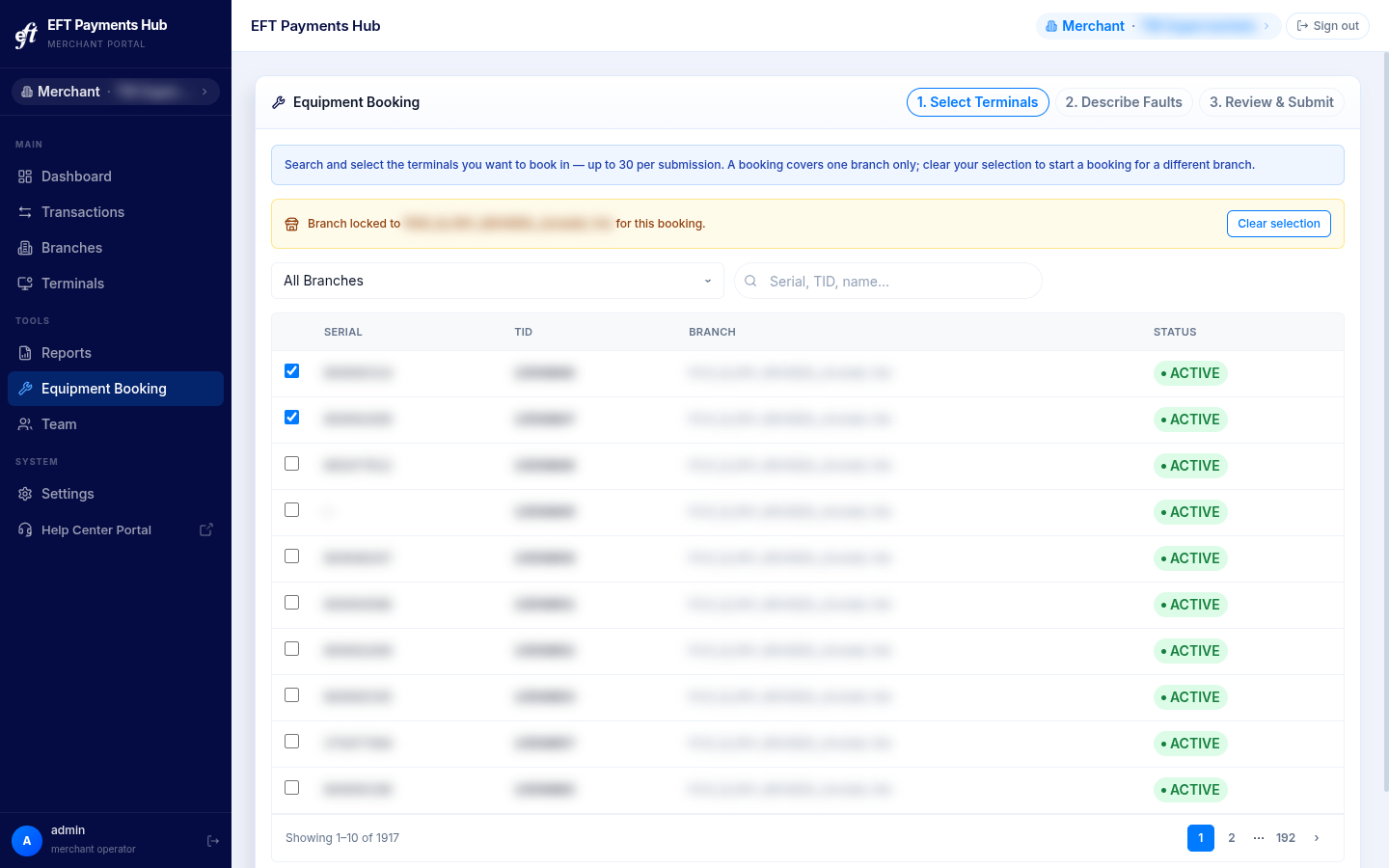
- Find the terminals you want to book in. Use the branch filter, or search by serial number, TID or name.
- Tick each terminal to add it to the booking.
- Click Next.
A booking can include up to 30 terminals, all from one branch. Once you tick the first terminal, the booking is locked to that terminal's branch, and terminals from other branches can't be selected. RAP users are also locked to that terminal's merchant. To book terminals for a different branch, click Clear selection and start again, or raise a second booking afterwards.
NoteIf the terminals for one of your merchants fail to load, a warning appears above the list. The list may be incomplete, so refresh the page before you book.
Step 2 — Describe faults
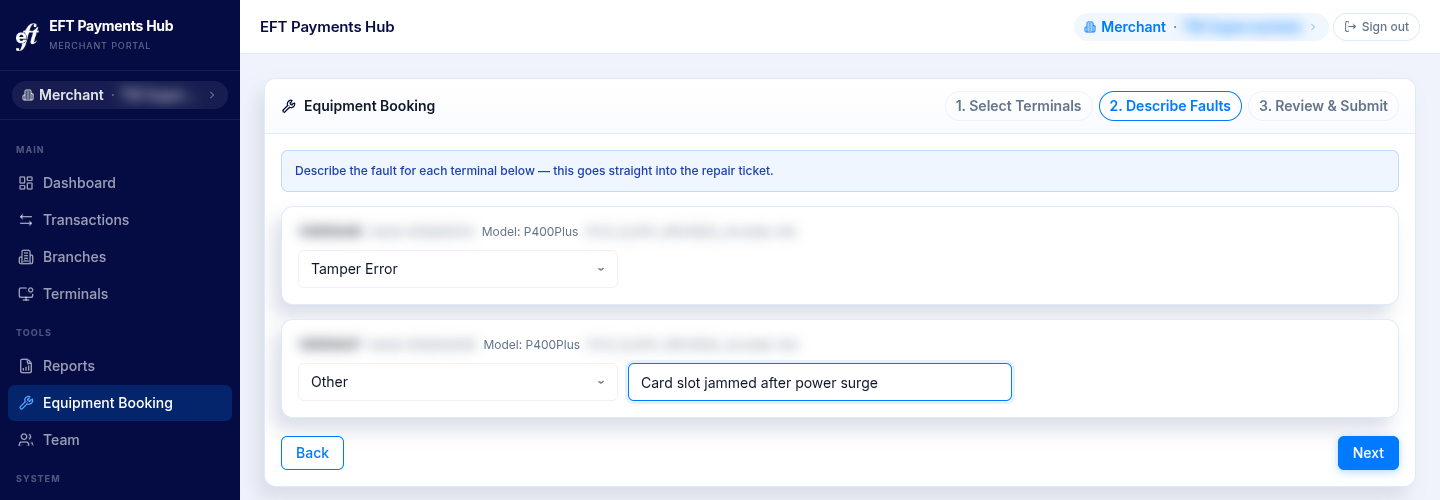
Choose a fault for each terminal. The fault goes straight into the repair ticket.
| Fault | Use when |
|---|---|
| Tamper Error | The terminal shows a tamper alert |
| Not Rebooting | The terminal won't restart |
| Chip Reader Failure | Chip cards can't be read |
| USB Failure | The USB port or connection has failed |
| Screen Fault/Damage | The screen is faulty or damaged |
| Unknown Fault | The terminal is faulty but the cause isn't clear |
| Return - No Longer Required | The terminal isn't faulty; you are returning it |
| Other | None of the above. Describe the fault in the text box that appears; it can't be left blank |
Click Next when every terminal has a fault.
Step 3 — Review and submit
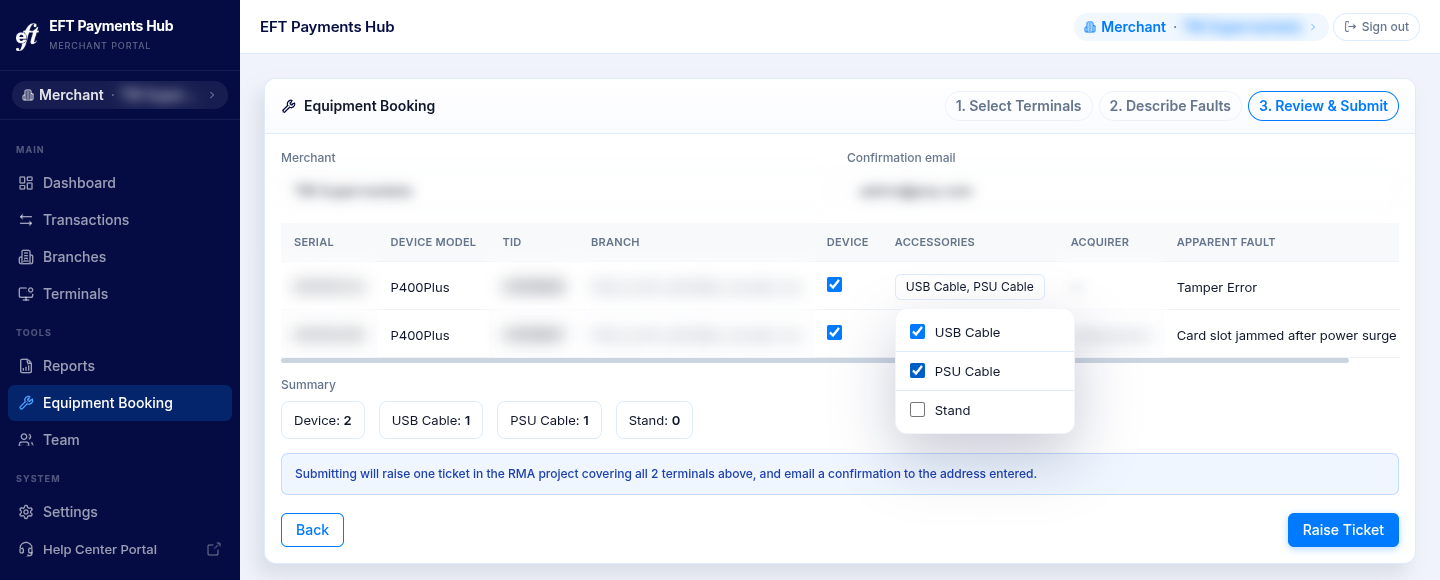
Check each terminal and say what you are sending back:
- Device: ticked by default. Untick it if you are not sending the terminal itself.
- Accessories: click the button and tick each item you are sending with the terminal: USB Cable, PSU Cable or Stand.
Every terminal must have Device ticked or at least one accessory selected. A warning shows how many rows still need one or the other, and Raise Ticket stays disabled until they are fixed.
The table also shows each terminal's serial number, device model, TID, branch, acquirer and fault. To take a terminal out of the booking, click the remove icon at the end of its row.
The Summary below the table counts the devices and each accessory type across the booking.
Check the Confirmation email address. It defaults to your account email address, and you can change it. Then click Raise Ticket. One ticket is raised for all the terminals in the booking.
After you raise the ticket
The confirmation screen shows the ticket reference. A confirmation email is sent to the address you entered, and the EFT repairs team is notified.
From the confirmation screen you can:
- Download CSV: a copy of the booking named after the ticket reference. It lists each terminal (serial, device model, TID, fault, branch, acquirer, device and accessories) followed by the summary counts.
- Report more: start a new booking.
Updated 5 days ago