
Remittance Use Cases
Remittance Provider – Standard Bank South Africa
Eclipse supports integration to Standard Bank South Africa to enable cross-border remittances to a wide range of destination countries.
Standard Bank uses multiple Money Transfer Operators (MTOs) behind the scenes, including:
- Mastercard
- Thunes
- OnAfriq
Tenants integrating to Eclipse for Standard Bank wallet, card, or other Banking-as-a-Service capabilities can also enable remittance services, allowing customers to send funds directly from their wallet.
Remittance Flow Overview
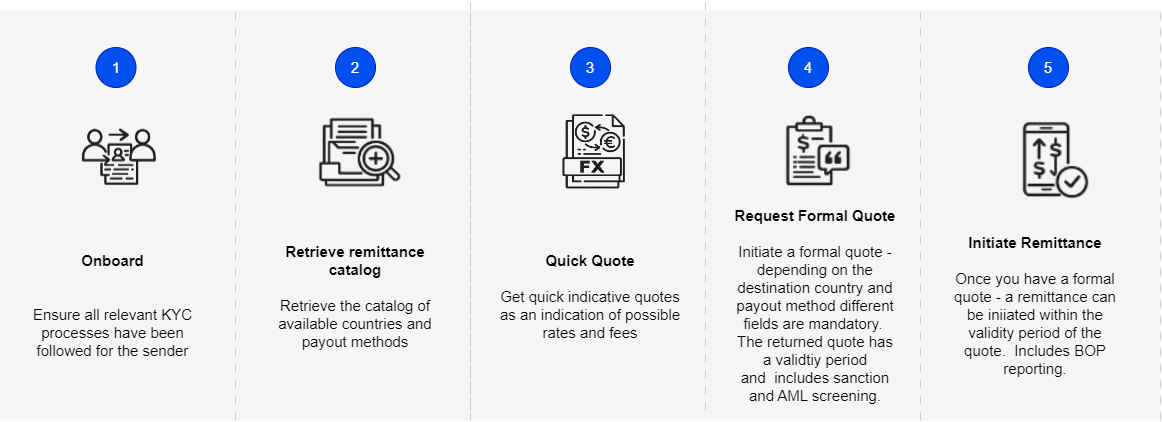
The general flow for initiating a remittance is:
- KYC and onboarding
- Retrieve remittance catalog
- Quick quote (indicative pricing)
- Initiate formal quote
- Submit remittance payment
Prerequisites
The following tenant configurations are required:
-
remittance.catalog.providers= com.ukheshe.services.remittance.catalog.SBSACatalog -
supported.remittance.mto= com.ukheshe.services.remittance.gateway.mastercard.MastercardMto,com.ukheshe.services.remittance.gateway.thunes.ThunesMto -
destination.wallet.config.SBSA= default destination wallet for remittancesdestination.wallet.config.SBSA.MTO= destination wallet per MTO - overrides default
-
limit.Remittance.Monthly.MTO= monthly minimum limits per MTO if applicable
Note
- All required MTO gateway credentials must be configured.
- Destination system wallets must be provisioned for settlement tracking.
1. KYC and Onboarding
In most cases, remittance is an add-on capability for existing Standard Bank Banking-as-a-Service tenants.
All Standard Bank KYC requirements apply as documented here.
Proxy Model
Remittance APIs can also be used in a proxy model for qualifying tenants. In this scenario:
- Customer information may reside outside Eclipse.
- The tenant remains responsible for ensuring regulatory compliance.
- Required customer and transaction data must still be passed for screening and processing.
2. Retrieve Remittance Catalog
The catalog API returns:
- Supported destination countries
- Available payout methods (e.g., EFT, wallet, cash)
- Required additional fields per country and payout type
The catalog aggregates supported corridors across all configured MTOs and applies Standard Bank filtering before returning results to the tenant. Example request:
GET /eclipse-conductor/rest/v1/tenants/{tenantId}/remittances/catalogsOptional filtering:
?catalogQuery=countryCode={country_code},currency={currency},type={payout_type}Example response:
[
  {
    "provider": "SBSA",
    "catalogs": [
      {
        "catalogId": "any_bank_ken_eft",
        "countryCode": "KEN",
        "countryName": "Kenya",
        "currency": "KES",
        "type": "EFT",
        "name": "Any Bank Of Kenya",
        "status": "ACTIVE",
        "additionalFields": [
          { "id": "payment_type", "regex": "^(P2P|B2P|B2B|P2B|G2P)$", "defaultValue": "B2P" },
          { "id": "recipient_account_uri", "regex": "ban:.*;bic=[A-Z]{4}KE.{2}XXX" },
          { "id": "sender_account_uri" }
        ]
      },
      {
        "catalogId": "1247",
        "countryCode": "KEN",
        "countryName": "Kenya",
        "currency": "KES",
        "type": "EFT",
        "name": "Kenya Commercial Bank Limited",
        "status": "ACTIVE",
        "additionalFields": [
          { "id": "recipient.bank_account_number" },
          { "id": "recipient.lastname" },
          { "id": "recipient.firstname" },
          { "id": "recipient.date_of_birth" }
        ]
      }
    ]
  }
]
By default Eclipse caches the catalog, to force refresh from all MTOs you can pass catalogQuery=refresh
GET /eclipse-conductor/rest/v1/tenants/{tenantId}/remittances/catalogs?catalogQuery=refresh
Note
- The catalog pulls data from all configured MTOs.
- Global configuration
sbsa.cbs.config.supportedCountriescan explicitly exclude countries even if supported by an MTO.- The
additionalFieldssection indicates required data for that country and payout method.
3. Quick Quote (Indicative)
Quick Quote provides indicative exchange rates and fees without requiring full beneficiary details.
This is designed to:
- Allow customers to explore pricing early in the journey.
- Support both send-amount and receive-amount experiences.
- Reduce friction before collecting mandatory regulatory information.
- Amounts may be different from formal quotes
Example request:
POST /eclipse-conductor/rest/v1/tenants/{tenantId}/remittances/quick-quotes{
"tenantId": {tenantId},
"sourceAmount": 10,
"sourceCountry": "ZA",
"sourceCurrency": "ZAR",
"destinationCountry": "GHA",
"destinationCurrency": "GHS",
"provider": "SBSA"
}The response includes:
- Exchange rate
- Destination amount
- Fees
- Quote expiry timestamp
This quote is indicative only and not binding.
4. Initiate a Formal Quote
To obtain a binding quote, create a remittance linked to a wallet.
A quote can be requested using:
amount(send amount), ordestinationAmount(target receive amount)
What Happens During Formal Quote
- Sanctions and AML screening is performed.
- Least Cost Routing is applied if multiple MTOs support the corridor.
- A reservation is placed on the source wallet for the total source amount.
- A quote expiry time is returned.
South Africa-Specific Requirements
For South African senders, the following are mandatory:
paymentPurposesourceOfFunds
These can be included in the initial request or updated later.
Example request:
POST /eclipse-conductor/rest/v1/tenants/{tenantId}/wallets/{walletId}/remittances
{
  "additionalFields": [
    {
      "id": "payoutMethod",
      "value": "EFT"
    }
  ],
  "amount": 10,
  "description": "testing",
  "destinationCountry": "GHA",
  "destinationCurrency": "GHS",
  "externalUniqueId": "db1e49f6-e601-4ad-86",
  "provider": "SBSA"
}
Additional information added to the remittance including sourceOfFunds and paymentPurpose:
PUT /eclipse-conductor/rest/v1/tenants/{tenantId}/wallets/{walletId}/remittances/{remittanceId}
{
  "additionalFields": [
    {
      "id": "payoutMethod",
      "value": "EFT"
    },
    {
      "id": "catalogId",
      "value": "any_bank_gha_eft"
    },
	{
      "id": "sourceOfFunds",
      "value": "Salary"
    },
    {
      "id": "paymentPurpose",
      "value": "Other"
    }
  ],
  "destination": {
    "firstName": "John",
    "lastName": "Mike",
    "address1": "testing 1",
    "country": "GHA",
    "bankName": "Test Bank",
    "branchCode": "BKID0005050",
    "bankAccountNumber": "212938100",
    "bankIdentificationCode": "UNBECNSHXXX",
    "iban": "YY60UKVE61299991934957514541539103",
    "dob": "19920329"
  }
}
Example response:
{
  "additionalFields": [
    {
      "id": "payoutMethod",
      "value": "EFT"
    },
    {
      "id": "catalogId",
      "value": "any_bank_gha_eft"
    },
    {
      "id": "payment_type",
      "defaultValue": "B2P",
      "regex": "^(P2P|B2P|B2B|P2B|G2P)$",
      "identifier": "extraInput"
    },
    {
      "id": "recipient_account_uri",
      "regex": "ban:.*;bic=[A-Z]{4}GH.{2}.*",
      "identifier": "extraInput"
    },
    {
      "id": "701",
      "title": "Destination Country",
      "regex": "^([A-Z]{3})$",
      "identifier": "extraInput"
    },
    {
      "id": "payment_origination_country",
      "regex": "^([A-Z]{3})$",
      "identifier": "extraInput"
    },
    {
      "id": "sender.address.line1",
      "regex": "^[a-zA-Z0-9!@#$%^&*()_+\\-=\\[\\];':\"|,.<>\/? ]{1,500}$",
      "identifier": "extraInput"
    },
    {
      "id": "recipient.address.line1",
      "regex": "^[a-zA-Z0-9!@#$%^&*()_+\\-=\\[\\];':\"|,.<>\/? ]{1,500}$",
      "identifier": "extraInput"
    },
    {
      "id": "sender.organization_name",
      "regex": "^[a-zA-Z0-9!@#$%^&*()_+\\-=\\[\\];':\"|,.<>\/? ]{1,140}$",
      "identifier": "extraInput"
    },
    {
      "id": "recipient.last_name",
      "regex": "^[a-zA-Z-]{1,140}$",
      "identifier": "extraInput"
    },
    {
      "id": "recipient.address.country",
      "regex": "^([A-Z]{3})$",
      "identifier": "extraInput"
    },
    {
      "id": "sender.address.country",
      "regex": "^([A-Z]{3})$",
      "identifier": "extraInput"
    },
    {
      "id": "recipient.first_name",
      "regex": "^[a-zA-Z-]{1,140}$",
      "identifier": "extraInput"
    },
    {
      "id": "sender_account_uri",
      "identifier": "extraInput"
    }
  ],
  "remittanceId": 13152,
  "status": "PENDING",
  "created": "2026-02-25T07:27:10.000Z",
  "destinationAmount": 487.885588260000000000,
  "fee": 10.511070900000,
  "amount": 10.000000000,
  "currency": "ZAR",
  "destinationCurrency": "GHS",
  "exchangeRate": 48.788558826,
  "quoteExpires": "2026-02-25T09:37:10.000+02:00",
  "externalUniqueId": "db1e49f6-e601-4ad-86",
  "walletId": 2516587,
  "description": "testing",
  "destinationCountry": "GHA",
  "totalSourceAmount": 20.511070900000,
  "mtoProvider": "MASTERCARD"
}
5. Submit the Remittance
Once all required data is supplied and the quote is still valid, submit the remittance:
PUT /eclipse-conductor/rest/v1/tenants/{tenantId}/wallets/{walletId}/remittances/{remittanceId}
{
  "submit": "true"
}
On successful submission:
- Wallet reservation is removed.
- Wallet is debited.
- Settlement tracking is created via system destination wallets.
- Regulatory reporting is triggered.
Settlement and Reversals
Reservation Model
- When a quote is created, funds are reserved.
- If the quote expires or is cancelled, the reservation is released.
- On submission, the reservation converts to a debit.
Reversals
Reversals depend on MTO, corridor, and payout method. In most cases:
- Reversals are manual via support.
- FX fluctuations may result in different return amounts.
- Fees are generally non-refundable, depending on MTO rules.
Least Cost Routing Logic
When multiple MTOs support the same country and payout method, Eclipse applies configurable routing logic.
By default:
- If monthly minimum limits are configured per MTO, select the MTO with the highest remaining allocation.
- Otherwise, select the MTO that provides the highest payout amount.
NoteLeast Cost Routing logic is configured through Javassist in global property:
remittance.mto.selection.lcr.rules
Retrieve Remittance Transactions
Retrieve a specific remittance or all remittances for a wallet:
GET /eclipse-conductor/rest/v1/tenants/{tenantId}/wallets/{walletId}/remittances
GET /eclipse-conductor/rest/v1/tenants/{tenantId}/wallets/{walletId}/remittances/{remittanceId}
Example response:
[
	{
		"additionalFields": [
			{
				"id": "payoutMethod",
				"value": "EFT"
			}
		],
		"remittanceId": 13147,
		"status": "ERROR_PERM",
		"created": "2026-02-24T08:13:08.000Z",
		"fee": 0.0,
		"errorDescription": "compile error: getFees() not found in com.ukheshe.services.remittance.gateway.sbsa.ConfirmationQu...",
		"amount": 10.0,
		"currency": "ZAR",
		"destinationCurrency": "INR",
		"externalUniqueId": "db1e49f6-e601-4ad-80",
		"walletId": 2516587,
		"description": "testing",
		"destinationCountry": "IND",
		"totalSourceAmount": 10.0
	},
	{
		"additionalFields": [
			{
				"id": "payoutMethod",
				"value": "EFT"
			},
			{
				"id": "catalogId",
				"value": "any_bank_ind_eft"
			},
			{
				"id": "purpose_of_payment",
				"value": "Education"
			},
			{
				"id": "firstName",
				"value": "John"
			},
			{
				"id": "lastName",
				"value": "Mike"
			},
			{
				"id": "address1",
				"value": "testing 1"
			},
			{
				"id": "dateOfBirth",
				"value": "19920329"
			},
			{
				"id": "bankIdentificationCode",
				"value": "UNBECNSHXXX"
			},
			{
				"id": "iban",
				"value": "YY60UKVE61299991934957514541539103"
			}
		],
		"remittanceId": 13149,
		"status": "SUCCESSFUL",
		"created": "2026-02-24T08:46:38.000Z",
		"destinationAmount": 484.91887,
		"fee": 10.41514435,
		"amount": 10.0,
		"currency": "ZAR",
		"destinationCurrency": "INR",
		"exchangeRate": 48.491887017,
		"quoteExpires": "2026-02-24T08:56:38.000Z",
		"externalUniqueId": "db1e49f6-e601-4ad-83",
		"walletId": 2516587,
		"description": "testing",
		"destinationCountry": "IND",
		"totalSourceAmount": 20.41514435,
		"gatewayTransactionId": "rem_tN-9lKld3F5YKBpvmoOu77lCJK8",
		"mtoProvider": "MASTERCARD"
	}
]
Completed remittances can be enriched into wallet transaction history via the Wallet History APIs.
UI/UX Guidelines for Remittance Journeys
The UI journey depends on the tenant’s product proposition. The following principles should guide implementation.
1. Use Quick Quote Early
Quick Quote is ideal for:
- Showing indicative rates upfront.
- Allowing users to compare corridors.
- Supporting both send-based and receive-based journeys.
Where possible, request payout method selection early, as final fees may depend on payout type.
2. Support Both Send and Receive Experiences
Users typically think in one of two ways:
- “I have X to send.”
- “The recipient must receive Y.”
Your journey should support both:
- Source amount-driven quotes
- Destination amount-driven quotes
Switching between the two should dynamically update rates and totals.
3. Dynamically Render Required Fields
Do not hardcode regulatory or beneficiary fields.
Instead:
- Retrieve the catalog.
- Inspect
additionalFields. - Dynamically render required inputs based on country and payout method.
Examples:
- Mobile wallet payouts may require name and phone number.
- Bank EFT may require full bank details (account number, branch code, BIC/IBAN, date of birth).
- South Africa requires
paymentPurposeandsourceOfFunds.
4. Clearly Display Quote Validity
When presenting a formal quote:
- Show exchange rate.
- Show fees.
- Show total debit amount.
- Show destination amount.
- Clearly display expiry time.
If a quote expires, prompt the user to refresh and re-confirm.
5. Balance and Reservation Visibility
Pending remittances represent reserved funds.
Wallet views should clearly distinguish between:
- Available balance
- Reserved balance
Users should be able to view non-submitted remittances and understand their status.
6. Error Handling
Surface errors clearly and in plain language, including:
- Screening failures
- Corridor restrictions
- Limit breaches
- Expired quotes
Avoid exposing raw gateway error messages to end users.
7. Viewing Remittance History
For non-completed remittances:
- Use GET remittances to display PENDING and ERROR states.
For completed remittances:
- Enrich wallet transaction history.
- Provide drill-down into exchange rate, fees, MTO used, and gateway reference.
8. Mastercard UX Guidelines and Design References
Mastercard provides publicly available experience design guidance for cross-border transfers. These resources include UX patterns, user journeys, and example design assets:
-
Figma user journeys:
https://www.figma.com/design/x9aeCexrSlNrLIbPzWhyPM/XBS-user-journeys -
Mastercard Send Experience Design Guide:
https://developer.mastercard.com/mastercard-send-experience-design-guide/documentation/design/payment-transfers/
These are useful references when designing:
- Quote presentation screens
- Confirmation and receipt flows
- Regulatory data capture forms
- Status and error messaging patterns
Typical End-to-End Customer Journey
- Select destination country
- Enter send or receive amount
- View indicative rate
- Select payout method
- Provide required beneficiary and regulatory details
- View formal quote with expiry time
- Confirm and submit
- View transaction status and receipt
Remittance Provider: ClickSendNow (CSN)
This use case deals with transferring money to mobile phone, EFT, Cash Out option with input of a mobile number and transferring money out of the customer eclipse wallet to calling CSN and instant settlement with CSN financial services at an individual transaction level .
Customer registration process with CSN
- New customer should register through CSN
POST /eclipse-conductor/rest/v1/tenants/{tenantId}/remittances/enroll-customers- Eclipse updates CSN customer profile with any changes with API
PUT /eclipse-conductor/rest/v1/tenants/{tenantId}/remittances/enroll-customers3 ) Eclipse checks if CSN customer exists for KYC status with API
GET /eclipse-conductor/rest/v1/tenants/{tenantId}/remittances/enroll-customersCSN Customer Verification Using Iproov
When the iProov SDK is used by the tenant to do a liveness check, the tenant channel needs to store the iProov result on the customer profile.
A generic way to do this is to add an attachment onto the customer with a special label like ‘iProovResult’.
Then whenever a ratify is run on a customer, check if the customer has an iProov attachment and does not have a facial photo, then fetch the facial photo from iProov and store it as the facial photo as a document. Then continue with ratify as normal.
If eclipse update can profile is completed then use for Iproov call for customer KYC verification base on Iproove Check {KYC status = Pending,KYC state = iProov,KYC level = Non-verified Status=Active}
-
Check Kyc Status with GET/eclipse-conductor/rest/v1/tenants/{tenantId}/remittances/enroll-customers
-
Get IProove token with API
POST /eclipse-conductor/rest/v1/tenants/{tenantId}/integrations/{integrationIdentifier}Customer gets a quick quote/indicative quote
- Customer we can check exchange rates without login with API
POST /eclipse-conductor/rest/v1/tenants/{tenantId}/remittances/quick-quotesBelow payload can be use to see exchange rates from ZAR to foreign currency
{
  "destinationCountry": "ZW",
  "destinationCurrency": "USD",
  "provider": "CSN",
  "sourceAmount": 10,
  "sourceCountry": "ZA",
  "sourceCurrency": "ZAR"
}
Below payload can be use to see exchange rates from foreign currency to ZAR
{
  "destinationAmount": 10,
  "destinationCountry": "ZA",
  "destinationCurrency": "ZAR",
  "provider": "CSN",
  "sourceAmount": 0,
  "sourceCountry": "ZW",
  "sourceCurrency": "USD"
}
Create New Beneficiary using CSN
When integrating to a remittance provider (CSN) we need to create beneficiaries on the remittance provider before initiating remittance.
We need to be able to distinguish between normal beneficiaries and beneficiaries that need to be created on the remittance provider as well.
Channel adds beneficiary and provides remittance provider, beneficiary is added on Eclipse and CSN - all new fields populated.
Eclipse Provides Remittance Catalogues for Tenants
It is recommended to search service code from catalogues within the tenant.
Below are the properties which need to be configure for remittance:
remittance.catalog.providers=com.ukheshe.services.remittance.catalog.CSNCatalog.
GET/eclipse-conductor/rest/v1/tenants/{tenantId}/remittances/catalogues?catalogQuery=limit_currency=ZAR- limit_currency =ZAR
- CSN - Provider
- Based on catalogQuery they returned products along with minimum and maximum amount in ZAR. if we don't pass catalogQuery param then it will revert minimum and maximum amount in foreign currency
Select catalogId from catalogues to further initiate the remittance process.
Step 1 –Initiate Remittance Process
The overall process depends on the type of remittance.
Customer we can check exchange rates in remittance with API
POST
/eclipse-conductor/rest/v1/tenants/{tenantId}/wallets/{walletId}/remittances
{
  "amount": 10,
  "callbackUrl": "htttps://www.google.com",
  "destinationCurrency": "USD",
  "externalUniqueId": "string",
  "provider": "CSN",
  "saveDestinationAsBeneficiary": true
Step 2 - Initiate temporary quote for remittance process
Passed tenantId,wallet id and remittance id for update remittance along with below request payload. This below request in additionFields for serviceId,purposeOfTransaction and sourceOfFunds based on country support value used to remittance catalogue API response.
POST /eclipse-conductor/rest/v1/tenants/{tenantId}/wallets/{walletId}/remittances
{
  "amount": 10,
  "callbackUrl": "htttps://www.google.com",
  "destinationCurrency": "USD",
  "externalUniqueId": "string",
  "provider": "CSN",
  "saveDestinationAsBeneficiary": true}
Below Request is for additionFields for serviceId,purposeOfTransaction and sourceOfFunds based on country support value used to remittance catalogue API response.
PUT /eclipse-conductor/rest/v1/tenants/{tenantId}/wallets/{walletId}/remittances/{remittanceId}
{
  "additionalFields": [
    {
      "id": "serviceId",
      "value": “clicksendnow_zw"
    },
    {
      "id": "purposeOfTransaction",
      "value": "Gift"
    },
    {
      "id": "sourceOfFunds",
      "value": "<>"
    }
  ],
  "beneficiaryId": 239,
  "submit":false
}
If senderExternalSourceType = PAYAT is enable
PUT/eclipse-conductor/rest/v1/tenants/{tenantId}/wallets/{walletId}/remittances/{remittanceId}
{
  "additionalFields": [
    {
      "id": "serviceId",
      "value": "test_cooperative_ke"
    },
    {
      "id": "purposeOfTransaction",
      "value": "Gift"
    },
    {
      "id": "sourceOfFunds",
      "value": "Pension"
    },
    {
      "id": "senderExternalSourceType",
      "value": "PAYAT"
    }
  ],
  "amount": 1200,
  "beneficiaryId":328,
   "submit":false
}{
"additionalFields": [
{
"id": "serviceId",
"value": "test_cooperative_ke"
},
{
"id": "purposeOfTransaction",
"value": "Gift"
},
{
"id": "sourceOfFunds",
"value": "Pension"
},
{
"id": "senderExternalSourceType",
"value": "PAYAT"
},
{
"id": "providde_beneficiary_id",
"value": "71004abe-9f21-45e0-8b8c-159847fb5a29"
}
],
"remittanceId": 2723,
"status": "PENDING",
"created": "2023-03-28T05:35:57.000Z",
"destinationAmount": 7898.9,
"fee": 0,
"amount": 1200,
"currency": "ZAR",
"destinationCurrency": "KES",
"exchangeRate": 0.15192,
"quoteExpires": "2023-03-28T05:55:58.000Z",
"externalUniqueId": "strinsgsksssfsfsfs",
"walletId": 1999,
"extraInfo": "{\"senderExternalSource\":\"{\\\"customerData\\\":{\\\"firstName\\\":\\\"ZALAK\\\",\\\"lastName\\\":\\\"GOOD\\\",\\\"idNumber\\\":\\\"PV5989530\\\",\\\"contactNumber\\\":\\\"0605989530\\\"},\\\"type\\\":\\\"PAYAT\\\"}\",\"referenceId\":\"[{\\\"id\\\":\\\"MFS_AFRICA_TRANSACTION_ID\\\",\\\"value\\\":\\\"1157343101438\\\"}]\"}",
"destinationCountry": "KE",
"totalSourceAmount": 1200
}ExtraInfo Field has senderExternalSource and referenceId information from PAYAT
Step 3 - Final Book Deal for Remittance Process
PUT /eclipse-conductor/rest/v1/tenants/{tenantId}/wallets/{walletId}/remittances/{remittanceId}

{
  "additionalFields": [
    {
      "id": "serviceId",
      "value": "clicksendnow_zw"
    },
    {
      "id": "purposeOfTransaction",
      "value": "Gift"
    },
    {
      "id": "sourceOfFunds",
      "value": "Pension"
    }
  ],

  "beneficiaryId": 239,
  "submit":true
}
The Remittance will be in status PENDING and will transition to SUCCESSFUL or ERROR_PERM depending on the result.
Catalog Refresh.
The remittance catalog can be frequently refreshed at a configurable period. The config can be maintained on the global property csn.config by adding a line item catalogRefreshIntervalInMinutes = 30 by calling the endpoint below:
https://eclipse-java-sandbox.ukheshe.rocks/eclipse-conductor/rest/v1/tenants/{tenantID}/remittances/catalogs?catalogQuery=RefreshIf the config catalogRefreshIntervalInMinutes is not maintained, the default refresh frequency will be 60 minutes.
NoteThe catalog can be refreshed manually by calling the retrieve catalog endpoint with catalogQuery set to Refresh
Corridor Management (Notification Management for Corridor Activation)
Required Configurations:
- schedule.notification.allow - value can be true/false, the default value is false)
- notification.expiry - an integer value that determines the expiration of notifications pending to be broadcasted.
Enhancements to the Notification Endpoint
The POST Notification API has been enhanced to support schedule notifications.
https://eclipse-java-sandbox.ukheshe.rocks/eclipse-conductor/docs/#/b)%20Tenant%20Configuration%20%26%20Onboarding/post_eclipse_conductor_rest_v1_tenants__tenantId__notificationsIntegration Steps for Notification API
To register a notification, ensure the following conditions are met:
Configuration Must Be Enabled
RuleMatch and EventType Must Not Be Null: Both rulematch and eventtype attributes must have valid values.
If any of these attributes (configuration, rulematch, or eventtype) are null, the system will send the notification immediately.
Request Payload Example:
{
  "data": "{\"phone\":\"919737700802\"}",
  "ruleMatch": "TZ_Tanzania_ACTIVE",
  "templateId": "auth",
  "type": "SMS",
  "eventType": "remittance"
}
Required Fields:
- data: Contains data (primarily in JSON format) that will be used to replace dynamic values in the notification.
- ruleMatch: A regular expression used to determine when a notification should be sent based on a match.
- templateId: The ID of the notification template that will be used.
- type: The type of notification, such as "SMS" or "email". In this example, the type is "SMS".
- eventType: The event that triggers the notification. Currently, the only supported event is "remittance".
Example Workflow
For instance, if you register a notification with the ruleMatch set to TZ_Tanzania_ACTIVE and the eventType as remittance, the notification will be sent out when the status of Tanzania changes to ACTIVE.
Updated 4 months ago