
Card Use Cases
This section focuses on card issuing and management within Eclipse, including how cards are created, activated, and maintained throughout their lifecycle. It also covers scenarios where a tenant securely stores a customer’s card details for future use (Card-on-File). The use cases explain how cards can be issued, linked to customers, and used for both physical and digital transactions, as well as how stored card details support seamless repeat payments. For each scenario, the guide outlines the relevant APIs, required configurations, and the technical steps needed to integrate card issuing and Card-on-File functionality into your applications.
Card Management
Card Enabled Wallet Type and Wallet configurations
EFT Corporation-issued cards have a wide range of customisation settings that can be applied at a global wallet type level as well as an individual wallet instance level allowing customers to selectively customise their card experience. The following settings can be customised:
| Attributes | Description |
|---|---|
| allowInternationalTransactions | Controls whether international transactions are allowed on the card. True or false. |
| internationalMarkUpFees | Additional fee charged for international card transactions |
| contactlessLimit | The limit under which contactless or tap transactions are enabled. By default, this is set to 500. To disable contactless transactions this can be set to 0. |
| SubProgramCodeForVirtualCard | Postilion program card for issued virtual cards |
| SubProgramCodeForPhysicalCard | Postilion program card for issued physical cards |
| alwaysCreateCard | Controls whether a card will be issued against a wallet when created. Can either be set as true or false. False means a card will need to be manually added to the wallet after creation |
| feesReversalAllowed | Controls whether a fee can be reversed, set as either true or false |
Stop a Card
A customer's card may be stopped by the customer, organisation or tenant. It should be stopped immediately if the card is assumed to be lost or stolen.
Prerequisites
- Valid JWT
- Card ID
Stop Card
Request to stop the card
Change the card status to “LOST, STOLEN, DAMAGED, COUNTERFEIT, REPLACED ”
PUT /eclipse-conductor/rest/v1/tenants/{tenantId}/cards/{cardId}
{
	"cardRules": {
		"ecommerceTransactionsEnabled": true,
		"internationalTransactionsEnabled": true
	},
	"status": "CANCELLED",
	"reason": "DAMAGED"
}
Unstop a Card
A customer's card may be Unstopped by the customer, organisation or tenant. It can not be unstopped if the status is stolen or counterfeit.
Prerequisites
- Valid JWT
- Card ID
Step 1 – UnStop Card
Request to stop the card
Change the wallet status to “Active ”
PUT /eclipse-conductor/rest/v1/tenants/{tenantId}/cards/{cardId}
{
	"status": "ACTIVE",
	"reason": "UNBLOCKED"
}
Enable / Disable Card E-Commerce Transactions
A customer may enable or disable e-commerce transactions on a card if supported by the card program.
Prerequisites
- Valid JWT
- Card ID
Enable / Disable E-commerce on Card
Request to enable/disable.
Change the ecommerceTransactionEnabled card rule to True / False
PUT /eclipse-conductor/rest/v1/tenants/{tenantId}/cards/{cardId}
{
	"cardRules": {
		"ecommerceTransactionsEnabled": true
	}
}
Enable / Disable Card International Transactions
A customer can enable or disable international transactions on a card if supported by the card program.
Prerequisites
- Valid JWT
- Card IDS
Enable / Disable International
Request to enable/disable.
Change the internationalTransactionsEnabled card rule to True / False
PUT /eclipse-conductor/rest/v1/tenants/{tenantId}/cards/{cardId}
{
	"cardRules": {
		"internationalTransactionsEnabled": true
	}
}
Do a Physical Card Replacement
A customer can replace an existing physical card.
Prerequisites
- If the card replacement is for a card that is still in an active state, you should stop the active card e.g. replace a card that is soon to expire.
- Valid JWT
Create Card
Register and link the card using the Create Card
This refers to the following API in Swagger:
POST /eclipse-conductor/rest/v1/tenants/{tenantId}/customers/{customerId}/cardsYou must populate one of the primaryPhysicalCardIdentifier fields with the replacement card details:
- packID
- PAN
- QR Code
You also need to specify the cardId of the card you are replacing. Use the Wallet ID of the primary card (virtual card) wallet you wish to replace.
Do a Virtual Card Replacement
A customer can replace an existing virtual card.
Prerequisites
- If the card replacement is for a card that is still in an active state, you should stop the active card. e.g. replace a card that is soon to expire.
- Valid JWT
Create Card
Create the card using the Create Card
This refers to the following API in Swagger:
POST /eclipse-conductor/rest/v1/tenants/{tenantId}/customers/{customerId}/cards
{
  "cardRules": {
    "ecommerceTransactionsEnabled": true,
    "internationalTransactionsEnabled": true
  },
  "operationType": "ADDON_CARD",
  "status": "ACTIVE",
  "walletId": 1089
}
Do not populate any of the primaryPhysicalCardIdentifier fields. Instead, use the Wallet ID of the primary (virtual) card wallet you want the replacement card to be linked to.
Cancel Card Enabled Wallet (Card Wallet)
If a card wallet is closed or cancelled, all cards linked to it—whether primary, supplementary, or add-on—will be cancelled automatically. This is different from cancelling an individual card. When a single card (primary, supplementary, or add-on) is cancelled, only that card is affected; the other cards in the wallet remain active.
A card wallet can only be cancelled if its balance is zero. Customers are advised to transfer any remaining funds from the card wallet to their digital wallet before proceeding with the cancellation.
Prerequisites
- The card wallet available balance should be zero.
- Valid JWT
Step 1 – Cancel the card wallet
PUT /eclipse-conductor/rest/v1/tenants/{tenantId}/wallets/{walletId}
{
	"status": "CANCELLED",
}
Pin Management
Physical Card PIN Set/Change
Customers can set or change their pins on issued cards.
Prerequisites
- A valid JWT
- A card issued to a customer
- The CardID of the card is set
The customer must be authenticated before setting or changing a PIN.
PCI-compliant tenants
PCI-compliant tenants can set card pins directly using either of these APIs - the pin is explicitly set in the request body:
PUT /eclipse-conductor/rest/v1/tenants/{tenantId}/cards/{cardId}
{
  "pin":"1234"
}
POST /eclipse-conductor/rest/v1/tenants/{tenantId}/cards/{cardId}/pin-sets
{
  "pin":"1234"
}
Non-PCI-compliant tenants
For tenants that are not PCI-compliant, the pin-sets API can be used in two ways:
SMS
When pinDeliveryMechanism is set to SMS in the request body and no PIN is provided, Eclipse will generate a random 4-digit PIN and send it via SMS to the phone number stored on the customer profile.
LINK
When pinDeliveryMechanism is set to LINK in the request body, Eclipse will return a captive portal link in the completionUrl field of the response. Tenants can display this URL in a webview, allowing customers to enter their PIN in a PCI-compliant captive portal hosted by Eclipse.
In this flow, the customer must also enter their Card Access Password (CAP). For details on setting the CAP see Set/Change Card Access Password (CAP).
NoteIf a CAP is required in the sandbox environment the SMS will not be sent, but a generic password ‘cap123’ can be used.
Physical Card PIN Counter Reset
The PIN attempt counter tracks how many times a customer has entered the wrong PIN when making payments. Once the allowed number of attempts is reached, the card may be blocked from further transactions. Resetting the counter restores the customer’s ability to use the card with the correct PIN.
Prerequisites
- Valid JWT
- CardID
- The customer must be authenticated before allowing a PIN change request.
Reset PIN
Set the pinRetryCounter field to 0:
PUT /eclipse-conductor/rest/v1/tenants/{tenantId}/cards/{cardId}
{
	"pinRetryCounter":0
}
Set/Change Card Access Password (CAP)
To view sensitive card details, a user must be authenticated in one of two ways:
- By using a JWT issued to the user from the logged-in IP address, or
- By providing a valid Card Access Password (CAP) without a JWT.
There are two methods for setting the CAP:
1. Generate random CAP
Make an API call to create a CAP for the user (only needed once per customer) - set the identity field to "CAP":
POST /eclipse-conductor/rest/v1/tenants/{tenantId}/customers/{customerId}/identities
{
	"identity":"CAP"
}
Eclipse will generate a random CAP and SMS it to the customer's phone number on the profile.
2. Set CAP through the Captive Portal
If a user has the cardId, tenantId and customerId they can explicitly set the CAP using the following request.
GET {baseUrl}/payments-portal/card-ui?interactionType=createCap&userId=USERID&cardId={cardId}&tenantId={tenantId}&landingURL={URL}When the provided URL is opened, an OTP is sent to the user’s registered mobile number. The user is then asked to enter a new Card Access Password (CAP) along with the OTP. If the OTP is valid, the CAP is set successfully. If the OTP is invalid, an error is returned.
3. Reset the CAP Password through the Captive Portal
If the user has the cardId, tenantId, customerId, and a valid CAP, they can reset the Card Access Password by sending the following request:
GET {baseUrl}/payments-portal/card-ui?interactionType=resetCap&tenantId={tenantId}&userId=USERID&cardId={cardId}&landingURL={URL}When the provided URL is opened, an OTP is sent to the user’s registered mobile number. The user is then asked to enter a new Card Access Password (CAP) along with the OTP. If the OTP is valid, the CAP is set successfully. If the OTP is invalid, an error is returned.
Landing URLSpecify the landing URL to direct the customer after completing the process, taking into account breakout points in all captive portal flows, such as "Cancel and go back" or "Done."
The landing URL can also be set as &landingURL without a redirect URL. This configuration enables all available options within the journey.
Retrieve Card Details for Customer
There are 3 ways in which sensitive card details can be retrieved:
- Card details can be retrieved directly if the call is made with the end user JWT and from the IP address of the logged-in device
- Card details can be retrieved directly if the call is made without a JWT, but a Card Access Password (CAP) is provided and the call is made from the IP address of the logged-in device the details can be retrieved
- Card details can be retrieved through a captive web portal if a Card Access Password (CAP) is provided
1. Retrieve Card Details for Customer (API)
Prerequisites
- A customer must be set up, with a card already created. Have a cardId ready.
- The JWT of the customer
- API Call originating from the IP address of the logged-in device
Step 1 - Retrieve Card details
The user gets their card details from the app using the user JWT:
GET /eclipse-conductor/rest/v1/tenants/{tenantId}/cards/{cardId}?masked=false2. Retrieve Card Details for Customers with CAP (API)
Ability to retrieve full card details for a customer.
Prerequisites
- A customer must be set up, with a card already created. Have a cardId ready.
- API Call originating from the IP address of the logged-in device
Step 1 –Create a CAP (Card Access Password)
Step 2 - User enters CAP, then Retrieve Card
The user gets their card details from the app without needing a JWT but the app asks them to enter the CAP they received by SMS to access their card details:
GET /eclipse-conductor/rest/v1/tenants/{tenantId}/cards/{cardId}?masked=false&cap=xxxxxx
NoteThe call to get unmasked card details must come directly from the customers personal device. It must not be made from the tenant's backend unless the backend is PCI/DSS compliant.
3. Retrieve Card Details for Customers (Captive Portal Flow)
Step 1 –Create a CAP (Card Access Password)
Step 2 – View Card
- Prerequisites
- tenantId
- userId
- cardId
- CAP
Users can view his/her cards using the following request:
GET {baseUrl}/payments-portal/card-ui?interactionType=viewVirtualCard&tenantId={tenantId}&userId=USERID&cardId={cardId}&landingURL={URL}Users need to enter the above URL in the browser then enter the valid CAP and the card data will be displayed.
Add On and Supplementary Cards
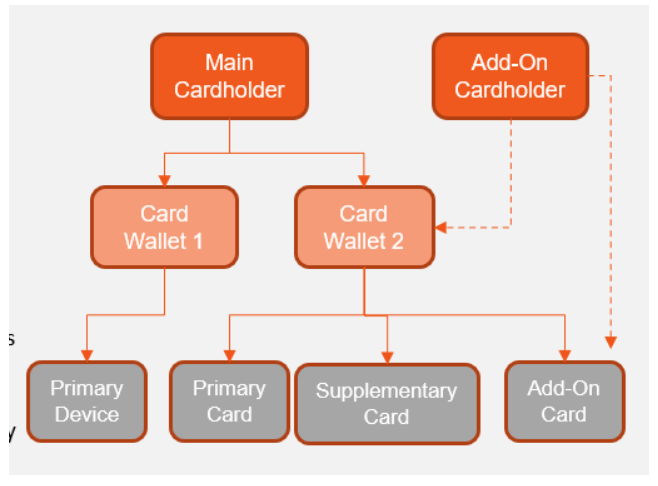
- Add-on Card
- Supplementary Card
Add-on and supplementary cards are additional cards issued against primary physical or virtual cards and form a secondary or supplementary card to each wallet.
Add-on and supplementary cards will have the same limits applied as the primary card.
Add on Card
Add On Cards
An add-on card is used to issue an additional card that is linked to the primary cardholder's wallet but is associated with a different cardholder. e.g. card used by a spouse.
In the API request, the new cardholder Customer ID and the primary device Wallet ID are required. If it is a physical card, the new PackID or QR is also required.
Prerequisites
- The primary card must be Active.
- The secondary cardholder must be registered in Eclipse as an active user and passed KYC
- Valid JWT
Example for a physical add-on card:
POST /eclipse-conductor/rest/v1/tenants/{tenantId}/customers/{customerId}/cards
{
  "cardRules": {
    "ecommerceTransactionsEnabled": true,
    "internationalTransactionsEnabled": true
  },
  "operationType": "ADDON_CARD",
  "physicalCardIdentifier": {
    "cardId": 347,
    "packId": "0PRG17USD0000028622",
    "pan": "2307660000148442"
  },
  "status": "ACTIVE",
  "walletId": 1089
}
Example for a virtual add-on card:
POST /eclipse-conductor/rest/v1/tenants/{tenantId}/customers/{customerId}/cards
{
  "cardRules": {
    "ecommerceTransactionsEnabled": true,
    "internationalTransactionsEnabled": true
  },
  "operationType": "ADDON_CARD",
  "status": "ACTIVE",
  "walletId": 1089
}
Supplementary Cards
A supplementary card is an additional card, linked to the same wallet and primary cardholder. i.e. the same cardholder information as the primary card.
When requesting a supplementary card, the Wallet ID of the primary card is required and is used in the linking of the two (primary and supplementary) cards. If the supplementary card is a physical card, the PackID or QR code needs to be included in the API request.
All supplementary cards are treated independently of the primary card. Therefore the status of the primary card does not impact the status of the supplementary card.
All Debit Programs and all programs issuing supplementary cards should have the following two attributes configured on the card wallet type
SubProgramCodeForPhysicalCard = Physical Program Code configured on the CMS
SubProgramCodeForVirtualCard = Virtual Program Code configured on the CMS
Prerequisites
- The primary card must be Active.
- Valid JWT
- Physical Add On Card Request Payload
POST https://eclipse-conductor/rest/v1/tenants/{tenantId}/wallets/{walletId}/cardsWhen a Wallet is locked, all associated cards, Supplementary cards and Add-On cards are stopped. If the wallet is then unlocked, all the associated cards remain locked and must be individually unlocked. This is to avoid the unlocking of a card that may need to remain locked.
Card-on-File Management
Card-on-file is when a business securely stores its customer’s card payment details, with the cardholder’s consent. Payment data storage comes along with PCI-DSS considerations and therefore businesses that would like to leverage card-on-file need to be compliant.
The cardholder can then reuse the securely stored card details for future payments (e.g. wallet top-ups in the context of Eclipse) thereby having a seamless checkout experience.
Eclipse provides the following options (which are PCI-DSS compliant) for card-on-file management:
- Add a card on file directly - specify the card details in the API call.
- Add a card on file but use a captive portal - specify callback URL in the API call - tenant system does not need to be PCI compliant.
- Add a card on file as part of a top-up - directly (same as (1))
- Add a card on file as part of a top-up - using the captive portal (same as (2))
1. Add Card Details Directly
This method allows users to save their card details by capturing the following information:
- Alias
- CardData (pan, CVV, expiry)
Prerequisites
- Valid JWT with access to read the wallet.
- The tenant must be PCI compliant.
Add Card on file:
POST /eclipse-conductor/rest/v1/tenants/{tenantId}/customers/{customerId}/cards-on-file
{
     "cardData": {
          "cvv": "562",
          "pan": "4242424242424242",
          "expiry": "0536",
          "cardholderName": "Mikel Arteta"
     },
     "alias": "Card-42"
}{
"cardOnFileId": "590f63a8-909f-4c67-88f8-2a21986789e4"
}Refer to the Initiate Adding A Card On File documentation for full details.
2. Add a card on file via the captive portal
The second alternative method for storing card payment details is to pass a callback URL on the endpoint below. With this option, you don't need to populate any of the card details but only the callback URL to the captive portal.
When the request is sent, the system will return a completion URL (as shown in the sample JSON response below) which can be navigated to - you need to iFrame navigate to this URL to populate the card details i.e. PAN, CVV & expiry date.
Prerequisites
- Valid JWT with access to read the wallet
Add Card on file:
POST /eclipse-conductor/rest/v1/tenants/{tenantId}/customers/{customerId}/cards-on-file
{
     "alias": "demo",
     "callbackUrl": "http://google.com"
}{
"completionUrl": "https://eclipse-java-sandbox.ukheshe.rocks/t/c6wJ8",
"cardOnFileId": "edb452d3-a47b-4e5c-880d-3fe84c5b1649"
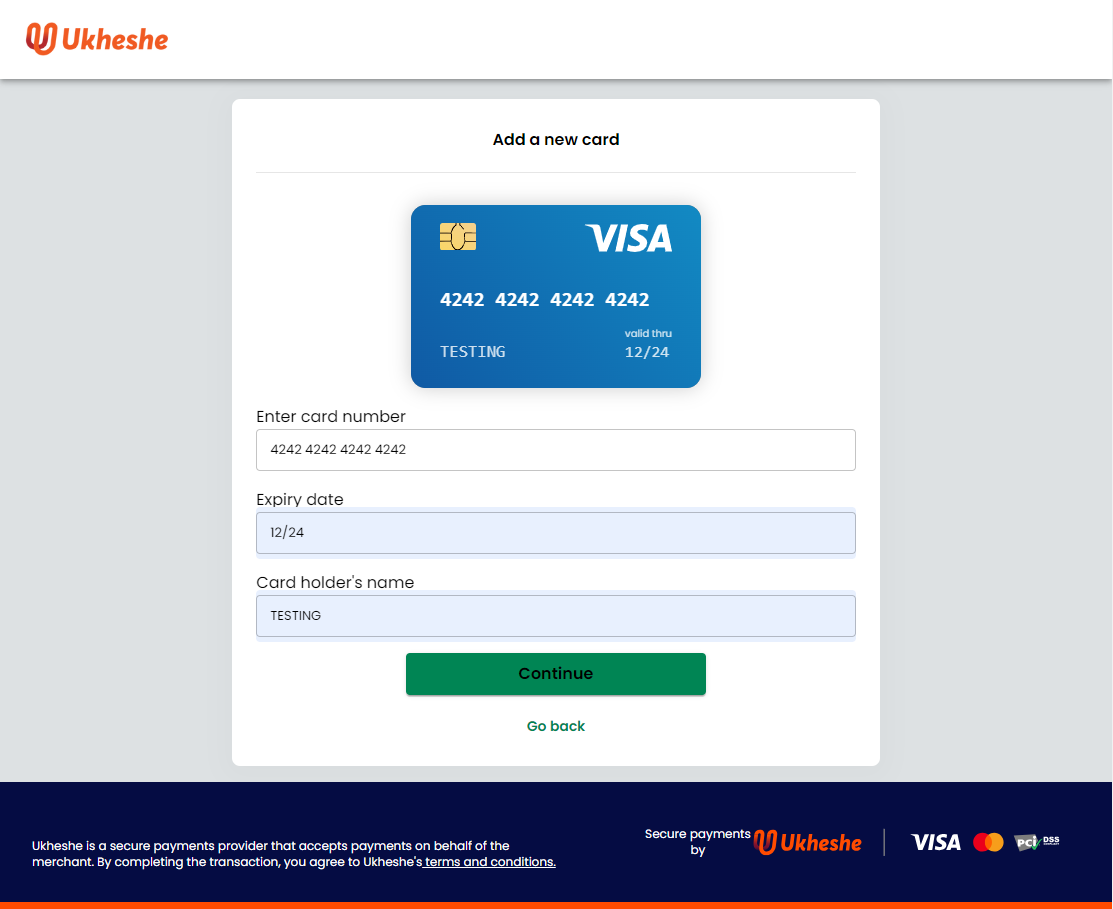
}Refer to the screenshot below showing an example of a captive UI screen where users can capture their card details.
Refer to the screenshot below showing an example of a captive UI screen where users can capture their card details.
3. Add a card on file as part of a top-up
The user-provided card details will be saved for use in future transactions that is after a successful wallet top-up by card transaction. This approach follows the same process flow as outlined in the first option i.e. add card details directly.
Prerequisites
- Valid JWT with access to read the wallet.
- wallet ID.
POST /eclipse-conductor/rest/v1/tenants/{tenantId}/wallets/{walletId}/topups
{
     "topupCardData": {
          "expiry": "1125",
          "pan": "4242424242424242",
          "cardholderName": "CLAYT",
          "accountType": "Debit",
          "cvv": "123"
     },
     "amount": 500,
     "externalUniqueId": "ref890889",
     "type": "ZA_MASTERPASS_CARD"
}
4. Get a Card on file with a Cryptogram
A cryptogram value is returned when the Get Card-on-File API is called with the query parameter fields=cryptogram.
Prerequisites
- Valid JWT with access to read the wallet.
- Tenant ID
- Customer ID
- Card on file ID
- Query parameter fields set to cryptogram
GET /eclipse-conductor/rest/v1/tenants/{tenantId}/customers/{customerId}/cards-on-file/{cardsOnFileId}?fields=cryptogram{
"alias": "zttydgbovO",
"cardOnFileId": "16174808-15a7-4c9e-886d-9d84584cfb02",
"last4Digits": "2999",
"expires": "2025-12-01T00:00:00.000Z",
"status": "ACTIVE",
"schemeTokenType": "VISA",
"schemeToken": "17f551c1cbgyuhhjc143ab1f7425bcd002",
"schemeTokenStatus": "ACTIVE",
"cardArtUrl": "https://cardsonfile-content-public.s3-eu-west-1.amazonaws.com/22af01f2bdf445e497895d502dd1f1ae-digitalCardArt.pdf",
"bin": "489537",
"cryptogram": "AwAAAAAAPuEtjg4Am00eAtgqsAAAA="
}Customization of Eclipse Hosted and Captive Portal UI
Eclipse offers hosted pages for many scenarios:
- Card viewing and card management in a captive portal within the Eclipse PCI environment. This caters for the scenario where tenants are not PCI compliant and therefore can not serve this sensitive data.
- Hosted checkout for easy e-commerce integration.
- Hosted AWS Liveness for easy integration of AWS liveness into a tenant's KYC process.
For all of these hosted pages, the user interface can be customised according to a tenant's logo & colour scheme. This customization can be implemented by configuring a global property for the tenant.
Prerequisites
- Tenant config captive.portal.config.baseUrl set to:
- wallet ID.
The following parameters can be configured:
| Property | Property Value |
|---|---|
| Property name | public.tenant.{tenant ID} |
| tenantName | xxxxxx |
| merchantName | xxxxxx |
| title | xxxxxx |
| capLabel | Label when setting CAP - e.g. 4-digit passcode |
| capDigit | Number of digits for CAP - e.g. 4 |
| isCapNumOnly | Allow only numbers for CAP - e.g. true |
| paymentType | Payment types for Hosted checkout - e.g. mastercard,ozow,pnpcash |
| primaryBackgroundColour | #FFFFFF (Colour) |
| primaryColour | #0083C2 (Colour) |
| primaryTextColour | #FFFFFF (Colour) |
| primaryButtonColour | #0083C2 (Colour) |
| secondaryColor | #FFFFFF (Colour) |
| primaryButtonTextColour | #FFFFFF (Colour) |
| secondaryButtonColour | transparent |
| secondaryButtonTextColour | #0083C2 (Colour) |
| buttonDisabledColor | #FFFFFF (Colour) |
| alignmentOfCardHorizontal | horizontal |
| inputRadius | 100px |
| borderRadius | 5px |
| mobileNumberRegex | |
| bankEFTAccountNumber | |
| pnpInstructionSMSTemplateId | |
| pnpDepositRange | Range of accepted values for PnP payments - .e.g. 50-3000 |
| pnpAmountRounding | The logic for rounding PnP payments to whole numbers - default HALF_UP |
| errorCodes |
|
| imageBase64 | data:image/png;base64 (Logo is added to an image to Base64 convert) |
| virtualCardTemplateBase64 | data:image/png;base64 (Logo is added to an image to Base64 convert) |
| successIconBase64 | data:image/png;base64 (Logo is added to an image to Base64 convert) |
| lockIconBase64 | data:image/png;base64 (Logo is added to an image to Base64 convert) |
| cardCSS | public.tenant.{tenantID}.card.css - this defines the CSS for displaying custom cards |
Example cardCSS public property: public.tenant.{tenantID}.card.css:
{
"alignmentOfCardHorizontal": "true",
"cardBackground": {
    "backgroundImage": "url(data:image/png;base64,iVBORw0KGgoAAAANSUhEUgAAAQsAAACqCAYAAAC6YmqtAABsS0lEQVR4Ae29B4AUVbY+/lXnnjzDRCaSYciIBFEBFQmKYMC0ukpww9t1TfveZgXf++1z/7uCbnRXMey6PjFiBkUFJRrIOU7OqSd17vqfc6u6p2fo7hlmemCA/rSZmeoKt6ruPfec74QrIRQSFibAhAfotxmAlJeXk5qHCM4rSDKwxFiDJYY63N6ahxK3HrIkBdw3W2PHmqhCvO5IwFP2FMjiBBIiuHBhaWptqK9v2g0J79ALX4uKtQXB9g3cE9IX5tE3L9DXMxDBeQtJjHYZk3UteC26ECus6VjtTKRtmgD70Z70y0cxJ/gXzGsZQEdy94gIi4sKsvwi/bsikNDQnLZzxsIHoZF2QWgTEZzPoDEvtIhDHhMaZS2u1TcqGwPupwiNT5xxyNfaEAtPRExcjJCke+nF70IayYEO0Lb7K33hY7TzE/SbKTKjXBhgAWCjnymSC/MNjXjKkRpy/1LZgKVkstRAj11uMyL94GKEZCI5MAcxw4Hmw5u8W9uEBWsUiqCI4EICSwtSG6pp8N9lqEeTrCEhEBVkXwgNZJGuAQMlO152JEU4i4sZEtEQ0cMtaDm8nf9UzBDBUUiPIYILEJIY8AfdNFnQf1O01pD7Mn2x3h2LfL0dI7V2RHCRQ0NygeUDfJyFtJx6SQIiuKDxOvERU/UtiJPcpHDIAfbgbRI+dsYKhSRfY1O3yYjgokUCTTYv8C8a1fNxDyK44LHdFY1Y4i6maFvbXCDtoJgc29zRsJC5cq2hSREqEUvkYscMDqPQUEdYiAguCrDGwPzFVG1z6B1lRbBM1baQcPFEFIsI2OXxoIY6wgJEcBFARiMpkh+7YrDI0KDGUAQBffWxK5bcp6SF6FoQQQRkikzXEIExDhFcBFACrNaTEIgjbWGRviHk3qyFNJFwWWSwRKyQCBh5mgixeXFhuztGuEen6FpD7CWJfbYTd8H8RsQKiQBCWERwkUAGc5UjJY7OdKPUow+9N6kTFo8O8cxZRHSLCBAo3DuCCxQSsjUOPGaqEFGarzvig+/q9ZYKj4lHjb6I4GKHDhFcNODM0yyNE7e25KGYBEYwsHDgpLKpRG5uJ0JUSRxBBBc5IprFBQ/2e3gwUmvDEmMt1jvjBBcRavSzbHjMVIVMyYVV9mQ6gwcR9C4kmZ+xjHEjczEuPxd90V8dERYXOqjPxZGW8AdTCfEURqywpXd6SLbkxDJDrQgR53iLSH5I74Ozg3d98iR2frwSC+ZORl9El4SF4nTzl3SKUSv1yJ6VxbH33joDC2dfGnSvhLhosc+MqflBz6H8KvvaBTliY/tAnfAWfT3ytXastiehRA5leSrP7g/mMhHB+T1rFnoDEvzeFWst/u/O+/7abYMSSarOvr6fapulDvvCV4lDPr3fyt4IE/9rtdX+kPyvL8u+tgbu/+3b2tbGjvup2/zOh9P2BRLjY4RclkTQrHR6SH7H59Su73eE3O45S37PUfLem+85+j+74JCQcWPIvcaNHIAFsydi07YD2LjtoK8hyx+5DfWWFvzxufeB7ooMeiqekrdRWFKJAZN/GHCXvOxUnNr+N7r2fsy85bH2X4pQZAl5Wcl4cNn1GDtqILWpGe+u/wovvrYREXB+hxWvRxegiLwfc1sGqUmowTQFGbN1TXg2qliYH6tsqb2iVXBvuWfRTNxz20xMv2wUCoqr8NKaz6mP7cc9t16F6VNHIiE+Wvy94sk11P8mY+GcSRhLfXH3gQI8/dx7eKnd+1UEwGMP34YbaL9xI/NEf+XzPv7kazhVUu3bL5Emn7ee/zmzMvTdGnG9BXRMA/Xll177XHweo77tbcPGrQfw+MpXsWd/gfLcRJeTqS15eJT2m0n71VtasYfatWLlGvp5knZR5mA2KVatWCJ+f5rGyT2LrsKMy0aK1r6zboe4twJf24CCr55Bbib195IqanuluKcbl/wODY2tarv/Szw9vv+1674W9/PUisXUloHiuTz02PO++/z8jcfFby/S/SycPYmuO0qM15de/xwvrvmMxu/tdI+jSEBFibH10KPP0zWrQ77vToXFvfRCX1h5Pz2IV7GcHrw4iAapp/xtcUMDJv8Aiu4h+06pSE6cZhZL7V6v2m3K3hQvdcCkH4h2Pr/qfuRmp+DqWx4VsiAvh4XF37Fp+37MuOlRJYlSPdpL2Nce/he92Bg8/ey7dGwqxucPwIApP2x3JeUltzXL97NdO5U/JL9ze7k9ud29KeJfop+yJAe4u76D58yFuFbfgttac7GNTYqAkMW9ZpG3ZF3MSdIqtJjWPBi9VimLHrpc/pbfs5dUwd/2zCH7P3dZfSvK3w2NLTRxPCoGqHK0jG9JfefBKd6f1NYHeQDMvOU3oo/xKQZQ/zix4+8QXh7SnviCsnpBSfKbpP269O4DpzDh2p96G08TWApO8jlEn6Kry4pq0kBC4yq61u4DhWLPGSRIeNAqp/eeUFaPAQmmz7D4ob/4HosQFlmpatNlIfC47dwYMWnueEacYfGDf1SFJQuF/xYCiPedcfNvfM+Sx6dXi/INcKnDrfmN/D3iHh/2CbpA6BpnIfn+UR6XT/pIvgfIWEAS7N5bZ9JDGoW2PViaRwnp9l36jveJj43yO1btkPSwczNThATk4/n3BJJ6/pfOy0kRJglLRK/qyDMTS913PtoupONNi39HN/2Ir6159PDvpdmDhR7PFt7W8vb4uGjfuROojbyNf8pQzJ8b5ir3w8d5VU7enpedLPZbOOdSIqPyuqLBnX1QWxeR+XGtvlloCducUaH3lxRvCeeCrLCni84t9dJ98SPfuHU/blqivCuLRQkpL6SBzbPzQJqA3iHt0CtLeLYfP+sRMXPy3wlxMRhPM7t6o7hhtqJN8N4P0z4DJn1fzMgMnmy4z7TrqbLSilM02d24+Aka4L9WB5CEhqYW0iTWiHbxAGQJMp40mrysFF/7nyJtgZ8NC5EBk76HS8Q9KLM/ayXtb1Z5jgWkPS956E9C6OwmLYXBff10yEJz4Gdw45In0FFYK6NFOm1L2+9QJ1RFkJ0iIXnzkieEEJNkZV/WVB7/wxqakH9Dz3mH2Je1thwhqIK/9C67TuUONpvc7qSSkKBiMKpSndUsHrgsj3Z+slIMRK9wZSnPL4NnCP9zvPAUaRXqSzn19d/x4qufUed5XRzEEvczugZLWL7ykgf+hH+SZLY0NovzsiqWm52GIlLhlPNKYgbY+fGTpGpFeycurKVOeBM9vM/ffFxcS9v/ZnE9FigrVywVUvufpKrx92NJQ1FmG1lI8sX0ssfRts/eehxrP9qBG+dMJhXugHgRfU5eULsfNNagkWbP5+1JnSoI1+oayVtShzecCeQxie1VRYn7EpuUkvo7q9A8O7LKz9qrJPrPVzTBTBbvdgnNvt79Vj2+9LThcyMRgvyeWAA9/ewH4pgC6gd8vunTRuIn992A5SQAvDclSYoYYsG0lq7Dm/k98uDdSwJg+ZNrxH4spLhdSpvbBuQCeu98BgsNuntvu0r0aR6A8dTP2Gw/7X7FPfxZtI+P5wE6btSAIE9HQj3130Jqv+ytddjtl0Gm1srX8Db1eTEm6bps0u0mU4lNIC+bsXD2FIUrUR5O0LN1rlmIM8rCtmOBwJ/PSPXxx4P3zcP0KaOEVNf0vxEPP/qC0CT4RfEJ2B5NHHEXDcybaIBvFAOe7cS2Cyg/Hlr+vHjJDFa/Vqx8DV61n2f0JQ/+CVeRKcLP78H75osb3UVSmu3JASQYTm1/RggUocqpqrXSppswaMoPxEzA12UhsYk6kvLiJ4mXOf0yRXvYe7AAP2H+g146zwSajJvE/dwjNKaR8JoqC6nDLKYO8LDPTuwb8JJ9T5pLRRDWfdYcNEIburvJEMFaTUR+Lrelec+EXpMYksZ72YDXkH1TYwcTsN2ubX9w35BVbaGtxKhEpus+9fsAmizUGVrqeJ8S2l1c3aejgOK/uT88SjzJY2T/54k+F5i7k7xmVkcNIMjzlSC1PYOQ76Cz99P+nhuIz1NOKynWgSR1OE3o83WuWajPjVXFQkHGKGHD8FOhWFpJGlmYBzzDs/nAjckjsmajdIBm8x14gAY3P9CxbFcGapOkzBze9m/cckA8srycNPW7k4KIESwx7RNP1/CeZzzZWkzYPLDsOnqBo0mT+QOpcT8UKlhucSq90NuFlsG8hrebrHr2fSEAeNCzysuzxa79p7CLrsMEGIPvhz9MdPE1mQ9hVZmFEEtptjnl3hpQ3QU1LkvjIqKyWSSNbXdGq2asHLQvLDXWimPYrcqayPkF4gpIu2SVm4WG//ax+QPFb5amVoQPilbN11v78Q4yf3egTarJgigNjK73E1md89tEpRRwL39R2iX0kKzuYs+QxIC6l2b2ex/8s5hRO0pa7wPk9jDRw9oEq3YDSEC8/fwvhLeibW+vbO5ob0mqMFCknixpfCSbQlr5/e13PNtiK558FQPJVt24bR/ZjjHCJGIV8vM3VpBQmCF2VTqTcj3WIFjdY1Z7AbtuZUkw1m1nVl+E2gGYQd605QC8zFtdQ2s71bSvgFVX9mYw9/C4NV0QsMqke3ob2XU2UmMjraJSmB6rHf2gdIk+JgA7QUFRteh/PBEtJM8duyp5YmI+i9/rU/94T7mjjqxeN8D9grkMvt70KSOJfzgl+gabzOxteEd4KQIe2CUoIkAhZ5mH8ek0siLwlfvMExMWewEVrSlc6Klm0QUIaUoD+ykiZjYK9Z6hvBRW1Vjtf5hMjKeffU+obONGDezimeVOt/G52b7jzfVETvHLEy4hEgzjR+WJAT1h1sNEXLUi741UH6kkq3YxE5g/WTZfbPuC2s5n55eem624u5hxl9HmFmHCjCH10UClpcQ7jNTY8Yg1A8UcUxHC5OWvHjIqz+4pIkFD7tyr6MkAloQ7kN2wbH6+8NRPhLnJ71mRDbLgHs781ryze4etdD62999+/mdC49y5YaUwacdRX4uPjRYk7NPPfRDgXF29G5lcsreLccJgLyG7V9nzyB4L5kQeoImXf7LQ4Db4tP2g99E1yJ3s2yXNQkg0vxO1BcEoYPaWW/vCyh+Tr/tWrFp+L04Sf8AMspeDYC/IyuVL8ZOl18MbCON1b3lncD7vqaIq8ftTdI4Hyazwqn0y/ANjZN8xi2mwM1ex6vHFdN2lgnDia7KZIPzGhFWPL8ELq36sekPUc6mmBMsA7libSCNh4pX7E79w3ofNEWa3VxHxeXLH31S71PtQPehLwV88m2ZLDiI1q3DAYxBEpXi9AYWaEkz3EBGgs/RNWOVIwUEu+3+2BaAvSEkK+J13JvW5HAN1Z5Uwv4pcqTzjs/Y447LR4px7aOJgrooHmy9GQj1IljsKA+/11P7t+7o9mc/HM1G5mLRsniS5H3H/YQ8Nx1h43blttyH7hJb3HtpfVmVk6Oeqf7yneKHUp/Iiaef+TgD2jrAg5ImKr8kmMceKyAE0Ju+IFSSpfz/tMJbb2ugfxBUYncZZ8ABbTGo8B4GsFayqIv1eWHW/mMkffvR5cYGfECexmEjQeFKL+AZZHXuKNAnmOh743nwRkMJPlrULPidLezZT+DzMJD/82GrRzlyaud9e/XMhMVmCr12/nYTAEsGXLCdTg+sArvYd87zgIlaSK2uc6kpjKc/Mt/CrE9jDwq5Y9s4wh8EutwepzZYmq2j38/Q9v/C36ft3qc2y2qMevO96wWlwJ2Bi6J31X4u2s7uVA9K47fwy+4rGLmYkY4WognVbywASGEYEJdCoc2RqnFgTXSj2mNM8UOEqOiXUwg2l6/EAZz6JnzO/V2VblOC+uD2FNIF4412YN/KSdWJf70CQlFgM7/eMQpqN27TCNvue+4xyjhbf9di9H68Sod4JTrSB3j+fzjvxtKdl2UuX5hOyhUWVKsHa9gzZVOC/LTQm6sXAl8U5+X4Z3n6qTD4Q28V3ZCIqAVtSh+elxFwwLA1NYqyxF5Dvv6C4pu26fI8yfNfls3DfTVDDBdruR20jb+OJ+jTCtw2dCotuQY2s7Pb3/vsxemPG62ob+jpkJZjoFn2D8ICstvfDCntGyENYWDxkqsYDxmrMaxmIA2IxoQgiCI3eob47G4RdHaT+7p2ewhfD73fuCwHqhPkQDXyubvWUXV1xLKiJJGOKvpXMlWq84YjHAZcJEUTQFVw89SwuFOHQAXxXj5oqRJ0KJjUt3kXmpGDuNtrfWI4S4jWEYOlR0E8EFxMiKernOThRjD0gHFPxuiOxU/L7YdIoRpG3ZLVDyUDtrZDuCC48RCplnafwpi8/alIIsse5TkUnCkKW8JbUYJsrCs+TsBA6xQWqcUUQfkSExfkKGuTsJuXSdytsaSj2GDo95DEzewc8fgVwItU1I+g6ImbIeQrWEnjtD65m9boz9GoOrIVcq2/EbG0TXrAniWP6UIhIBOcJ+rRmER8t4bdL43H9ZDPiY7RqdLfkiweQ/CLGT5bLGJQptW2H/75evq9D4kyAbYUVTvx7XRN++2ID+jIeNVcgkwTGfa2DhBckOGTESm4sN1bioMeElY7UEMVvIoggOPq0ZvHbxfG4c2Y04qI1bVGfclsUp9+vsDngF3Hn3d4hWs77h+z/Z/ttuel6/PLeJFw7OZwx9+EDE5KcTn6trglvuBKEloCgiUbKTXFGaabGIepUNIUULBFEEBx9WljcMTPKN+DbRbT6Swn1V5O+bVM7gaHu0+7vducKsI1w88xgVaXOJUhL0LhE4lcpcRQrbBkhtAQlaJgTxWbrm7DdHSUK4ESsjwi6i77NWaix+qcJh7ZJU4nbp/+drtPjkNqF/8sB4pRCCIykuL43A3N27VJDrahTwa7PUOYHi5A4uhnOQG30aPFIa39/qyyCCM4YZ0VYcDw61w98e/XPcMbwCgyPX0KOjHYmBgsMlwttAsFv8LcXNgiYdAO/TbLsguxqhsfVt1YPZ/MjX2vFQ8ZasRI6uz4RQk/gp3WLoV6YH6udSUITUVKFIuIigu7hrBKcC+dOxvJHbvUV/u0Mx8vgLaqkkplKkpdw+Kk10yV1ujQbpHbKgcJd+n4TUmLzXg/6J/sTmpJI2JE9JBg8NjjsrXB7lPLsZRX8b19RvGSRoMSRmo3UphVcp8Lv1gKBzQ/OKuWFkFc7vOnnEUTQffSasOCMPc7O5BqHnKG5+ME/i7qWnKfP2Zr+JdCDYRCHA4j0EGVkCMGhCgdlrEs+D8mpCqVKs19hZ5/A8G5PjJEwsD+fhASCu4mEhJU+NuViPq+JUvyloLIPDS7O/TBVY6reilXWZBGqHbpWoowHaX++g8e9ZfIiHpAIeohemzo5jZZL6b39/M9FXQsuiff0s++L77i+RJegmhSyP2kZiPCEN0NfPn0C9TvW43bC46iBx1oMt6MOstvaZqL4zBDlj740tuIkj+AqDroMWGVPCU080A1wBuoc8pa86UyIZJRGEDaEXViwYOAP19PkGpVcl4JrSjC8VZO57mVXyoHJ7YqQ4IwIz3aEpod4CHsVmi3FkJ2NtN3T/vsOP4PyGmcdquvTXC4ExsO2LKEhyEFcpfxNnMYjUs8t9GpXiupXEUQQHoRdWOzasBK7PlkphMGDj74ginMoa4GMFL97y+5x6f1OIbcNft9Kb10kPL0Cw2NvgNtaQvKi2W+lvACEZ1+QDR1BbZqqbRaRmm84OKbCGHJffiKPmcpFBurDrZkipkKKhGpGECaEnbPgBVS4UC5XmmIik00PLk3Hy88xd8Gl7Pj7sQHWV+iI8joolYckGe39fjSLaiQfgekrVeZl/QRvSdqEo5J+2sWxfLilVcaRIlmtAXH6Of0n7MJy4Nw5GpUBHi+5RUEbzvtYbk/zlq4ICL6VfCI1b9E34hNnHHlMYlXiJsJVRBAehEWzWLViMXZ9/KTQJlaopsY9qubg1SS41L7y937x07t4SyiYiceL4o9eog8QzR+aXGNM9JO2x/DHJCPa7Mc7sBBw24iXKCVtwq5uV7QRvRZITZDpA6SR5zEtUUZ6IpBOv2f0o4/4KSGDPCbJied+kN1saBBaAhfT5ViJkEoCffcHMleauNK5nUlNKSIoIggrwqJZ8PqRvMISmxZPPfe+MDeY4GThwcQmw1s30Fv7r/0aD4GRwELArzK9ok2gzUMiefNDeBUnWaghsruVTI8qn5vVV7yRRpPJoHhEvB6Ujjkk/n/HGM+d+s7NmKJtEWHarCG87kwMMfCVdrK3ZKTWhkes/VHi1iNS1CaCcCMsmoW3kK/XtLCoFYlFsVPAV6E4QS3mK36P71xYCO5BrAqv+jo8wQlPsRuZHG5rhY/A9Oc8TovgbPe3fDrheQ7HGbfDWyZvuTU9ZIEaNsK4qvfNxGsccJtEERzlrUYERQThRVg0ixnqgsOFalXkeFVr4JWiGAm+v898ZSixeJFvWW11MSNmKTxqwJasFDFnj4e7tQLeka5s9dZg9vtd9gvYkv0K0bfFbilayzlRLJSLLjJYMEXXKhb9KZFDx1TwvXEGKoeAX9Y0RA0B97IbEYERQfgQFs3CKww42EosE0h/e8use0v0e5d18/7dVgI9BGQ/X6afx8PnIfHTMGxNpFF4nO1jMTpqFep3HUPC213De9lzUm+OtATiKB4yVWGbO0otUhN6wM/WNYmlCrmqd6lH77d3RFBEEF6ERbN48LEXsHzla2K9hRef+rHYJlanBnyrSovl69HGXXi1kFAorm2L2mzjE9SfflyGy9GExmZH22CHolu00zBo8De3yDhchDZ73ucVgY/H8KKgDGcdysI/VciUnHjE3h+daQdxZHyxuVJCQoLTzyOIoDcRFmEhtIRi5XevF8TrFWG3KWPtuh3i50J19fS2ZQ6DIytBVhfV8iMzvSHfXvepTOaHtR6VlWpYdztRAR+5WdMgYVAmCav0NpIU7QrotCc8i2vOvmbBpCZzD7ya2HZXdEhZIQlBUYl8IjWXtWTBJ/x8kH3HqxYXItpGBD1B2OMseFk3BmsZvBgyaxIsTF7k9SahrEzO8GoeoeC1BtrpCMxkalT+ggOzXC3kAXEizizBapdhNrYJDH9eorTGg7GDND7OQ0DyuxD8wxLOfm5mHMdURJWJ7NCnbKkhBIXyBa96ziHgH7vi8Al9Ono/cvunICcrHXa7A5U1DSgsrTztHBFEcCYIu7DwCgXmLrw5IF4tgxchZuHB6zXyp1PIbdSkMpC9a1G2EZ4eW73YNSlGRkOLBLPBe0x7TcPl9s9KbTur7NUu0IHwPIvgq/LAz2Lzw9YfxYLUDLSn0u5YuPGsuQiNkhYrrGl+J/Jg1JABmDVtPEzkJ+akOA1pYhqNVihkhWVVJMQryQSsRHl1HQlXh68FEUTQGXot67TB0io0Cs4PYQHCwsNrkngTyjqFj4SU2v728gw8xNw2EanJ24w6CTUkNzISlB3FsJLbBIfHI7XTKtrO6ucrOUexCVnkyWBhsd0drS5oHAJ0D4uMDRihdeC/bWmCr/A2eUhOf1x92TjY7E58um0PikibMBkNSEtJxIDMdAzMTceAnAxoyXyzO104dKwIp4rKUFbVQJ9aRBBBKPSesGhswYDJP/D9zYsds1bBHhOv9tEZSuo8yErS+IazwkX6CQBnq09w1DUBiVFebUKFn3mh13o1hzbCs23f0x2tu473vtBQrCSZtIRiJVGsNfQapdz+WI1bkJoH3QbygCT5yuql9ovHglnTUFpZg48+/woNzeympu+aWlFBZsieQ6cEz5Ge0g8ZqYm4ZPRQ+gzBpWOGCA3E4XTiwNFCfL3nMJ2jFlabQzXGvNxNRPu42HFWit/kqRGerGl4TZKu4PE3bPjbMrOYCUUgJsdaadoEhuy0+pwZtSQsJgxEm+kitTdD4sxAqw2IEhnbKuPXTpNoEx6FVTJWf9T7g4ObwEli+Vo7VtmTRUyF1yIKODapvSvNJYLfeNyWrZKWCmZMGQOHw4kPN35NnqHA8Sx8f+XV9cIE2XngpLjEoBzWODIwODcTl44disnjh5PZIqG0olYInh27DqOkvIaenQMRXNzonVXUA4BdqCwsvBGcXcXgDB1mjTMh2uQXEqIy+63NpDrLbrGpulFCSjx8g8xX+t9vQLXYQefp6DWQ2sU81VHz3tysITW994UFR15+FHNCBFJNax4SglZVAkW48O4/oorFGqWrvAsgk7Ywckge5lw5Edt2HcLWnQfREy1gSF4GfbIw5ZLhSE6ME4KDq5GVVdTgyKlS7N5/AkdOlIhLyB2aGMlFubBx1oRFBKfjSdISbtFbcHtrHrZz5e0Q+R+cgfph9Enx19zmQWhUF0COizHj7gVXo6mlFf9c+6m6fzcHrSz7Ko3xKZIS4pBDXpUhA7MwYnAWcjLTiCglr5PDgaMnS4gTqcLhE8UoLK5Ei82OiKlyYSOyfOFZhyysn1n6RizSWcRqYlyiv7NZeYmhjjQRxVvS6A28pcE9Ln8wDAY9Pv90D3xp992F1KYg8M/ahkbx2XXwhPg6OTEeE0YNwogh2cgjt+wlxHewiWizOfHNvqM4SITpwaNFqKptgNdzA1+Mh3qBCM5bRDSLc4A4GvRrogpJW/Dg1pY8Jf8jBDhY67XoArzhiCdhkemjNAZmp2P+NVOw++BJbNyxV/Um9/L6pWqsPAuCnMxU5A/LxaihOcgjLwuTrFqthOraRuGeZb7jFGkdJ7k4iC/6LYLzFRFhcdagRJfxIHvQWIkHTTX4aWt/vO5iV6kU9BBWQ1iwjNRYMadlEAkWZTUlo16HO2+4SoTDv/HRl0Rq2vwPQq/CGy2ngq8WFWUS2sYoEh6TJwxHRkoCYshEspF5UlljwYEjBdj6zSGcKKxAMzPNbX5wv3NGhElfRkRYnCV4HS9Zkp1IzZMinfy21lz12+D5fEuNtWIFMl4pfbWtn08OjB+RhysmjcWGzd/iIBOOfQZKlnBUlFHEdYwdPgCzZlyC/imJ0BDN0mp1oJI8MuzK3XPgFL78an8HTSgiMPoqIsLibEH18b5GWsIIrRW3k/nBAsPr2QkETjv/KPoEij16zG0ZKAYh2/8p5KW48drLiU+w4M31W9D9ARbs1fd0wPrHZijCIy01gfiVAeQVG0SEaSaGDsiEhhizqioLjhWUYRd5WY6dKsM3e4+hncbhPV1E6zjniBCcZwtqTMVkXTP+25ahLGgcZAAowVoeMleqRbDW45yqrlb8Ykbi8omjxE6fbNmJngxsDZ3TaNKLsWi329uiXkMIsK5Bavc7n6+iugHrN+7EOvrw1xmpSRg/ajBmTB1FROlgXDVtDAkPCVqyqzZu24d312/HkZOlKCmvjSgbfQQRzaLXoQaFwY11pCXwwJlHrk+LiC4L7iq9lVyq7FpdpcZUyCrnMYLcmDOnjce35H34as8RhE5564y/kJEUH4Pv3zUfFkszThaVobSyDscLSmG1O8/wXJ1DUrUrhfKQRPQqVAfO0EF0X5eNxohB2Zg0YaiopMaelvLKeny95yg+/mKP8LQI4dGuTeLMiKD3EREWvQzvTM1VutlVyubEAU/ohX9YsHwUe1xoE/OaB6JR1omBFRdtxq3zrkRTqx1rP94s8jsQIpArISYaDc0t6GwwXTlpJBbMuowGp0ak/dscDpwg02Dv4QKUVlSjuKxaPYMUIhYkHJB96X3DB2fj5nmXieCwkeRt0eo00EgsPOrw+nubBVm6/0gRLE3+0aoRodGbIGGxUPb+GkFvQMZUXYvwaPDK5yvEcoKhC5Q9aKjCw6ZqUXz3dZFYpszqM6eMFTPvOxu2iXDs4HyHDKNBj2W3zyEC8QAN+lMhr8cT/MP33YTs/skkhLYhOyMFQ4hTSE6KEwOUE9OOkrax++BxEhw14tPxeuHoP20mkJ/mwQFpsdHIJ4ExdeIwMsHyMW3SCCJLJWhIuG375jAOHC7E+xu+wb5DhWhoOvPSjRF0DRLSFyoZFBFZ0StgLYFjJLK0dsxtGqyknweD7BEVul+NLsTHzjgRU6Fsl5GZloT510zFUbLjP9u2C74VozvAmwtz9eXjMHnMMJEn8s+3N6gzcDCORMao4XlYcuscrN/0LX2+htlsFBGc40YOxHAiJHOy0hBNmg1ftbicBEZ5NXYSGXmIPDGt7AqVvHxH77ttRw/PpvbmYNrkkZg+ZaRYAU+r06KxyYoPNnyFL7YfxJ6Dp8SqeJKvKIrU+227wCHlDl8kF1lciNgivQNe+ZzTz39KWgKvKhaKPOSB/lH0SVH9iovvKjEVyr53zp8htIVX3v0spPnBW1OS47Fs0WxU1loEkShs/i+/6TT35I4FV2Py+GH4y4vvkIeiVMntVX2+UWYTkhNjhWZz+aRRGJCdrqygoNWguLRKhH5zBOfn2/aid7VU2ffTmyc8ZsQAjB6Ri+lTR+Le22YKjUND7a6rqcfGzXvx7sdf4Z3P9pDWYe3ltl3YkLb96hF57r9PocEeERfhhSzCsz+MOYGDxFHc3pwbYmZT1mZcaqgXa4VwBupTjlTvZkwgr8ElY4Zi0/a9IpkrFCTSTu5YcBVyM1Pxt5ffx+wrLkEuaQWsXVRW1YcUVpnp/XD/PTegjHiBP72wViUjA++bQiYKX2PE0FwMzE7DyGG5ItXdarehqKRKpLvvP1KA/WQiyG0l1dVJvncH7Iyp+SJxccE1E3DluIGAizQfmxW7SNPYc6gIm3adwLubj6ChxeErE9DmrI0Ik2CQWv/4K/m/Pi7Hn7+tRwThA3fCZ4mnmKKz4raWXCI1TQgeqUmCRetUYircBsxrHahspk9MlBl3Xj8DtY3NeOujLzsdaJdfko/LLx2JDz//GvsOnyTXqBHfv2OeCAN/6vm31byP4OeYO30i5l11Kf699jNs33UYoQhUL6/A95qSnIA8EhpXXTYWg3L7I41TgIks1dGHBcanm3dj96FTqKquR28XLVSKHrVROldeOhQzSGjccMUwjM3rBzgd8BCJu/doKTbtLsC7O05hT0E1LK1cwyPsy/9eMBCaRYLOgzn/V4zCRlck+KWHUGptQJgeipaQKjQFwTEEUd64c//BXIZbSLPgjNKDwluiDMIbr70McUTwvbl+M5paQqnR5C2JicK9N88SPMWLb36inhuYMn4EZk+/RJCXuw+dQCgTxmwy4P57FyIqyoA/Pr8WtQ3NQfhLP15cltptYyHCptBU8mSMzR9IwiNdmENsHlSTacS5Iiw4NhP5WlFV56tJ0nYaqYcTfKBQcmVLbnoCxg1KwxWjMjF9RH/kJBmRYNQI1/HG/aXYc6oGXxyuxN6SRjRYnf5nUX5TCqpclJDmX3m3/OrCTLy8tx4/WFcZqQIdBsRJLqzzpZMPFOnkoVRczvvguhbPO5KxnIv1qrPbEJqhr5w8Wnghvt13PIT3QxFSc6ZfKnIz1rz/BYrKlGUieSSyAPj+ndfRRK/BC2+sQ32wxZ7UJLGxIwbie3fOw4cbv8KHn36lajPd6ROyb6Byab/ZV07A+FGDMH70IFEbVKvRoqrGgi937MPO/ceJvC0jE6hW1VjC3wclv/Z4mxcfbcDdM4Zi+tBUjMmMQU4CEdAul/Cq7Cmqw8vbS/HF8XoU1dt8MSIX6/gQrtN/zM3Ad0ZEY86aYmwucUQ8Iz2CjCdZS9A34HvWLKwnr0bbLCedti9XveJcEdYAOFGMC+Fwp2bzY+70SXC6lOpXCqkZ+ByMkYNzMXfmpdj2LRfAOaBWG5R8YeZ5melYfOss8hKcwNvrtorv5ABtF7wCkSU/WUKu1AziTlavRUlFNbotLNBe61BGnCyExgQSGhPGDMZwIk3jY6OEO3TXXhIap8rw7d6jOHS8VJT4g9x2Kt9icd0WJrKvDWiXOq+YVbn9onDFsH64YVQyxmREIzdOB5neQUFNC/aWWvDegXrsrbBiX6Vd0SEl5YldDIwfCYsFcm68HtvuysaeChvmvlmOiGbRfUzVNpPrswgv2BOwwp4RciZi8+Mxc4WoVfGINQOvO5N8s/vVl42nAZ6GtRu2oba+MXhouBpT8Z2brhHlcNZ8sAmWRmvAS9547VQapEPwt3+9S+p/fchiO1HEdTz+0++K4Ky//ev9oK7a7sGjVGj3kyPXXzsZE0lwcK2M/KHZInpTS56Wz7bswVc7jxF/ckREbzaRiSX3mjkg+5JpvRPm2IxYzM9PxPUj4pETrUOCnlhntwsFdVa8f6QRXxS3YnORFQ1OsUYFLmSoQVkSfjk1Eb+aFI//2liDv+xp8n0dQVeh9DImKbM1Lswh88Pf9Rlof65T8VxUsViq8HutOb7ZKb1fIubMmIjDxwqxndyeoWdRGTMmj8ElJATe2bCdBndpEK1BWWbykWU3w9LUgj88+wZCmTR8/KJ5V4p4jWde/kDUzAgf5HZX6xifwdW/rr58rAj7njN9PBLiY0SdjKZmKw4fL8b6jbvw0ee7UFxW1YHfCKbBnWnb/Is3t503wajDmHQTrsg244osMy7vT+/X7SZi1InCBhu+JK38yzI73i90+CW/yX7akO+f8xK+cG/uIAeWZCGepqeRL5WiwdHTh36RQZZF1e2HOPJS1KlI7PSQNVGnMFXXimneYC210hW7O+Oio/DRF1+jpdUmCu0GexXswrx74dU4UVQuIjtDvTMelFMn5mPezEl4a90WwROEAnMdv/nJnXxz+NX/9+JZtde94o7/zSdtY9SwHCy64XKMGZ4rhAebLKWkaXAE55avDuLLrw6hqLT6LLSxTdDlxulxZZaRhIYBoxM1GEMfwXdYXfiy3IHN5S7srfNgc7VHOconQM5PtOWGUEe6kqTlhzf2w192NeLnWxovajLnTMHFd7fEHiNPhkloFaFdjsBiYx2Wk7dE1KkgYtO7neMpRg7JwZZvDgoBIAedKZXp6s4FM0ljiBGuzsbmlk7dkiajHvfdNgeJ8bF4/E//7rQDjyNvxn/cfT227TyEF17/BGcPQYrjiGjTXIymz/XXTCTz5VL20AqThSNL9x4sxHuffI1313+NBnI3exkF2f+UPe7THd+JEtQWT16VKzIMmJ+lwXVZWpp43ZBJ82Dt48sKNz4ok/F+hYSiVrTTPBT0/XHml0im/Pj71Um4PlePue/UYl+Nk7S8iN85GJRXrdjfz5I5MUXXgtta83DAZQxh48uiTsWa6EJYPFrc3pILi1opIDrKhPk069c3tmA9aRVKibwQZsy44eKzY88RbBMxEV0DB1Etu30eCYADeH/DjqDchXd2/yEJi6FEQv7P0/9GTX0T+gRk5cnExxEhOWUUxuQrEZzjRw1EUmK0+G7jF3uwactesfrdpq+PooHMGEVw9HafVto2OlHCqAQJ8zOAy/sRma31COFR2OzBlmoJm2sl7GvWYF+jpoMp1TfRXljQ/2NS9PhwfhL21jgw7716RDSL0GDVfpa+SXAPq+39iNRM83LrQY95LqoIs3RNmEfeD0WwKPteN+NS9EuIxfuff416S1MIrYLsehIsdy68ShB+r7zz+Rm6GmXcfePVpMHk4o8vvoOyqrqQ+w4bmIn//P4iwVv8+aX30Bfgn3QmoK4Dw7zMgjmTMZMEx5WXDEFeWrxYX0ZEcJLW8af/24jdR8ux50QVegWyqo8LQc+kp+Jv5aaOSpBxZ7YHo2M8mJZA3i0Pfe+RSdOQ8UqpHpsbdNjfooPFFZqjOldjMmCK+i8nRuOXE8y4Yz25igqdiCAYZJEotpXMj0Zi5zmfI5RGwZhKpCYninGeCGeVepOceLGfqRNG4tv95DI8wUvSS0HPwd9cPW08uUtziHvYiuJK7vhnMFvKHiSSUHpg8U0or6rBP/79QSexFDIWzJqCG669DM+vWY+tXx84L5KyWKDkZSVj7LAs3HBlPqaPyUFOPzMkcoU21DWR0CjFF3sL8M72k9hbWKfMl2dlhiehpiNzKk4RGlfEuzA1lrR4Fh70brbUK0LjwzoD9rfq0OhSF9ny0a59RliQ7WXQ4KPrE5ATJSPr5QZEEBy8QtgifSOWtmbhY2dMcGEhK8FaH8UqXgU2P4o9BiEr9Hot5s6YJDrDhxt3wOlyB+kQYh02DMjuL7SQL789IOIm5DMkzryz8jWXj8e1RKa+9sEX+HbvEZVIDXyeaJMejz78XcSYjfjxr/96nsTiqAEa6kpz3Oa89AQsmDYMV4zsj+kj0hFnpO+cDjRYWvDOjlP48lA5Nh2pRmGtFb0JJSRdXYiT2hVPlui8fnZMI6ExLc6OLL1LcB3c/s0WA9bURGG/1YAD9DlXz16L2BHL22+SYKc2Hm1wY9kIk5B0m8ud573bJ7xQhvJsMiX+w1CDd11x+BuRlMojCvKMSCr83FiFGfoW/LQ1EzvJXSrUU9p+6ejhSEtJwKdbd6HZakfwcGdl4/yrpgqZ9OnmXXB55DNn2FUt4hQRqCOH5mHciEHYvusQXG5P0ENYgHEZPo6+jI4yYt+RQqXyFaQ+3C1UbUmSfPfc0GzHjkOleG3TYTy7bi9e33IcR0sbhPlw66VZmD82Az+ZkYf5o1MwOTsGCSbiFMqa224xXCSp1L5ddo/k0yb+Xh5FwsGEbU1G2Gj73Hgr5sRZcU+/RnwvqQGXmGwYrHfggN1Axyl9CKd1g/C/lADCQkFxk4eYXR2uz9ZhQ6kTVTZE4Ad+FX+OKhE1Mu8hLUGsBCq0isAvKVvjxG/N5TjuNoqaml6tPzEuFpeSB6SgpBLHT5UpL16cK/B5Lh09VKxNyuuEVNTUoSedgi/lcrtEEV0WFCeKyhA89gIikGsQXXvM8AHYf+QUGppazlxQ9SHYnC5UNrTiq6NVeG17Af7y8RF8daoelRYbEswazB+VghtGJOFXV2XhirwYjE0zwUZCs9gSLJo2DFAHvcWtwXGbFh82mPH7ijhsb1G1ChLYl0XbMCOqFfcn1WF2bCsmkPCI03jQSMdwVbXekt4hyuqRXWUgaXdLLJGdLlz3ces5s5X6HmQsM9ThN+T65IH/vN9q5oH25Q/nimSRwJjWPBQWWVl60KDT4qqpYxETHYV3P90Gh9Md9Bx89n6JcaKs3pFTJaSF7EFP4c3OvHfRtRg9bABWPveGyM0I5TLnyuJ/+M19IkaDE80u3D7hIa1Cj7GZMbieBMb1w+KRG6uF7GLzwIkvTjWKsO/3jzVjc6k6k6r+WcWD2HtEJL+3y6KsyDfZMSe6GaMMNsGdNZCwWFrZH1tt0TirmgXDRn2X1yO+c5AO++o8ONooIwKIQf8n4io2uWPwlD0FtlDFd+mRsWC5xWARpsomV6zvKy4kk9s/TRCaFdWhtQS2ba8jt6pOq8XHW3bB4XChx1DV4KLSSlw5aTRys9Ox9duDvisGQqvVJly8V04ehW/3nYCFYxkuxExlGpB2t4zCehs+PlqHv2yrwMu7arCv0goL2em5sTrMHxSFu/Oj8J2hZlyRrkeaWaIxoxxnF3K/l54LnbbYpcNOmwlvWOLxz8YE7LSbcWusBVMMrVhnjUOjR4twQyvFDlsuBSXIJOytc2PpUD2uTJXw1yNO3/aLE4qwfNJUhpFaO+4nUrNYNga2YcUzVepU/DaqXGgTXC3LDqUADNv9XPaupqERO/aEqhuhnHvYgEzkD84j9+UJnCqpQDjfgc3mgNlkxNgRA1BaUYOqWgtCNAUnC0ox9ZJ88t6MwLpN30A6h+68XoO/d0idDFhI7CVh8d7RJqzebcErB5vQYPOIFPeJqWSy5xqwbJgBi4eQ4CC6zyQpgsPi7DjJ9vRZSSqvpWTn2ql9x51GFDv1uC1GeXcbrVHCfRtOaBOSRy3nGzr9BpS/HUSgHSONYslgHXLMwAelHly0woIeExff/bmpShTfVYrp+nWqDjvzu2LBMl5jFSull3jamOxJJChios3YRsSizR7aPR0bbcLsyy8hjqBZkKDSGXo/OgOfqpC0i/Fi0eMcfLX7KHEY7qD7O8nWbyUilrULPvbg8RLgQhQYAlKHgCnlwwKyweHBl2SCvHy4Gat2teL9AjsqWz0w06R+TYYW3xmgwX8M0eD6DGAoOcpIpgiNo9EVhucU4BQHHMrE9eO4WpG9/K3DjHC+E+3j109fvuFUS/A9qHcfa3TjilQtLk8B3iwiIsUZpLUXLJSZgUnKNdEFqCIS6R7f0oPBCcERWpvIKl3t6KesaaouT851Krh69hEyP0QyVCi+gwXUhHykJSeJ+hJWq0PhCcL8+Fk41DU0Y9rEkXCTXX68oCyIxqRcm4XLRCJmx+WTJ2XnQbSwF+di6hPt3pnCUVRayXNY4cbLxxxYecCBzZWKdymNxvD1GR7cnOnBDwe4cV2aG6l6GkdkSbIXhD0a8Cs92G3BS4cddJqwINqCBeZGYY5UC3MkPO9F86NJSRidGqLiNE1jfB8/2+kUas0TY7VtLbvIsMRQi1hinX9q66+w1iEeQSYJlpXmUlEm73kSFl7wAsKD8zKF7X+kkOtphuApaGCyUBmal4Vv9x9DbUOTQqSGfUwqs6WomXnoFOZdNUlEkga8P2+HprY99dzb4n7uvmWWknJ+0cFfq1R+l/2++5KExQ++cmHaBhdy3gW+s4PGz1ElDufnQ4gknWrFnsub8N74Vvwsz455SQ7E6TzqWboxvthUcmtxS0UucRp6PJdchBytA+GqtqH91dzpy4cl6vHyfguCSjVid9l1ymTnzdkSjpBb9ZhIEbh4OshIjQ1PRpVhhzuKSM1UxZwINPOqL2aZsQ7z9Y2inP8uTxS8e44dPhCp/RLwzd6jiutRfBHcjLnm8gli3vp02y643Z6wmh+nX1ImvqIeE8g9m56ShJ37jnZQwf1Af7I2kUL3Mm1ivqjsXV3b0LvtO1/gfQaSN+ZSI+IliOoQ+SAvFJFLtFKHbxo1wjQZGuXG3CQnbk624cZ+doyMciFeq5j7VU5vR+uQWKdcoMOFZTGhc87RAdIw7oupRRZxZp/bYojXkIL0166DCM7hy+8aFYOieif2VgdSJdv+3tfgwfxMYuXTgb8dx8XTMej9vBPDkZcSFrQMFCRlUK6C9mVS89noIhxwm8m1mgGv8zwhNhrjSW0vr6olO78YbUE5Hc+hzCxTxo1AVnoKtpCHokoMRKBXBTSdurHFiviYKDJ9hqOE3KiVNfVBMlOV+z9EQmLWFeMxZGB/bNi8y++7CBT4PQuprd9UOSTsa9LiLRIazxSb8FGNHt8064RmcXW8HTcmWXFvSgt+kNqCS8w2IVSK7VriECXBmKjEVdBrlboMIkL4xzE1MNK+G+0x6ivsgbDY15q3fBH5kNkNtHpvg3CXBoPdLcFIVsjNWUpbWUpeDFhqrMUN+iZyfaZgkzM65KDlrf+ILhbj6yfkLanhjFJ6S3qdVmSIyh43viKtwuUKtfQgxAI/U8YPR3UdeUuIBO11QeEFNfzQ8SJcNW2cWOl8x85DKtkZ+NpMdjrp+5lTx4k9DpDwiAiLrkNSqYpKlxb7m7V4u9qIl6qi8HaNmbQKLQkJDyZGkfBIaMH9KRbMiW0F0eTCbRr0OaubDzpMiNO4cV90Hbbbo4Xw6Mm70VhIOvzXZ5WIIxvjl5NDF2xhTeavx2RsrpbxixEyRsd51JDfCxO8BgcX0+XVzLe7orHSntJp8dpFxnpM1bTiLXsCDnqM8K5IkZORItYePXiiRKjvoR4bq5JXTBwFvV6PL77a04OCuf7n7Mp7UjUd+v/Zf3+IpMQ4UZ1b7uSQjz79CoXFFbj1hisRbTaKFIGLkdPqDmTV/ekrpcVmhEuD/VY9fl8ag4VHknHJwQxcdTgdf6iMR7behf9MaUC2LpQHTfJprc+19CMvnB6v9ysgjbdnsTka7rTvHWvGB8dacNfIGIxJ1nd60A+/VQqO/XzYheouU8ADnatfxcOjrlEaYADIsi8tOY72e9RYJcrpreJFgpSFIcUAGj00D9UNjSgSpeCAUB4QLp2fGB+DXfuPo6k1XHH2EtBlwU729alSEX5+z6JZguzsbP8X39ggFkX68eIbfF6fCHoIdZJodJLwsBnw+8oE3FSQTm5RCW/llosQ75Cgd1BCBPuSuhwR5/NsfIEoEN1dKBGc1KhPClrwqykJSCMN481jXldq4A7d6FB0p8V5HnxYIaHSHnzf8xHeIKPZZHo8aKoWMRVvckxFR1PAI/uxFzJ+EGPBDE0jvtearQZrKQTXuBGDRazEV7sPixXKg2emkmCJjiKtYqRYP5SrU7k98mn7+ARNoMEfikfqMsekuHo4QOvKyWNEpfE9B04Gt5PpvDXEbZhMBiJkx6Kqpg4FJd2tCB7BafDnOlw68d4XxjZjsNGOd5tiENockch9qkeNR4e7o+qQIrnwsT3mDPpCG3zh3g634tNfOiqKiE6HyDoN2nb67GuUcFOmjMXZLjx1Iny+3D4BktzZ5HL6E7k+m0gi/4pISpHP4S8svEVO1ENGmV34Q1QF/mVNwMuORN/LGJidjkE5/XH4ZAlKK2vgUxEDX1jEOaQkJWDDlp3KokId9w16rNStDhAU9AyamlrJ2xGHyRNGiAzV6jqvxyzw5Q8fL8Gcqy7F0IFZ+HzLbpGpGhEY4ce3NiX46p74JqH9brOaOz2G4y/4mGUkMBpJcOx0ReFM4Zvi2Kz48y5Skxvd+OXEGCQYeDAEtj3Zxmogl87vjkiI08v42WAXLii9kx7qEn2tKH/H5ocghgLxBuom5nJ+HV0Dh9OB1VzOX1KenV6nwTBvTMWpEgQd0Kopk0TqPnMbReXVqLU0t9cggmkRPo9KOJ+/ck5+z2ve24RGcvHeMGsqjEZ9yGPsdP//9/bnJOwSRTi42HoBc1rnDhL+UNMPW1vNuC++HnOivaUOgz9rfperW5KxlQj6h6OrMFJnxZnGX2jaLk+2kcODH2yoxZh+OhIYsVCdNEHxfoUGW2o1+I88pygVdqGAhcQS8oBsJem73hmLgNFJfoP+4aRWTHTX41Frf7IR9cozIwkylAQFk5T7jxWEvB4/Zb1eh1nTLkFzSyu2fLP/dI3/nLipZbTaHFi7fqtYx5S1nlD78j1zjY1Dxwqx5LY5Ip4ksmBV72FxWbqo0PZ4cpVCeHbysFk7fqQxU8RhvBZXgCzpzKrg+WkWCqH3ZalDxLj/xygzcmJCFYyli9O1fnlQS75h4GdDXJDUSk7nr5ahrBD2jygyGciT8VNrJkLei6RkoN4jVWCNJxVvO+J8zzE9JRHZ6Sk4UVyOcm+NyxCFcUYMyoHeoBPrYjjIHSmfc0EhLiz+3bbzsFhsaNbl45CcyCusBXkm1E4HmR4vvb6BtBAdbr9hesQI6UVYPBrcXJKJeJ0Hz6eXKpOaHHr88WT2SHN/IkdlPBbDCYldjxj1S1FXXyu98KMNLtwyyIiJyTr8+1jomP9KuyTqCd6Z6cLeRg2Ot2hOJwLPG8hYoG/EXYY6PE+k5sfedPIQpfKejirDAK0dP6IX0OTR+EhNzijVaCTsOXxKsd1DDPikuGhcOna4WCT4m31H2xFaoZvrR3b2mkBRzltIXpyZU8YiMUHx0gQkOtWfdQ1NSE9NwvSpY/Hljv3qgs4RhB8y9Tkt2EG/ILZReEc2tXZCXlKX4RSEZtJIlprqEC95sNERHdjM7oCA9SyqWj0waiXcNdQoVlbfV+f1zwZiwoFvGjS4KcONS+NceKtCJ1Jmz0fka2yi+tUJjwk/tmYpFRIDCQo1/XyRoQE/IHPlZ56B2NFqUI02GUNyM2mw9MOJwnJU1Nb7cQrS6eehf+ZOv1TUqdi0Y4+YmbssaNV1NILX0pDRbtLogUDhldmTEuNx2SXDiX8pRW3QJQGU+9x/pBBXXzEO40YOJLPqgAjeOj8nkL4MZYBvtZnJDHHhu7ENRF5K2EV/t801gXk2JjhH6WxYZLTgoNtMfd7oZ/oGfk8BRzUf85d9VjTYPfjlODORncHLxbG+zKXLnynUYXSsB3f0P3+rgfNqYmyGrBArmXsdogGgmh+PmSpwjB7yW81G39PhtPNh5A1g7uFku7oTUoDTeDCc9jVHmXDkeBFaWu0+ARIS/qRhJwLAp6OEwTJ8f8M2ui8b7rrxGkSbORpQDtBUZQJpIVL33Y+3YwBxHTOnjkYEvYuHqtJRQm7VR+JqkKV3+niz06H0CP734aYMlJBnZGVMmcio7qzfBVUBLER2/ny7FbkxRGAO14dmTumrZwqJyGuS8L9DbIjXei338wFKWxfpG0QBXq58td0VQ+NRDryruv9S8pYYSYVbbk2DR/Uy87gdM2wgWS0S9h4tUBK/Qjw3XqJwOHEVDeT5OHiyuOtl6P0FhLedcoB4DCj9RQZ6TjTSSSzkSn313U1ITY7D1dPGqW0JfsjadZuJr6nH/GumIC+zH3Be81l9G/x+by7PQSMN6dfTikQCWUjvCL9P6HFrY54oybcmtkBMgKEQ0l7491Ervqhw4RdjDciJ7ry3/eKoSTTv53lWddI5DzqG6L+y0Cq4YMhzjmQ1DTzA/UrKDD1V24qlxjq85UjAl64Yn7mXkdZPRDuWVdYIuz3oIkG8mpbHg8njholFgHd866emd9dUCBSP4f1owiC21ZvkVPnyyjrMvGws3W8n6QHUg5/51/tISIjDbV6yMyIregHKu+G09EfrUpFDHNqKxIpODlH6BEd4PtzSXwiXJebQpR1D1OBUOtq+OjduztXj0mQJr5xwI2AUn2rnFFuV7Q/kWLGvWYdjrbo+bKaqvZbu8UlzqVig+LutOTjhNiJkMRrCazEFgkNe3JKj8DO0u9looME/XOR9bN/tXUowsKBgsFtxxJBcFBRV4ChxG3Io7iHQOfz37epxYSBBuZ2niirJjToCQwZkYNs3h1QtTAp4OS7Rl0GeoWmTRuHwiQJU1oQI7Iqgx+Dyeoy7YxqEAFhvi0PIsof0kg66TWKfH5kVr912X8BW+2M6ZSJ5FehXTjpxeaqGPkDg/ALlpKwKPVNsJJeqBv+Vbe1i8tK5Az+gbI0ds/XNwvPByWKdjSfWQLIkB1bbk0R0p/cA5im0Gi0OnSyC3Ikng7hjjBqaI0rT7Tl6qk0D6HLDpaBmR9DtYURRWSW+2nUUuZkZmDhmcNCu6H0Oa9dvEVm21119Gd17RFD0HpTnvdKSim1cwDe6HrONli4d95wtmfgLLR42V4naLYHQJbfFz7+xi5iKJyZoVbIzOBpJ+fhdgQmjYly4LdWOvgtJSDcuk6eQmuk++z4wZPEQOQP1Y1cc/sjmingUHuRmJSO3fwp5Pupo5mzAaWfxRmCqPvCs9FQkxMeioKRM5ICEEvynnaPjtk5vszcGp4RPt+yC1ebANVdcQp1ICmlylpTV4rX3vsAlo4eQO3UMIrZI70KWPVhaky3M6hUJFcjUdu50YC/KbMtgJeEstoT4C68HtO1ddS4sVJv+F984MCZBizvzJJVdD6xh8GzyTJkRWxv1+O2AFuQYOmdZzw1k3GduEKQOrzla7OFQ5iAaAXMMdAucVMZfr+JUdR4iJF10Wg3yB+bCandg7+FTbecI6LGQERdlxIjB2aRVOLD/qFIAR1bNuMDNbDOXumR6SMFNn/BAub8KEopc2Tu7fzIWzrksxP5K0uGHn30tqnDdfcs1iDWbEBEYvQhy9ze6tbi1Kg/xGg9WJxUhXnIJ71vwYyQRJ3RfU5aIYF5urkA82qe0h1w3RDkJD3+NqJI1OkGDu3KAN4o9EIsyhZgODzRr8b3+VuEZ+ajO1OfMVHYV/dlcgmpZj59auZpVcNOBt7KguMtQj8ft6UoIuBpTkZeVhuTEeBw4VoD6xpbTz9GuxJpS/So2Jgpf7z2CZqsNZ0RqdiYg/M2TLiegdR8nCkoxZsRAjBySgwNHi0QsRoDGiX+5gE5peQ1un38FDMTvcAVx/+8jCCcUDbbKY0A1uUa/S+YIB25t7CTblL/iPCg2r5eYauGgcb/dr9hT58JC9ZvzP98Q2blskBZDYmS8WaJ+FwRVdo0wRbimIK/fWE08Rk/LeoUHstCKePCP1NqwoHkAuZtCL/nGGaiPmapEHP6v1LU/eH8Tdfohef3RSC5Frv+gyo/2nggVLCgG0b4DsjNo3xKcKqlsu2ZnaeVBvTMSTovgDLRvL5ki/HE6XJgyIR8a0lH3HjwR5FrKvpXkRuU4lEXXX44tXx8UHqOIsOgNSL6J4yARnnFaD5aZa4XWv91hDjIOlXfEGvROt1lEdv6HuUaUhjzpUQIOzyjUsqgZeLfMjeszgSuSEbKxbM/ffywWDWQL/XFQI+J0cp/RPK81NImCuq+T67PE03mxn1v0FjJXSDUjXqPR98hkDM3tL7wgx2iGlTsRhDqtDoOz+6PVZsOB42rpuQuA7Pt67zF8u+8oriJXav6wPITOpZGwftO3oqDP/YvnI4JehqRkm65sTKVBb8SyqFrk6x0hhyHvzwJjtT0RxW4dnowqJULfJV7rGQkLPtHPdwOFJDT+OkFGvK6NtAvUUl7c9fdFURgd7cDtya04t7OI7Ps8ZqoUWgKXyQs9YGXylDQKUpMFCxOb3lAzXvMzOSkWxaRaK7kPwbQEJblu9LBcmM1GbN91uE37CLh/oGbI7b0dfSjt2+Nx459vbgDf/72LZikbZW9CYXvwlmMFFXjptQ0YN3oQ5s2cqNjRkTT2XoKiLTBpubSOA7bI6xFX6IvWDBZoyeOc80dua84TZ1gTfQqxRHh2wQxpD14QpbhVxpIBgM0lY0tt6BlyZ7Met6dYMSHajnUNJiFAzgW8LVxursQMfQuesKUp9hiCxzewhOUCOLzywiPWTFWrIPPDoEf+4Fy4XR4cIa3CGaKgLZ8+PjZKLAFwsrhcKasndfMZhDJJzhkkuJwuGAw6XD5pFKprLaIeZyjN6SDxG7ya2ZQJw/HlVwfRHKjITwRhRZOsExmnXC1rpM6O160BKr/5gzYz4cmc3i3E1dlJ4HSr175fLqOQBMYPB5F20YkWz7LrnmMJyDV68J/9G3GuQn5ZjnLx3SWGOqx3xJJfWV35POjAlcn8aBBrmr7hjEepn7mSnpwgBMbRwjLYbM4QtyOLOhWTxgwnweIWiWVyd+OuA4V49wnIwgT74NOvUUBCYsltsxAVbeo0vPy1D75EeloS5l11aYS2OAtg1/Z6exxWtyaLAMTlMRWhF4aSleJHr5FGzYtkPUyc3RlrFgyecbfUAndmezAmzo23yoKv2MzN4ZLm2Qa3MEU+qjcJsvPszyQe/CWqhFQwl4jUbPQLqAqEbMmJNTGFwvT4pS1DkQe0ewy5/UaQVlHb0IgC79KDUuCQJP5/SF4GMlKSsOfIKXFMt+77rBCW3YVKdLpcKK2oxbXTL0FSfBx5O44guBSQyZNSjqED+mPW9PE4cKRI5JBE0JtQ3tNGR4wg9m81WXDAZRLZpkF3V9/fLpcZ43XW7mkWPEvvtWjwSpGEeeky5qUGL6snLCOSUr8vjxUlzv8ny0IS6+yZIt7CHg8T7zBVb8MjrZlqmbxgRyjekkeJ12DBu8qW7BMUDF5Lg92AR04Wo7MpMcpkwLC8bFiaW0SpPMF3hFMp6FP8hUSDvgAbt+3FpAnDRLapN0bn9F2Vt/L08+9AQ78/fN+NYtmFPsOAX+B4qJnGAJkkK2NLheDo7LlbyFvIZnj3Rq06Rp45pUFRK6/b6BIFcELtX2TX4jfF8ZgWY8P3U5pwtsCtYkLnFmMjSVIj1jtj1OZLQRt7ra5JEJvPk6nCa394nyXXx4yJMqGgtJIERudl2EcOyYXD5cQudinKvtOHH31AYHhv67V3N8HaascDSxfQRk+IyBUJ5ZX1WLP2CwwZ1F8UyongbEASWvV9jUqE57MxRerW0H2IJ9humSFeWJzKTHlHpkssJb+5XuNrUKBG8sIptycx2WnDmjpefxEh9g8P+CHwGqUT9FbcT1rFca/a5Vv70R9cVs+DleYyEUvxY2u2SBQTNTK1WlF7gqteHTlZgtAJ+BzSnYzB5Fo9QXZ8WWVt75gOfYrwVIhiTqRjgXrFpNGoqrMQqetf0+N0HD9ZSqbLBIzJz8PHm3bD6fSGJkeIjN5ElUcnhMWtRouYTJnHEwjRl3okLLiDfEsCYlo/N65L9eCtcmqAS5k1AoNUVRYYiS1iZaV1luhOG9hTzNGR65P8y2/YE8h33M/XjmBN/K25HDNIs7ivNRsnZJM6GGXkD8oRK4bvOnhcrVMR3B5nwTJ5zFDYyUvwzb7jakLdhd751aAe+vdUcSUmjBmMK6eMxrrPvlGrfwWGg4TD0ZNlwu3KQW5bvzmkmssRYdGb4MfL2aacF3W3qV7oFTvc0e3d+h2gQ4/AjKmM3x034L2JVvwgx4FfHeWZO/jg2NpsxJr6GHwvyYJ/1MRiv82I3gI/iMeiKsmTocNKa4rPSxqMXWFvyRwSFFz8Zhun6aq3kBQXiwRyf3KdCpudZz5NcI+TrISAa3VadfFjWeSRhHomFxL4LptbbXhl7Ub8+oE78J0bZ+Lvr6xD4PuXRHr7zr3HsXPfMdxw7SQ67nN6znU4XxBLxHm+ZMU1miZM1rSAdE/fql88cx+iCecgfTZ4YrFDjg55rgSTC/dOqMb0AY0Yl9GCBLNbbGMU1BvF551DSVh7MAkFDT0bN94xsLw1XfAWy8x1eJ0m1BIEd29KyLgxDAavjP8dZscPsx34zu4ofFATXAbxYMo2OvHp4HIU2vWYdSJDcRyI8RTOwUSkprkGDxJR+dOWLOECCryb7CN+N8ccQwKZIbObBwpXKT8YThQbM3ygWNh49+FTsDtCZ/ClJcVjwshBKCyrxqHjhWeVzO1r+PX9t+GyS/Nx/6//hpNF5SFMNxnDBmbi2d//BBXkFbn1h0+grwtWFhKLNbW4V1vb5SUBS2QDXnT3w4uepHbbZ5BweOyqYswY2IiuYuPJOLy0MxUv7kpBT8BmOkcnr4krFBWzLrMMEfEVskY6bTz20Axpu+Q3jRosznRidKwbL5R6MzgD7gqLWwsHSYfbEppQ7NBhv71nqzsHAkvLvxDb+7EjDk9Y0xCi6eKz1FCHG/QWPGFPxSa3QoLyAsUDszMQF2vGIV7QmNPJO1GPxw4fAJ1Gg31HT8HpI0EvTpX6CPERC6+diqTEWGzavhehAte4ALCRzJA5Myfg6IkyYcr0VbAW8YquAFdqm2E8g5otLFSu1DTjJo1FzOB1Ri3+d3YRnllwEnmJZ1bOgfdfmF8nfu4pj0aDrXtGAr8RjvDktIc5hmYRg/GGI17l9HpFWMiweyRUOSQSGHYUW2mwNHVY7q9d8yTsbDWQsGjGvJgWrLXEoNGjRU8hqW3h//83uhypnH7e0h/Vnk5iKkiy/imqBCc9JnWtEOVBGfVaDMrNQFOLDcXl1UHuR702aShMgKb1SxTmh1hRDKH4mwsfra1WVNU24Lb5V4iKWScKg5R6U0naIySQLydN5Oorx+HlNz5VGJA+9vh+ra3Ar3UVZyQkOoKFxoLYejx8ayGuHtszz+C4jFYhNDadikdFc+d5TqdD6aMnyFNoJ3P5LlMdtU/GJtfpa6iGSVgoKLZqMTHBg9tT7Hi7yqCQncFCqXl/p05oFyzEPm8987UXT4cSI/EwEZp3GevxV1sy3rXHw1s/MsghwlvCQVj3kfdDESwQVa/yyfUpk3bAWaIuT2gtwWzSCxLU0mzF4VOdx2BcDODxVFldj+mXjcW0iflY896XIfdnsrO2vlEIl7i4KJGZ2pee4++0pbhT2/PgMW20G/1mNMCscYi700T3zFRlbuP2MbVYfyyxmwIDok4rB19xKDgvccHPnSvHtdsFYYEyGLnGxe9OGpCg8+D/DW5BqPrzHBrwUaMZHzVF476EBkwzt6Lnq5lJiNV4sNRYiwOkJQhSM4igkFTBwvEUvFr6684EkY7LHAM3O5lUZ5NBhzLq7DaHC4G1hLbktJGDc6EjXoPNj0helAIOF262OvCPf32AaPIk/fDueSHXPuXw488278HXu4/jnluuxvDBWegr+Im2CjdrG9BTeAWFLkrhOZzVLriqXegpmAj9fNkB5CV0szqdGnl4X1M28XUGLDPVivKR/p05rOwbawhb6rV4pcKAafEuXBYX4iGoGuajlUlkgmiwIqVGMOM9nUeWk/cjTusWS7SFjoSQlJiKqHKRgcrVr7zQG/TITEsWMQOV1XUILsCUK/RPSUJifIyIKbDa+nIpwXODrd8exoYvdmP29EswbuSAoPuxZ42F++/+8rr4+8d9JI39Jk0DCYtqhAOx+S0+QeEFCwxPa8/XCvYKDK8HpTvgnn5rU47IJXkttkBU2vIizFS9JGbmv5eZ0OiU8D8DuXJUkDBeNVGlyGnAc3UJGGW0Y25Mq5Lc1S3IRM60YLahEc9Zk0Tcu9zJ/g+aqoT9yKGsoviuivTkeCEGeMk+OZTLk74yk2AZlJ1GLlUHCkur0feyQvsA6Dn9660NiIk24cZ509CWHt3xDSna2+ETpfjnG5/hmivGYfL4oTiXYeDs9QiXoDDn2RCVF7gYrqM0PItzMeH54GXl6D4ksTzAaluSKDnJJrpXe+4Vv96+Zi1erTRgNKlcP0i3BXaJeslC2YN/NMQJ/mJFSjXiu+iGag9lQeOVMaWkJeiwKoT54YXwLRvrsN4VK0LAvf0xNSkBqclk+9XU+9WpCNxZRXXw/inE4hvFkn6cTBXhKgJBJg2tAf9681NccelIQWIqTzT4s/rLi+/T82/F3/73hziXuJk4CqGOhwGxI1uCfic7ZbjqutP3T8cD0yq6rV14Sy8/ZUvFC/YkXEtm+jKTsp5IWAlOf+xv1eEqknJzyYZ6qcqkrn8aYJamQc3fHXAYBXdhIlV0Y0tUSM/DaSBhxFFo88n1ucKaTkRNFEJFWDL+FV0krnVrc55ggb3rkQ7MShe/nyoqh0eszxG4HfxQk/vFYWhuJiqI11AyUIGIsAgASfHZc6zFpeOGYu7MiXj34x2C0Az2vOwOB2rqmnD9rEtFstn2XUe8J8PZxFO60i7HUYSCqb8d0YM6WSCaxrcusedeQRNxhnaXBhvJQ9ItqNWyNhLBeZnOivk68mSRttFrEUMN5An59cloxOs9+J/cZnHxUN6mrS1mrGuJxqI4C/KNZ2b35+ttYvl4DlflKLRQHYrbwBmo+aRZrLClCb7Cu39u/1QY9Dpyk1apiWJBtBOR7SkhLzMNLs4VKSjFxe4m7RT0aFhTe+uDzUodzvnT1ODwILvT8/30y93YsfsoFt9+NXmmslU5f/ZMEhGRGSatIpj54Q+PzRMW7oIx/QwCvNpDDUBQX82y5iwhPB4zV/WWsFBiqjdbjPiw1iDqWIyMcqCz5QyfrOknSpg/nlzVxYV8Fdt3RVSFiNN4iEhNcfUQx2aJDNQGHCROY50zVgRe8eA3mwyIj4tGQ1MzauuaEbRGhYq8LM5ANQtS0+0Oj/p4MeCjTTtFEaDFt12L9BQW7MFLu3Eh5P/31GuIi4nGQ99bcNapoFlSdwfc6TCmdk3ouFvCIyw4KrQnRCeDWYpGMj7mNg0U2lXvxSJLirvj14VKcMd/5zbSplCXk0Qk52tNcZhqasXs6GZ0BYtMDZiqb8Fr9nhBzCgka4Czq7VCHzVXiJiKZdZsldRUTA1OP+fIy5KKmhAKgiJYTEY9ckmrqLc0oaSy5hzSb+cbFO3r1797SQj0Xz1wmyLY5eAC4+DRArz50VZcO308plwyLCyrwXcVIzSdawNdgT7BBUnftYbLtvDdIAuM7sMb4iiJNXV4BT6N5Bcr0BsqXpFdh/tPxeHyWAe+l9oUPJZCrE8i4dmGRBy0G7G8X6ViKwbsSIpGka11CvODPR9PtXQeIz9b1KloEjfO9Qi9tYaTyO3JQVXs/bA7Q0ljpS28VCF32sOnOktVjyAQKojsfOH1DRg/ajDmXT2xE+8RaZqrXsXBY8VY/sidiI0NR/Be15CP8LjBuyooGGyKhAtnGkIeCqsd/aCR1WCMttcVXoHB/eCjOiOK7Rr8V2ajEksRbDUz2tlC5sSzjYnI0TnxSGJ10H7EZ1hqqkUcubZWtKYJdSlUp4sjfzGvU8pCgoWFmvwBnUFHrtJEsRRfQ2NLp/eTlpyA+NhoFIsMVJev7RGcCTx47b0vRaFeXl09JOjRNjZZ8eb7WzFyWDbtf7lPS+xtxErhMS910efGTO2pGdIGpWCOpvyREXh1YQZ+MTUJY1MMAXbs4Uuhw7mc3q+L4sRiJ/+Tbem0cMyapniss8bivvh6Ii/tAZpOrk9iaZdF14iiHVsd0cFLuKngRYVGEanJMRXFspLoxtpJer946IjULCqrgdsT+l71Gh3yyFXa0mpFYWkVIqGa3QTZiS0kKP7fH9dgyMBMPLxsYaeHrH5lPfYfKcKK//yOCAWP4OxD80VhM8akmfDLyxKx9TuZ2Hp7Gp6ZGYe7hhqRGyP5eTG6NzBkNSmLC/W+Wh2D25JaMC02NNnD13uyrp+4JGsXyrXb1LNYyYPVicUo8RjwcKNCasohCudyotgyUw3WudU6FSpVExNjRmJ8LOobmklL8Aql4C7XgdmpYum9E0UVog5nJPiqe5AlZU3cL3bsx679J3AduUf7pyaGFL68/0+XrxYC/unHl+FsaHP+gXoRkEH4RnH/5X/9th5fFttQ2OjCsAQtJqXqcMsgI36Ub8R3BumQTRO33SXD4lDWDekO+NVubTbgv/o3CfVubUN00D15Xy77xbg7ph7bbaT2uwy+wfmj6GrMMTbhsWYlpiLUsojxXNU7ukTkjDzSmiXWfmRotBpkp6eIWAqRDh2iQhB/GUPeEl5+kJfcK2YSNOT+EXQVx06V4vaFM8i0M2Pj9v1B9+NewZmrOZkpuGnuVHz4+beorg2ftyIQrtdakCKFR5XvNMZChcasgS4hPELq6a0ZOFxjRrigBmVJKCJB8WWJDc/va8bqQ1ZsKLLDYpeRagKuSNNi6WANlgyUcAu5XYfGeGBzcw1O2Sc8pM4q0tLAsnE9Sxqc9/RrwX6rDsftusDHqNGXh4joXBDdiEXRFvylSSmJx+uOrkoow06HGcub+iNYfINGVnINOOX2O+QqfcKaqi5orOydnBQnuAcm23gF9FADnwvgDB+YLQTL4YJSpaxeRFD0HPSO6nh5BHojd944A0dPFqOwuCqw8Fc5pm3fHMRPls7HpHGD8dKaz3o1EG68xooRUhg8IjRWYoa3dmlXTawG2pjwCIvffZHV/SzUADg9gpMjKt0yCpvd2FDqxOqjDrxw1Imva93ilQwj0+SaNBl3ZHuwONeDa5I9YqV0I43OIltbgFMwbG0yYG58K76f3IR/VMepkZ2BYeM4dZcOt0bXC4JyozUGzycVY5DOjlvrBrQLqDoNZKrwYoPPxRTjhNso6lpIank7E2kJXFCX/fjVdQ2dtjmNCNBU4jaKy2thaWxSynpFZEXPoQ70XfuO4w7SLoYPzsb6TTvhcAYnBLlSGa8z8r2754i06i1fH0ZvIZZG+SxNzyvRyx4JhlQHEZ2dq+X6ZD00xp53Li7B94uPcxBOBAn3ltp92JtzlCaA90tl/PW4jH8XythvUUySHLNHVPe+M8OJO9JduCLBiVS9h4SHhzwgktAklJALb44FqZMuLRaSwOBw68+bzX66gXRaO6rJxztY78AcUxNSNC4siLJgVXMK1tni/Noa6A4k/IUEBefn392Ui2quLaheKLt/GpkhEkrLq1VSM7j5YdTrMTQvS1TJOlHMCToRQRE+tL151jAWXX8FCQoXvt1zDKHcYLxE4sSxQ3D91Zdi7UdbhdBvO1/4UCobcKemvkeFbrzQkvvUmN4JV6cnoZIRHk1g7aEkUa8znOhWbojFCRIWEj4s1+D5Ii0+rNKhyq6YItMSXJjbz4E7Uu34WXYrcQWK1sFl/zk6k1/nMbse15GwmBPbileJu7AIHiFIjgAx5zvtZvworgYTDFaUEnextN5fYgY+brbBImpwrrYm4Q1nom87E5psfjRYmtHYHHqxZg45HpSTDqNRj6MFZZFEsV7EsZOlmDFtDObOvATvfvyVmsQXAJKSN8IC4o4bryTlQoNPv9zTK2Yh5wwN0tjDYoq4mrSCt5BCWBjaWC20ceExQW58eXi3S+0FQ88SydQXVEUaxOY6Ld6q1OOpQiM+qjWIbcxg35hsw42JVnw/tRm392vGSJNDHPb7ygT8OJmL3tjwz/rYEC9bQpNHS2aIG5forVhUk+cjKU8fuMoMEEek1HOxJcI3/KOWbLEGCH9l0GvRP62fGPQiUjPgOdrOlRgfTeZKCsqralBT3xThKXoNynPdf7gQt1x3OeLjo/DZlj0I/G4UbeTYyTLkZKVi6Z3XYO+hQiJKy9Abgpyrc9+r7Xm1cTZFOIDZmBo8Fd2YbSBh0vN7eHFnCl7alYpwo5vCwp9UVH+X2syWKrsGWy16cpUa8Y9yMz5rNMDilpBG5snMWCsWJrTi/hQLGl0a5OhdomjvAXvo0uY7HVGolnVYb41DqPRz3vrzqGrM1DdjRSt5S5xmsT9vT0lOEDkgXNLf6Qq+8jmbTloiNUcMyhUu0pPeDNSIVtGLkIRAzkzvh4WzJ+PoiRK1aG8wTor4r68OYcntV4s8nQ82fAubIzw1Ifwhgv3ASWVdIyhDwdWggznHBk2AiE5dii4sWgVrE3e8OjTsWgXDT1jIvgzyttfTzcGhMtf8CxOYvHThZxYTXqyOxrPVsfisyUR8hg5DjE5RiYcXHPpnQyxCdQxWCXdy8JXUxn2cthuZDfk6G1ZGlwnPxxOtab79zSYjUoikZNenhW3cUCw6HTMgMxUxMSYcI++H1e41PyICo1dBApn5Cl5Z/copo/D2um1wOIK7Llk4MOG59M5Z+Gb3cRw7URrSjd5d8HofTHT21I3K2oWjWk/mSHuzRhOlgSEzPFzFL9bnYN2xBPQGtNsfuH75pel6JBg1sBCT2ejwiJBshHW9izatgzkI1iS2NJvwj9o4rGuKEh4PFhjHHYZOjvf/OxCIgI0uRazWg2XN2WjiWUFWYioyM5LpZcmi9kRnhVeiVW8JF98tr6oL0oYIwg0e6HanE0303G+cO1UU791zsCDY3uLzNQmX+bMm4u5bZmL1/32iLgIV/vf0pRwjBAaXYuwJPDYtXK0amDMVspNJzXCZHys+y8ITX2Sit6BdNHnS8usHxeD6gVH40Tj6mWeEieSEidyhRc2Kqi75LcSjoPs3pgRZS94/UOXWYz+ZIMEFRVegaEW8qtJ3TPX4HWkUm1yxPqEXHxuF6Bgz6kjN5RwQBI0JUTQHLumv02px+GQJPB45wlWcNUgiFPwwmSA3zpmKcaMG4u2PWLsIIQDo9RwlvuK+7ygp7+9/8jV6Q1iwObJBjg2LwHA16IWWYcp1wphDgsIQHkGx/NNs9Ca0L59KX/7XnfX4usyGqhYP4ok6WJpvxl1DyE87zogrUjUYk0juUze5QpvbbBSppxGMUjhnakkEa/0lphQnyVvySEumr5an2WwUZfKs5PqsqW1ox62cfhYgrV8CkhJiUEoEaGOLLSIozjbUWenr3cdwx8LpGDk0Gx98GkIA0Oai0ipRiOi7t87Epu0HUFhSg94AC4y3PAnCHOmph+Tvlen4f+W5mDmC6050P9FM4SiG4Jmv0tHbIM5i+HKbU8bROic2FNnw70Mt+OveFhxp8IgXMSxWg2sytfhOnga/GClhdDwNKKMsIjjZ49E3IOORqBpRsPdHLVkiZ8RbOJcjNbU6DSrInJA7ISkNOh0GZKcL11wBJ4pFzI5zhtpaC1KT4nHzddPINboL1XUcHBX8/e07VIAfL76OtJEBePbfn6C3wNzZJ544lMp65JPAOFMtY4cchZ+5M/F/niQUNhnxEnku7G6NSCc/U6Hx9NZ0cpEOw+6KaJwNKASnfxIWh2W7ZOyrc+GtkzRbH7LhlRMu7K2Xic+QMYs8MvMygCV5HtyZ5cG0RDfSDB6xGpnFJUPyae1nY6Ap5sS1hiYsj64QFYlftif67oWrScfFx6CpyaosPRhUlVXOMzA3A3oSGKcKK+BwB/eWRHAWQI/+ZFElbp43FVMmDifz4ivVHFG/9N+RPlxewNLcinsWzUSjpRU7dh7pVa3wkGzGi55+gvzkq/A6ocEERwkJlrfkRPzenYY/ulNFsJcXNrVWJgdQ7SmPQqLZHbIOxaZTceQWTRFCYu2hfuL4s4UQCyPLfjup44kefgK5fUYT2Tqtn4zLkzwYHeMWMRDkW8Q+C7ClVsKX9cRDNGvJC+Kv7veGJ0EW1cDXJ5wU7ZttGeirfqUlzqF/Rgrc5CItLa9BqCQxblc8cRoDSauoJlKtJJIodu6hFku+ad5lePLRJfjvp17FC69u8PXDAAcgIS4a36z7vSiVeMnsn5IAacXZ9GBxsSZ/84T7Iq9p2tiN7FWxirpfPQo2NziEuzdcol1Fj1ZRF2XD6egxcR7MTXXh+mQnRnKhDxqgTAzua9bgQJMGr1SbsL9FhyZSt9qLoJ6CV0qvxsNR9GnuL4r1CvKUGpVCZFeU2YSKylrYRaKYJtgpSLCQuTUgW+zC5FpndS0iOHvgPvbKX/8To4blYO5dy1FSHixAStFqr5w6Ep++8Tje+/gr3LT4dwpnGtEQw4IwLAUgo9KhwdY6LZ4vNeDvxQZ806TDMXIPDSWVamaCXRTsvTe5BVfH2YWLlGMrqpxa4UbtCTjv469xxXiNhMSq1hSV1JQEqRkfFyNMj6YmNaQ7mJZAPYxXFIuLiSKeopJ89w5EzI8+BBIApRW1mH/tZJhMenyxjdPYA5PT/E8BkZvj8vPImzIZa9dtJ1e5BZH3GR70UFj4RW6qP23kEjrWqsUWiwEvVphFBGe1UyNe1xBSqzjjdGFCC36SasFoox1GtSZntVvrPWPbuYNeVRbaw78TCwUzvbQxh5hqtU4Fk5r94pVz1tT7iu+cDkV7iDIakEXmCtu7vOJ3oKXmIziHoHdRUl6LoQMycNfNM7H92yMoZrPytP7RZvJy9OetCy5HXv9+eO29LYgIi/Cg1xYZ8oITyL5tNmBtnQn/qIzBRxYzdrUYxYw+0uDA7fFN+G5Coyihd4nZpgoPqMKjw0v2q6S0PK4Cs01NWNmSgvV2NQScvo6JjYLZZBKJYoIQCzHwNRoNcrNSoaWfhaRV+MyPiLDoczh4rAiLrp+GiWMH419vfI5Qa45wjRIzTQLfv+MqFBBJuudwMSLoOXrEWfQYNPizDS4hMLj8/yij4oqSZQ8aiN9Y1xSL9a0x2GYzi3VBxDKFXHg3phpLo2vxiTUOSyzeQBRZBFKlpfUTHEVNF6ooJSfEICMtCeVV9aipa4wIib4M6ivLvnMtHv/PO7Hy7+/gD8+s7fSQk18+RSShAQOvekSE+HcWuRtBaJxbYeFrhCzMBfZsZJO2MSeqmbQOG6YYW2ibh5dDRbFTCd1mviNOduMjWyxWNKWjxGVQOgEN9JSUeOH6rKLBL1YUk4NHX3IG6sCc/rSfC8d5RbGI+dGnwVHE/Io2rHkcuZmpuOrWX6O4rDbkMQtnXYI3//xjrHj6Dfz3X9+PEJ09BJshi+ln72SedAltCWycSs7h31ttUXinJQ7v0WerPUqkpJs0sqiHsdEWgz+T6bGqOVVxSakxIkxqRkWZ0NJshdVqByQppLuUU9WjTEYUFFcqguWsxYZE0C2onNjxggrcs+gq8ednm/eGFPBHTpYhLzMZD9w1E+9s2IWKWqWEXwTdQgMLiwX0Sx7OGaQAIdjK741kihx3mUhAROO15gS83pqIjY4Ysc1/f61GQmK/WDHo6+s7MycUf3y/xDgyPSyC2ESQ8O8I+h6KS6vp/UXhjoVX4rOte4nEDu7t4K17DhdiwVVjMXlkJl56r3fyRs41OPIzLUYpe2lzdYxtAsJ0zzs0pKpvQh+FrPHGRiirnCsl5MU36g6KJyU2jsNdJTRwgZoQGakMJjNT+iXC6XShqqYBEZxnoNf7h7++Laqcvfynh1WlVOkHHcFbTpXW4Y//+hRXThiCe66biN5aee/soK3tbctzyGiwaVHYoEeD1esUULV13yQYhvv1yGs1MOEp9FX4brjjz7bQdL1eD4NRD5vNLlY0D30+Gan9EogIlVDpFRSR+KvzDpbmFvzf2i+RTSbGnTde6Q0vDrCnsu3plz9HIfEbv1l6DRJiTDh/0db3Zan9376vvb9IHY/r8aXXatFw2EamyAycU1OkO5BFWC/nfvDPRksLEaGhS/RzARzOQLU0taCWS9CLZx0xP84/SKIE3zVXjMWsK8fh/U+/8TMnA4CESVFFPe5bOAkmnYSPdxz3o6gi779TSPKLKF/7kqLny/Ji1uJxXkFCdLQZOp0WTY3NIgck5MCnDtMvMRZuj5vcqk2+c0RwvkGZTS2NrfjlEy8jJysF/3HPXO9UG/SQdzbuw56jZbhn7gTkpcf7zcwRhATLBQ9W8K+KsKhYW0BPbwXOI2iI1DSSB8TpcMFud3aqISQRoWk2mwQh5nQ5EMF5Dnrdm786iA82fI0fLb4OY0Z4K74HtivZbbroZ/8Sv735+G1eZR4RdAKWCywfALSlwzUf2o64fH6GM3AegElNJiubyPzwhFygWBaxF2x+cFVvEdItdb4YUgR9HYqG8fWe47j7phkYmz8A/35zozBJA+9Lvr8mK9L7RWPBZUOwaXcBCisjeSMhIZGgKH/rCe+f7XNnmw5tRGy+hZ7fFPqrzzJBJuIejFEGtLZY4eiCVpGcFCuOKa+ogztSp+KCAvNPXKyIozuLyqrVmp3BkgYl7DhYgltn5mPB5AH449s7I10hEAQlIf3CX1AwTk+0Zw0jevgaerC8Ms849CXICqnJ9TQZLc2dlzaLiY5CYkIcGojQbG7x7h/pIRcSjh0vw6IbLsMN105Sw8CDv1+bwy00ivvmjiXezoNN+4vVvSN9QsUmGmdzUfH2uo5fBK7K0Xy4gT5rETP8JXqGhfQgeY1BjvI8p9oGC4ooEhQ6gw7NllZ4PJ2XNEtLSRTl9HgFbrmdKzaCCwV24q0KS6rx3UUzMXbkALz+3taQ+x8prsH0MTmYP4n2/eIwGlq5MtVF2y9ofGMPDa6XYJVvRM3aZ8T4D4D/H8S6cX1JBpwsAAAAAElFTkSuQmCC)",
    "height": "191px",
    "width": "300px",
    "borderRadius": "8px",
    "backgroundSize": "cover"
  },
  "gridCardNumber": {
    "letterSpacing": "3px",
    "display": "flex",
    "gap": "8px",
    "marginLeft": "4%",
    "marginTop": "26%"
  },
  "gridValidThru": {
    "display": "flex",
    "gap": "4px",
    "marginTop": "8%",
    "marginLeft": "6%"
  },
  "gridCvv": {
    "display": "flex",
    "gap": "4px",
    "marginTop": "-8.7%",
    "marginLeft": "34%"
  },
   "typoCardNumber": {
    "fontSize": "12px",
    "fontWeight": "500",
    "padding": "0px 6px",
    "border": "1pxsolid",
    "borderRadius": "2px",
    "color": "#ffffff",
	"cursor":"pointer"
  },
  "copyDivStyle": {
    "display": "flex",
    "justifyContent": "center",
    "alignItems": "center"
  },
    "typoValidThruAndCvv": {
    "fontSize": "10px",
    "fontWeight": "500",
    "padding": "0px 6px",
    "border": "1pxsolid",
    "borderRadius": "2px",
    "color": "#ffffff",
	"cursor":"pointer"
  }
}
Property to configure termsAndConditions on the card-ui captive portal: <property>public.tenant.{tenantid}.cardui.tnc<property>
The following parameters can be configured:
| Property | Property Value |
|---|---|
| termsAndConditions | <property>public.tenant.{tenantID}.cardui.tnc<property> |
| footerBackgroundColor | #007834 |
| footerTextColor | #000000 |
| partnerLogo | publicly accessible image |
| securePaymentByLogo | publicly accessible image |
These configurations can also be managed through the Admin Portal at an Organisation level:
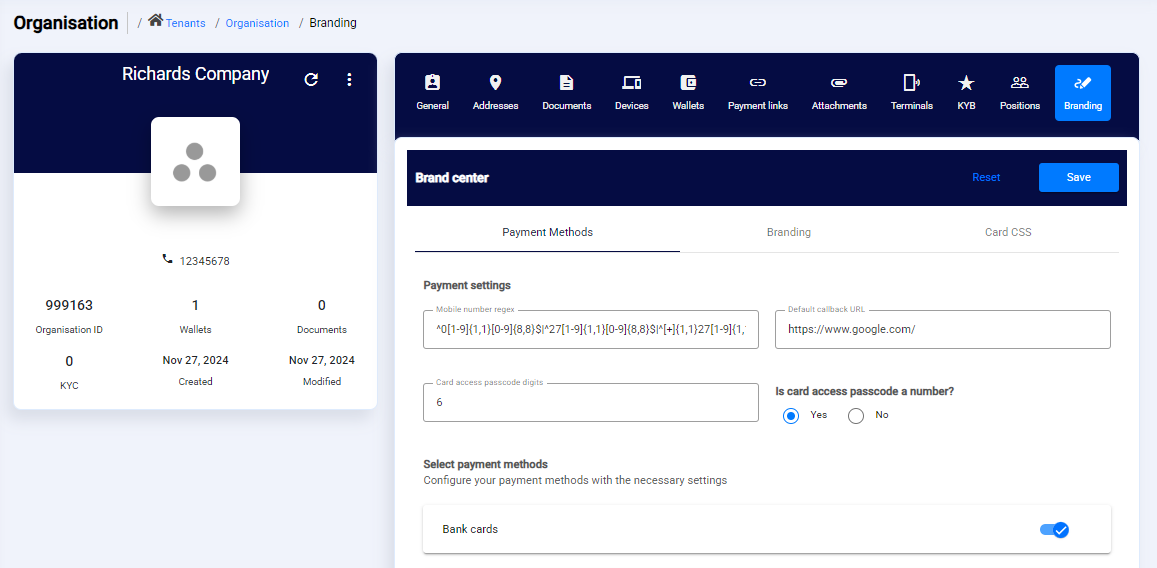
Captive portal configuration in the Admin Portal
Run the Captive Portal/Card UI in an iFrame
The captive portal (card UI) can be embedded directly inside a tenant's own page using an <iframe>, so the customer completes payment without leaving the page. Card data is captured on Eclipse's PCI-compliant origin, keeping the tenant's page out of PCI scope.
To generate the payment link itself, see Hosted Checkout. To brand the embedded UI, see Customization of Eclipse Hosted and Captive Portal UI above.
Prerequisites
- Tenant config captive.portal.config.baseUrl set to:
- A payment created via the payments API, giving a
completionUrlandpaymentId(see Hosted Checkout, linked above).
Step 1 — Resolve the completion URL before embedding
The completionUrl returned when creating a payment is a short link of the form .../t/XXXX, which responds with an HTTP 307 redirect to the card-UI URL.
Do not set the /t/XXXX link as the iframe src directlyA browser following a cross-origin
307inside a third-party iframe aborts the load (net::ERR_ABORTED) and the frame renders blank. Resolve the redirect once, server-side, and embed the resolved URL instead.
Resolve it on the backend by reading the Location header without following the redirect:
curl -s -D - -o /dev/null 'https://eclipse-java-sandbox.ukheshe.rocks/t/XXXX' | grep -i '^location'
# location: https://card-payments-pwa-sandbox.ukheshe.rocks/payments-portal/card-ui?tenantId=...&paymentId=...&...
Step 2 — Embed the resolved URL
<div style="border:1px solid #e2e6ea;border-radius:10px;overflow:hidden;">
  <iframe
    id="paymentFrame"
    title="Secure card payment"
    allow="payment"
    style="width:100%;height:720px;border:0;display:block;">
  </iframe>
</div>

<script>
  // Fetch the resolved URL + paymentId from your backend, then embed.
  const res = await fetch('/api/create-payment', { method: 'POST' });
  const { resolvedUrl, paymentId } = await res.json();
  document.getElementById('paymentFrame').src = resolvedUrl;
</script>
Step 3 — Redirect vs. messaging
The card UI can either redirect the frame on completion, or stay in place and post a status message to the parent — controlled per request:
- Include
landingUrl→ on completion the frame redirects to that URL. - Exclude
landingUrl→ no redirect; the card UI posts the status to the parent viapostMessage, leaving the parent page in control. Use this for a seamless embedded experience.
Statuses:
| Status | Description |
|---|---|
| 'CANCELLED' | Terminate the journey |
| 'ERROR_PERM' | Permanent failure scenarios |
| 'ERROR_TEMP' | Temporary error scenarios |
| 'PENDING' | Pending scenarios |
| 'SUCCESSFUL' | Successful scenarios |
| 'TIMEOUT' | Timeout scenarios |
The captive portal includes multiple journeys, and each journey returns the appropriate callback status message to the parent.
Journeys:
- paymentLink
- makePayment
- pnpCashDeposit
- eftPayment
- add-cof
- createCap
- resetCap
- viewVirtualCard
Step 4 — Handle the callback status (parent-side)
When a journey completes, the card UI posts this message to the parent window:
{
  "eftCaptivePortalCallbackResponse": {
    "type": "makePayment",
    "status": "SUCCESSFUL"
  }
}
status is one of the values in the Statuses table above; type is one of the Journeys above. Example listener:
window.addEventListener('message', (event) => {
  // Verify the sender: compare event.origin to your card-UI origin.
  const data = event.data;
  const res = data && data.eftCaptivePortalCallbackResponse;
  if (!res) return;

  switch (String(res.status).toUpperCase()) {
    case 'SUCCESSFUL':                 /* show success, then confirm server-side */ break;
    case 'PENDING':                    /* keep waiting */ break;
    case 'CANCELLED':
    case 'ERROR_PERM':
    case 'ERROR_TEMP':
    case 'TIMEOUT':                    /* show failure */ break;
  }
});
Step 5 — Confirm the outcome server-side (required)
WarningThe
postMessagestatus is a display hint only. Never fulfil an order, release goods or credit a wallet on the client-side message alone — the visual "successful" screen can appear while the payment is stillPENDINGserver-side.
Confirm the real outcome using either:
- The
callbackUrlwebhook supplied when the payment was created (the authoritative server-to-server notification), or - A status poll of the payment:
GET {baseUrl}/eclipse-conductor/rest/v1/tenants/{tenantId}/payments/{paymentId}
Authorization: Bearer {token}{ "paymentId": 0000000, "status": "PENDING", "amount": 1, "currency": "ZAR" }Poll (proxied through the tenant's backend so the token stays private) until the status is terminal, then act on it.
Security notes
- Create payments and poll status from the backend; never expose the API token to the browser.
- Validate
event.originin themessagelistener; do not accept messages from arbitrary origins. - Confirm server-side (webhook or status poll) before fulfilling — the iframe result and client-side message are display-only.
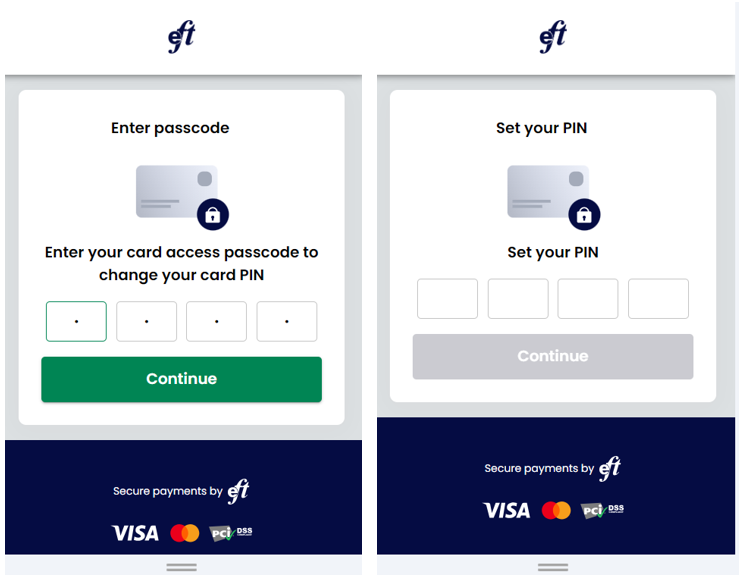
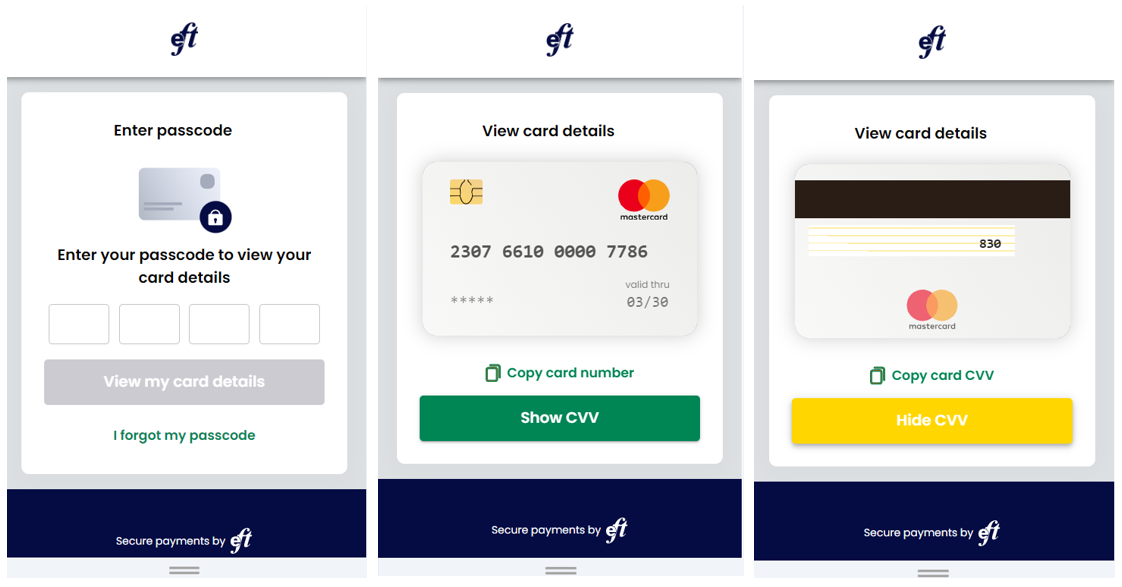
Example branded screens
Pin set
View card
Payment link (hosted checkout)
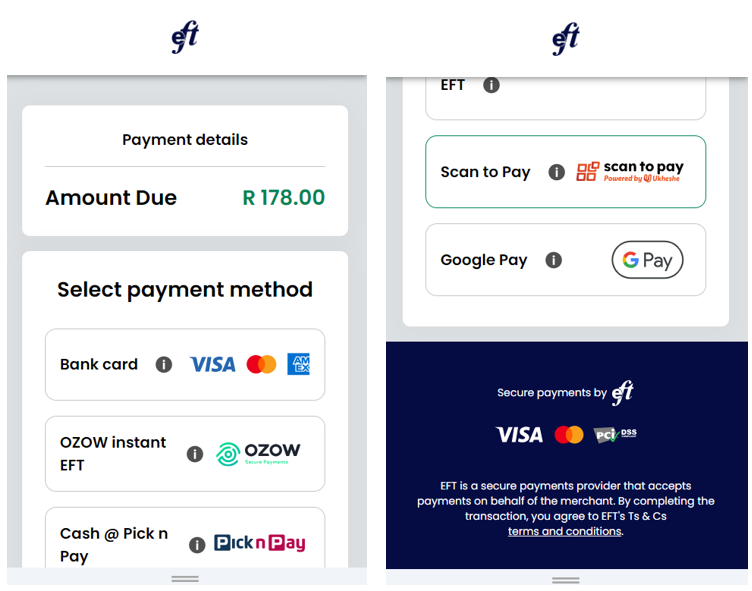
Bring Your Own Hosted Checkout
Instead of landing customers on Eclipse's branded checkout, a tenant can point payment links at a page hosted on their own infrastructure. Eclipse redirects the customer there — with the payment details passed as query parameters — instead of to Eclipse's captive portal. This is configured with the same tenant property used for Customization of Eclipse Hosted and Captive Portal UI above: captive.portal.config.baseUrl.
Use Cases
- A fully white-labelled checkout that never shows an
ukheshe.liveorukheshe.rocksdomain to the customer. - Running your own payment-method selection screen (EFT instructions, closed-loop wallet, cash deposit, etc.) in front of Eclipse, falling back to Eclipse only for the card leg.
- Embedding checkout inside a native app's webview under the tenant's own domain.
PCI Compliance Limitation
| Tenant PCI status | What you can do |
|---|---|
PCI-compliant (pciCompliant tenant config = true) | Your hosted checkout can own the entire journey for all payment types, including capturing card details yourself and submitting them to the Eclipse payments API. |
| Not PCI-compliant | Your hosted checkout can still be the return URL for payment links (e.g. to run your own branded landing/method-selection page), but it must not capture or transmit raw card data. For the card leg specifically, the customer must be handed off to Eclipse's own captive portal, which runs inside Eclipse's PCI-compliant environment. |
This isn't just policy — it's enforced server-side. If a non-PCI-compliant tenant submits a payment with raw card data (paymentCardData), the API rejects it:
[{"code":"CON049","description":"Tenant must be PCI Compliant to pass the payment card data"}]For the card leg, hand the customer to Eclipse's own captive portal using the default card-UI URL (not your captive.portal.config.baseUrl override) — see Run the Captive Portal/Card UI in an iFrame above for the embed/redirect and callback mechanics. Use landingUrl (see below) to bring the customer back to your own checkout once that leg completes.
Prerequisites
- Tenant config captive.portal.config.baseUrl set to your own hosted checkout URL.
- A page on that URL able to read and act on query-string parameters (below).
- If not PCI-compliant: a plan for embedding/redirecting to Eclipse's default captive portal for the card leg, and reading the
landingUrlyou set when creating the payment.
Scoping the Override
captive.portal.config.baseUrl can be overridden at merchant, sub-merchant, or organisation level instead of tenant-wide, letting you run a custom checkout for some merchants/orgs while others keep Eclipse's default. The most specific match wins:
| Property | Scope |
|---|---|
captive.portal.config.submerchant.{subMerchantName}.baseUrl | Sub-merchant (checked first) |
captive.portal.config.merchant.{merchantName}.baseUrl | Merchant |
captive.portal.config.org.{organisationId}.baseUrl | Organisation |
captive.portal.config.baseUrl | Tenant-wide default |
If none of these are set, Eclipse falls back to its own captive portal (the Sandbox/Production URLs listed under Customization above).
What Eclipse Sends to Your Checkout
When a GLOBAL_PAYMENT_LINK payment is created, Eclipse resolves captive.portal.config.baseUrl for the tenant/org/merchant and appends the payment's details as a query string, then shortens the result. The completionUrl returned in the payment response is that short link (e.g. https://ukheshe.live/t/5vV4A) — it responds with an HTTP 307 redirect to your checkout URL with the parameters below attached.
| Parameter | Always present | Description |
|---|---|---|
tenantId | Yes | The tenant the payment belongs to |
interactionType | Yes | Always makePayment for a payment link |
paymentId | Yes | Use this to fetch full payment details (see below) |
merchantName | No | URL-encoded, if set on the payment |
subMerchantName | No | URL-encoded, if set on the payment |
reference | No | URL-encoded merchant reference |
organisationId | No | Acquiring organisation ID |
msisdn | No | Customer's phone number, if known |
defaultOption | No | Default payment method to pre-select |
A GLOBAL_REUSABLE_PAYMENT_LINK (reusable/QR-based link) appends the same core parameters plus amount, description (URL-encoded), uniqueId, expiryDate, qrCode, and a signature.
NoteThe
signatureon a reusable link is an HMAC-SHA256 ofamount,description, andreference, keyed with the link'sHMACKey. It lets you detect tampering with those three fields specifically on reusable links — it is not present on single-useGLOBAL_PAYMENT_LINKlinks, and it does not cover the rest of the query string. TreatpaymentIdas the source of truth and re-fetch the payment from the API rather than trusting amount/reference values from the URL. General platform message-signing (HMAC/RSA on webhooks) and full payload encryption (JWE) are covered in Encryption and Integrity — those apply to thecallbackUrlwebhook and direct API calls, not to this redirect's query string.
Validating the Redirect and Obtaining an authCode
The redirect only carries identifiers, not the full payment, and your checkout does not hold a tenant-level JWT — it isn't an authenticated caller. Before you can do anything else, exchange the redirect's parameters for a short-lived, payment-scoped token by calling the payment-links endpoint, forwarding whichever of amount, reference, description, signature, uniqueId, expiryDate and qrcode were present on the redirect:
GET /eclipse-conductor/rest/v1/payment-links/{paymentId}?amount={amount}&reference={reference}&description={description}&signature={signature}{
"paymentId": 4467928,
"tenantId": 1234,
"walletId": 197798,
"amount": 123,
"currency": "ZAR",
"status": "PENDING",
"authCode": "eyJhbGciOiJSUzI1NiJ9..."
}For a GLOBAL_REUSABLE_PAYMENT_LINK, this re-checks signature against amount, description and reference, and returns a 403 if any of the three was tampered with in transit. A single-use GLOBAL_PAYMENT_LINK skips that check but still returns an authCode.
authCode— a JWT valid for 10 minutes, scoped to submitting card data for thispaymentIdonly. It cannot be refreshed; if your customer takes longer than that, call this endpoint again for a fresh one.walletId— the wallet to pay into. Use it asdestinationWalletIdin the next step.
NoteThis is what lets an unauthenticated checkout page submit a real payment. The
authCode's narrow scope authorises creating a payment (and, if needed, a temporary card-on-file) for this specificpaymentIdonly — it grants no other access.
Submitting the Payment
Call the payments API with authCode as the bearer token and walletId as destinationWalletId:
POST /eclipse-conductor/rest/v1/tenants/{tenantId}/payments
Authorization: Bearer {authCode}
Content-Type: application/json

{
  "type": "GLOBAL_ECOM_ACQUIRING",
  "amount": 123,
  "currency": "ZAR",
  "destinationWalletId": 197798,
  "paymentMechanism": "CARD"
}
What you add to this body depends on your PCI status from the PCI Compliance Limitation table above:
- PCI-compliant — include
paymentCardDatadirectly in the body and the payment completes immediately. - Not PCI-compliant — omit
paymentCardData/cardOnFileIdand includelandingUrlinstead. Eclipse responds with acompletionUrlrather than completing the payment — embed or redirect to it using the iFrame pattern above so card capture and 3DS happen inside Eclipse's captive portal, not on your page. Eclipse sends the customer tolandingUrlonce that leg completes.
See GLOBAL_ECOM_ACQUIRING for the full set of request options.
Sending the Customer Back
Set landingUrl in the payment-creation request body (mapped internally to the payment's customerLandingUrl). Once the payment finishes — whether the customer completed it on your own checkout (PCI-compliant tenants) or via Eclipse's captive portal for the card leg (non-PCI tenants) — the customer is sent to that URL.
Confirming the Outcome
As with any Eclipse-hosted flow, the redirect back to landingUrl is a display hint, not proof of payment. Confirm the real outcome server-side — using your own tenant credentials, not the single-use authCode — with the callbackUrl webhook supplied when the payment was created, or by polling:
GET /eclipse-conductor/rest/v1/tenants/{tenantId}/payments/{paymentId}
Authorization: Bearer {jwt}{ "paymentId": 4467928, "status": "SUCCESSFUL", "amount": 123, "currency": "ZAR" }Poll until the payment reaches a terminal state before fulfilling an order or crediting a wallet.
MCC and MID logic to deny or allow transactions
A common requirement for card payment processing is to be able to deny or allow transactions based on Merchant Category Code (MCC) and Merchant ID access and deny lists. Eclipse supports a wide degree of flexibility in configuring this behaviour so tenants have fine-tuned control over their transactions.
The following wallet-type attributes determine the logic to deny or access a card transaction:
| Attribute | Description |
|---|---|
| mcc.whitelist | a white list of approved merchant category codes. |
| mcc.blacklist | a blacklist of merchant category codes that should be denied. A common example here is denying gambling-related transactions. |
| mcc.whitelistRegex | A white list regular expression of approved merchant category codes. |
| mcc.blacklistRegex | A blacklist of regular expressions of merchant category codes that should be denied. |
| mid.whitelist | A white list of approved merchant IDs. |
| mid.blacklist | A blacklist of merchant IDs that should be denied. |
| mid.whitelistRegex | A white list of regular expressions of approved merchant IDs. |
| mid.blacklistRegex | A blacklist of regular expression of merchant IDs that should be denied. |
Typically customers will have different logic they want to apply, for example:
- Allow everything unless present on a blacklist
- Deny everything unless present on a whitelist
- Allow everything unless present on a blacklist and then the whitelist can override the blacklist
- Deny everything unless present on a whitelist and then the blacklist can override the whitelist
To cater for this wide range of logic tenants can apply different logic by setting the wallet type attribute: mcc.mid.logic. This refers to a global property mcc.mid.logic.{logic_name} e.g. if mcc.mid.logic=Simple then global property mcc.mid.logic.Simple will be used. These properties define Javassist which determines whether or not the transaction should be allowed.
Below is simple example logic that allows everything unless present on a blacklist. This would typically be the default behaviour with a MccBlacklist defined with MCC 7995 (Gambling) blacklisted.
public boolean isAllowed(String mcc, String mid,
            Boolean inMccWhitelist, Boolean inMccBlacklist,
            Boolean inMidWhitelist, Boolean inMidBlacklist,
            Boolean matchesMccWhitelistRegex, Boolean matchesMccBlacklistRegex,
            Boolean matchesMidWhitelistRegex, Boolean matchesMidBlacklistRegex) {

        return (inMccBlacklist == null || Boolean.FALSE.equals(inMccBlacklist)) && (inMidBlacklist == null || Boolean.FALSE.equals(inMidBlacklist));
    }
Below is an example logic that denies everything unless present on a whitelist and then the blacklist can override the whitelist (if no whitelists present then the transaction is allowed). This would typically cover the gift card or industry card (e.g. fuel) use cases.
public boolean complexBlacklistsPriorityOverWhitelists(String mcc, String mid,
            Boolean inMccWhitelist, Boolean inMccBlacklist,
            Boolean inMidWhitelist, Boolean inMidBlacklist,
            Boolean matchesMccWhitelistRegex, Boolean matchesMccBlacklistRegex,
            Boolean matchesMidWhitelistRegex, Boolean matchesMidBlacklistRegex) {

        if (Boolean.TRUE.equals(inMccBlacklist) || Boolean.TRUE.equals(inMidBlacklist)) return false;  //present in either blacklist
        if (Boolean.TRUE.equals(inMccWhitelist) || Boolean.TRUE.equals(inMidWhitelist)) return true;  //present in either whitelist
        if (inMccWhitelist == null && inMidWhitelist == null) return true;    //no whitelists
        return false;
}
Card Tokenisation
Card tokenisation replaces a card’s sensitive Primary Account Number (PAN) with a surrogate value (a token) so that the PAN itself is no longer transmitted or stored in less secure systems. Broadly speaking, there are two types of tokenisation: issuer tokenisation and acquirer tokenisation. Issuer tokenisation is a process mandated for card issuers and includes tasks such as eligibility checks and token lifecycle management. Acquirer tokenisation sits on the merchant or acquiring side and is used for card-on-file and recurring payments. In this case, the acquirer receives a token mapped to the real card, so merchants never handle the PAN directly. In short, issuer tokens are “bank or scheme side” tokens tied to the card product lifecycle, while acquirer tokens are “merchant or acquirer side” tokens tied to the payment processing lifecycle.
Eclipse supports both issuer and acquirer tokenisation.
Acquirer Tokenisation
Eclipse supports the following methods for acquirer tokenisation:
- Eclipse proprietary tokenisation - when storing a card on file, the PAN is stored and referenced using a unique card on file ID
- Visa Token Service (VTS) - this utilises Visa's tokenisation service to tokenise Visa cards
- Mastercard Digital Enablement Service (MDES) - this utilises Mastercard's tokenisation service to tokenise Mastercard cards
Card schemes encourage the use of scheme tokenisation and some services, for example, Visa QR payments, mandate that scheme tokenisation (Visa or Mastercard) be used for transactions.
Storing a card on file:
- Eclipse will generate a unique card on file ID - this is Eclipse's proprietary tokenisation
- If scheme tokenisation is enabled on the tenant the scheme token provider is called to request a scheme token
- The returned token is securely stored as part of the card on file metadata on Eclipse
- Eclipse returns the card on file ID as well as the scheme reference to the tenant
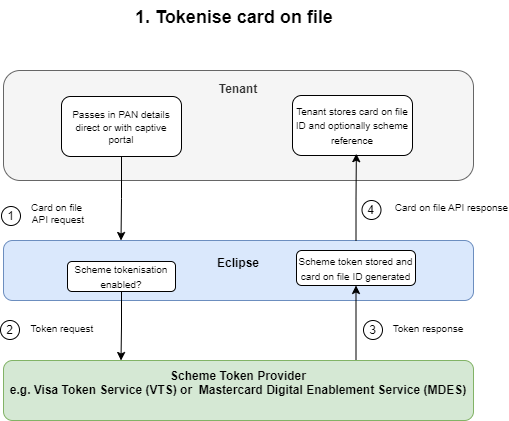
Initiating a payment with a tokenised card:
- Tenant initiates payment and passes in the Eclipse card on file ID of tokenised card
- Eclipse uses the stored scheme token to request a cryptogram from the scheme token provider
- Eclipse processes the payment using the scheme token and cryptogram response - this step is dependent on the payment type - e.g. card processing, QR acquiring, etc.
- Ultimately the acquiring bank calls the scheme token provider to detokenise the scheme token for the payment
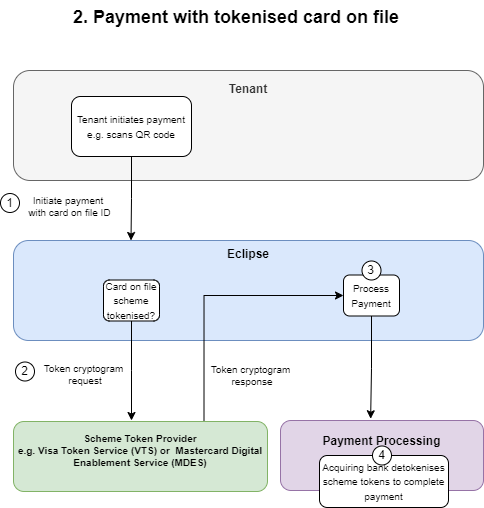
Pre-requisites:
- Tenant config enableVisaTokenization set to true to enable Visa Token Services
- Tenant config enableMastercardTokenization set to true to enable Mastercard Digital Enablement Services
- Tenant config vtsClientAppID set to ukheshe
For example, for API calls to store a card on file please refer to the card on file management section.
For example, API calls to initiate a payment using a tokenised card refer to the card-specific payment use cases e.g. Payment of EMVCO QR.
Issuer Tokenisation
Card tokenisation replaces a card's Primary Account Number (PAN) with a surrogate value -a token - so that the PAN itself is no longer transmitted or stored in less secure systems. Eclipse supports issuer tokenisation for both Card-on-File (CoF) / eCommerce and xPay use cases. This capability applies to cards issued through Eclipse as well as Postilion.
How It Works
When a cardholder adds a card to a digital wallet such as Apple Pay or Google Pay, the real card number is never stored on the device. Instead a Token Service Provider (TSP) like Visa's Token Service (VTS) issues a token — a surrogate value locked to that specific device and wallet. The issuing bank must participate in this process: VTS requires the issuer to validate every card before a token is minted, and to manage tokens over their lifetime.
Eclipse sits between TSPs and the customer's Postilion switch, handling all issuer tokenisation responsibilities on the customer's behalf.
Visa Token Service (VTS)
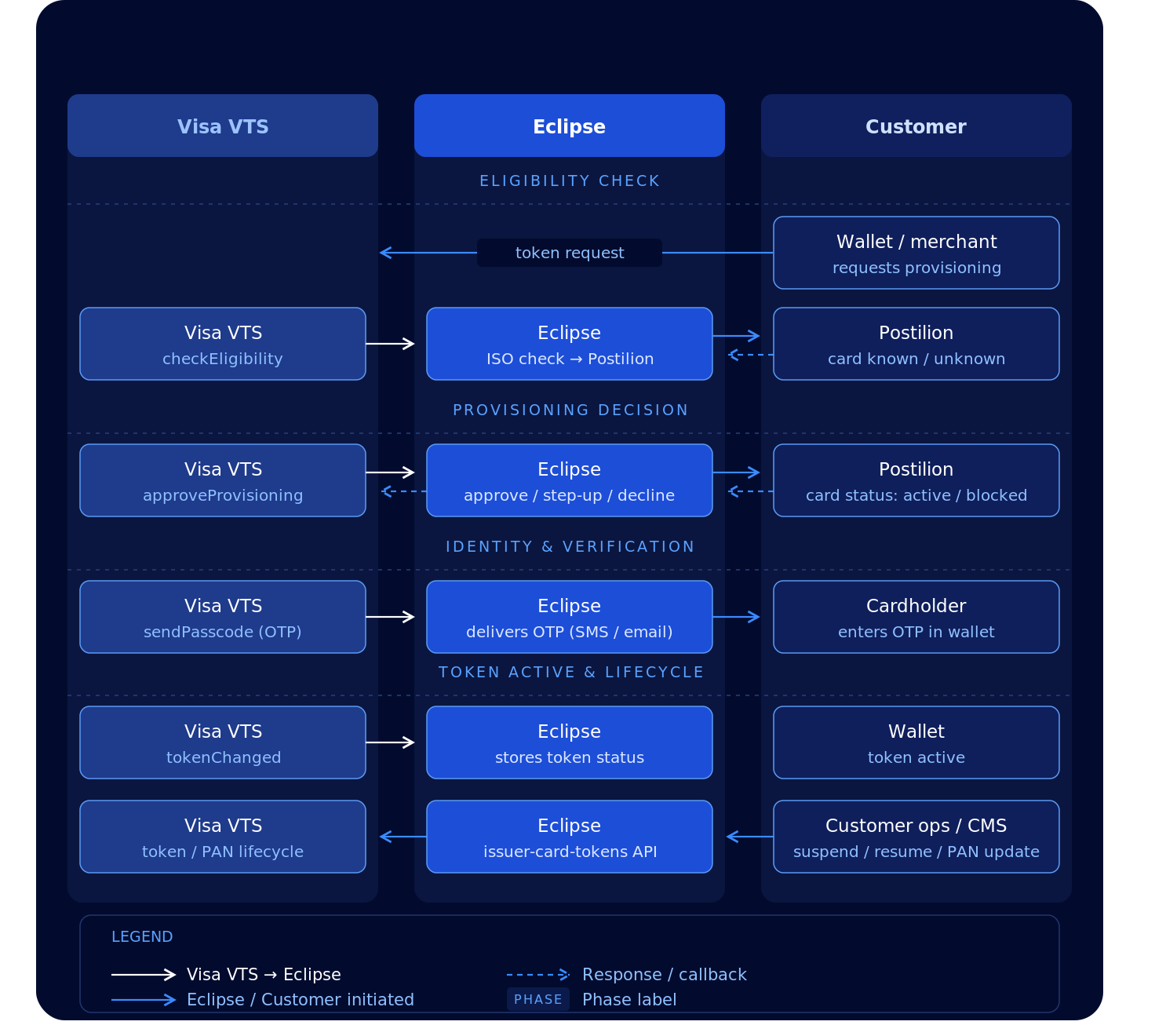
The diagram above shows the high-level flow across the three parties involved in issuer tokenisation. Visa VTS initiates all inbound requests to Eclipse: eligibility checks, the provisioning decision, ID&V and token notifications. Eclipse orchestrates the response. It queries Postilion for card status, decides whether to approve the token, delivers one-time passcodes to the cardholder, and keeps its own record of every token. The customer's systems interact with Eclipse via the tenant APIs for token lifecycle and PAN update operations.
Visa signs and encrypts every inbound request. Eclipse verifies the signature and decrypts the payload with the issuer keys set up for your tenant during onboarding.
1. VTS Token Request Processing
When a wallet or merchant requests a token for a card, Visa VTS calls Eclipse twice: first to check that the card can be tokenised, then to get the provisioning decision. Without this integration, a BIN cannot be tokenised, and any provisioning attempt fails at the issuer authorisation step.
Eligibility check
Eclipse sends an ISO 8583 account verification request to Postilion. The card is eligible unless Postilion doesn't recognise the PAN (response code 56), or a token already exists for the same card and token requestor. Eclipse also returns the card art profile for the wallet, which is configured per BIN and can be overridden on the wallet type with cardArtworkProfileId.
Provisioning decision
Visa then calls approveProvisioning. Eclipse checks the card with Postilion again, including the expiry date and CVV2, applies its risk checks, stores a token record with status PENDING, and returns an action code:
| Action code | Meaning | When |
|---|---|---|
00 | Approve | The card is active and passes the risk checks |
85 | Step-up required | The cardholder must complete ID&V. Returned for device tokens (anything other than ECOMMERCE) when no CVV2 was captured, and when the wallet's risk data calls for it |
05 | Decline | The PAN is unknown, the card is blocked, or the wallet's risk data calls for a decline |
54 | Decline: expired | The expiry date is wrong or the card has expired |
N7 | Decline: CVV2 | The CVV2 is wrong |
The risk checks use the device and account scores and reason codes that Apple Pay, Google Pay and Samsung Pay send with the request. They are built into Eclipse and are not configurable per BIN.
Key APIs (Visa calls Eclipse):
POST /eclipse-conductor/vtis/v1/checkEligibility
POST /eclipse-conductor/vtis/v2/tokenRequestors/{tokenRequestorID}/tokens/{tokenReferenceID}/approveProvisioning
2. Token ID&V (Identity & Verification)
When the decision is step-up (85), Visa requires the cardholder to confirm they own the card before the token is activated. Visa asks Eclipse which verification methods to offer, the cardholder picks one in their wallet, and for OTP methods Visa generates the passcode and asks Eclipse to deliver it.
Three verification methods are available:
| Method | How it works | Notes |
|---|---|---|
OTPSMS | Eclipse sends the Visa-generated passcode by SMS to the cardholder | Uses the mobile number on the card record, falling back to the customer's profile |
OTPEMAIL | Eclipse sends the Visa-generated passcode by email to the cardholder | Uses the email address on the card record, falling back to the customer's profile |
CUSTOMERSERVICE | The cardholder calls your call centre, and your agent activates the token through the tenant API (CALL_CENTER_ACTIVATION) | The call centre number is set per BIN |
The methods offered are set per BIN during onboarding. Eclipse offers only the call centre when the wallet flags the request as high risk, when the cardholder has no mobile number or email address on record, or when the maximum number of OTP attempts has been reached. Passcodes are sent with the issuer.tokenisation.otp.notification template, which can be set per card BIN.
The cardholder enters the passcode in the wallet and Visa validates it. Eclipse does not see the passcode the cardholder enters.
For device binding requests, Eclipse checks that the token matches its own record and always asks for step-up verification.
Key APIs (Visa calls Eclipse):
POST /eclipse-conductor/vtis/v1/retrieveStepUpMethods
POST /eclipse-conductor/vtis/v1/sendPasscode
POST /eclipse-conductor/vtis/v1/tokenRequestors/{tokenRequestorID}/tokens/{tokenReferenceID}/deviceBinding
3. Token Lifecycle Management (TLCM)
Once a token exists, it must be managed over its lifetime. Changes come from two directions.
Changes made by Visa
Visa calls tokenChanged when a token's state changes at Visa. The eventType query parameter is required:
eventType | What Eclipse does |
|---|---|
TOKEN_CREATED | Updates its token record with the token's status, last four digits and expiry |
TOKEN_STATUS_UPDATED | Updates its token record with the token's status, last four digits and expiry |
TOKEN_ACTIVATION_STIP | Records the event only |
Any other eventType value returns HTTP 400.
Key APIs (Visa calls Eclipse):
POST /eclipse-conductor/vtis/v2/tokenRequestors/{tokenRequestorID}/tokens/{tokenReferenceID}/tokenChanged?eventType={eventType}Changes made by you
| Event | Trigger | Action |
|---|---|---|
| Card or device reported lost | Customer ops | Suspend token |
| Card or device found | Customer ops | Resume token |
| Cardholder verified by call centre | Call centre | Activate token |
| Card cancelled | Customer ops or CMS | Delete token, or close the PAN (see section 4) |
| Card replaced or reissued | CMS | Update the PAN (see section 4) |
To suspend, resume, activate or delete a token, call the tenant API. Eclipse sends the change to Visa and updates its own record. The same call works for Mastercard tokens.
Key APIs (customer calls Eclipse):
PUT /eclipse-conductor/rest/v1/tenants/{tenantId}/cards/{cardId}/issuer-card-tokens/{tokenReferenceId}?tokenRequestorId={tokenRequestorId}
Authorization: Bearer {jwt}
Content-Type: application/json

{
  "operationType": "SUSPEND",
  "operationReason": "LOST_DEVICE"
}| Field | Type | Required | Description |
|---|---|---|---|
operationType | string | Yes | SUSPEND, RESUME, CALL_CENTER_ACTIVATION or DELETE |
operationReason | string | Yes | FRAUD, LOST_CARD, STOLEN_CARD, LOST_DEVICE, STOLEN_DEVICE, CUSTOMER_REQUEST, CLOSED, FOUND_DEVICE, FOUND_CARD or OTHER |
To find a card's tokens, and to see each token's current status at Visa, list them with onUs=false:
GET /eclipse-conductor/rest/v1/tenants/{tenantId}/cards/{cardId}/issuer-card-tokens?onUs=false
Authorization: Bearer {jwt}
With onUs=true (the default), Eclipse returns only the token data it holds. With onUs=false, Eclipse also fetches each token's current details from Visa and updates its own record if the status has changed. Token values are masked in the response. If the card has no tokens, the call returns an error rather than an empty list.
Token metadata is also visible to the customer through Visa Access (Visa's issuer portal).
4. PAN / CMS Update — Token Sync
When a card is replaced, reissued with a new expiry date or closed, the tokens linked to it at Visa must be updated. Call the PAN update API when your CMS makes the change. Eclipse sends the update to Visa, which moves the card's tokens to the new PAN or expiry date, or deletes them when the card is closed.
Key APIs (customer calls Eclipse):
PUT /eclipse-conductor/rest/v1/tenants/{tenantId}/cards/{cardId}/issuer-card-tokens/pan
Authorization: Bearer {jwt}
Content-Type: application/json

{
  "replacePan": "{newPan}",
  "replaceExpiry": "0931",
  "reason": "Card replaced"
}| Field | Type | Required | Description |
|---|---|---|---|
replacePan | string | Conditional | The new PAN. For an expiry-only change, send the current PAN. Leave out with replaceExpiry to close the card |
replaceExpiry | string | Conditional | The new expiry date in MMYY format. Send it together with replacePan |
reason | string | Yes | Free-text reason for the change |
| You send | Visa update |
|---|---|
replacePan and replaceExpiry with a different PAN | Account update: tokens move to the new PAN |
replacePan (the current PAN) and replaceExpiry | Expiry date update |
Neither replacePan nor replaceExpiry | Account closed: tokens are deleted |
NoteThis call contains a full PAN. Make it only from a PCI DSS-compliant backend, never from a customer device.
5. Push Provisioning
Not yet availablePush provisioning (where the customer's banking app pushes a card into a digital wallet) is not yet available. The
card-provisionsendpoints appear in the API reference, but calls to them return an error. Contact your EFT Corporation account manager if you need push provisioning.
API Reference
Eclipse exposes two distinct sets of APIs for issuer tokenisation. Understanding the direction of each call is important when planning the integration.
Inbound from Visa (VTIS — scheme-specific)
These endpoints implement Visa's VTIS (Visa Token Issuer Service) specification. They are called by Visa's VTS system against Eclipse during provisioning and lifecycle events. They are Visa-specific because the protocol is defined by Visa.
POST /eclipse-conductor/vtis/v1/checkEligibility
POST /eclipse-conductor/vtis/v1/retrieveStepUpMethods
POST /eclipse-conductor/vtis/v1/sendPasscode
POST /eclipse-conductor/vtis/v1/tokenRequestors/{tokenRequestorID}/tokens/{tokenReferenceID}/deviceBinding
POST /eclipse-conductor/vtis/v2/tokenRequestors/{tokenRequestorID}/tokens/{tokenReferenceID}/approveProvisioning
POST /eclipse-conductor/vtis/v2/tokenRequestors/{tokenRequestorID}/tokens/{tokenReferenceID}/tokenChanged?eventType={eventType}
eventTypeontokenChangedis a required query parameter. Valid values:TOKEN_CREATED,TOKEN_STATUS_UPDATED,TOKEN_ACTIVATION_STIP.
Outbound from Customer (Tenant APIs — scheme-agnostic)
These endpoints are called by the customer's app or systems to view and manage a card's tokens. Listing and lifecycle updates work for both Visa and Mastercard tokens.
GET /eclipse-conductor/rest/v1/tenants/{tenantId}/cards/{cardId}/issuer-card-tokens?onUs={true|false}
GET /eclipse-conductor/rest/v1/tenants/{tenantId}/cards/{cardId}/issuer-card-tokens/{tokenReferenceId}?tokenRequestorId={tokenRequestorId}
PUT /eclipse-conductor/rest/v1/tenants/{tenantId}/cards/{cardId}/issuer-card-tokens/{tokenReferenceId}?tokenRequestorId={tokenRequestorId}
PUT /eclipse-conductor/rest/v1/tenants/{tenantId}/cards/{cardId}/issuer-card-tokens/pan
NoteThe single-token
GETand the PAN updatePUTare Visa only. For Mastercard tokens, use the list endpoint withonUs=false.
VTS vs VTISThese refer to the same system from different perspectives. VTS (Visa Token Service) is Visa's name for the overall platform. VTIS (Visa Token Issuer Service) is the API specification Visa publishes for issuers to implement — it is the issuer-facing side of VTS.
Token Provisioning Flow
The following describes the full sequence when a cardholder adds a card to a digital wallet (reactive provisioning).
Phase 1 — Eligibility
- Cardholder initiates "add card" in their wallet app
- Wallet sends a token request to Visa VTS
- Visa VTS calls Eclipse:
POST /vtis/v1/checkEligibility - Eclipse queries Postilion via ISO message: does this card exist?
- Postilion responds; Eclipse returns the eligibility result and card art profile to Visa
Phase 2 — Provisioning decision
- Visa calls Eclipse:
POST /vtis/v2/.../approveProvisioning - Eclipse checks the card's status, expiry date and CVV2 with Postilion and applies its risk checks
- Eclipse returns approve (
00), step-up (85) or decline to Visa
Phase 3 — Identity & verification (step-up only)
- Visa calls Eclipse:
POST /vtis/v1/retrieveStepUpMethods. Eclipse returns the methods available for the card - Cardholder chooses SMS or email; Visa calls
POST /vtis/v1/sendPasscodewith the passcode - Eclipse sends the passcode to the cardholder
- Cardholder enters the passcode in the wallet, and Visa validates it
Phase 4 — Token active
- Visa mints the token and returns it to the wallet
- Visa calls Eclipse:
POST /vtis/v2/.../tokenChanged. Eclipse updates its token record - Token is live — the cardholder can now transact digitally
Mastercard MDES
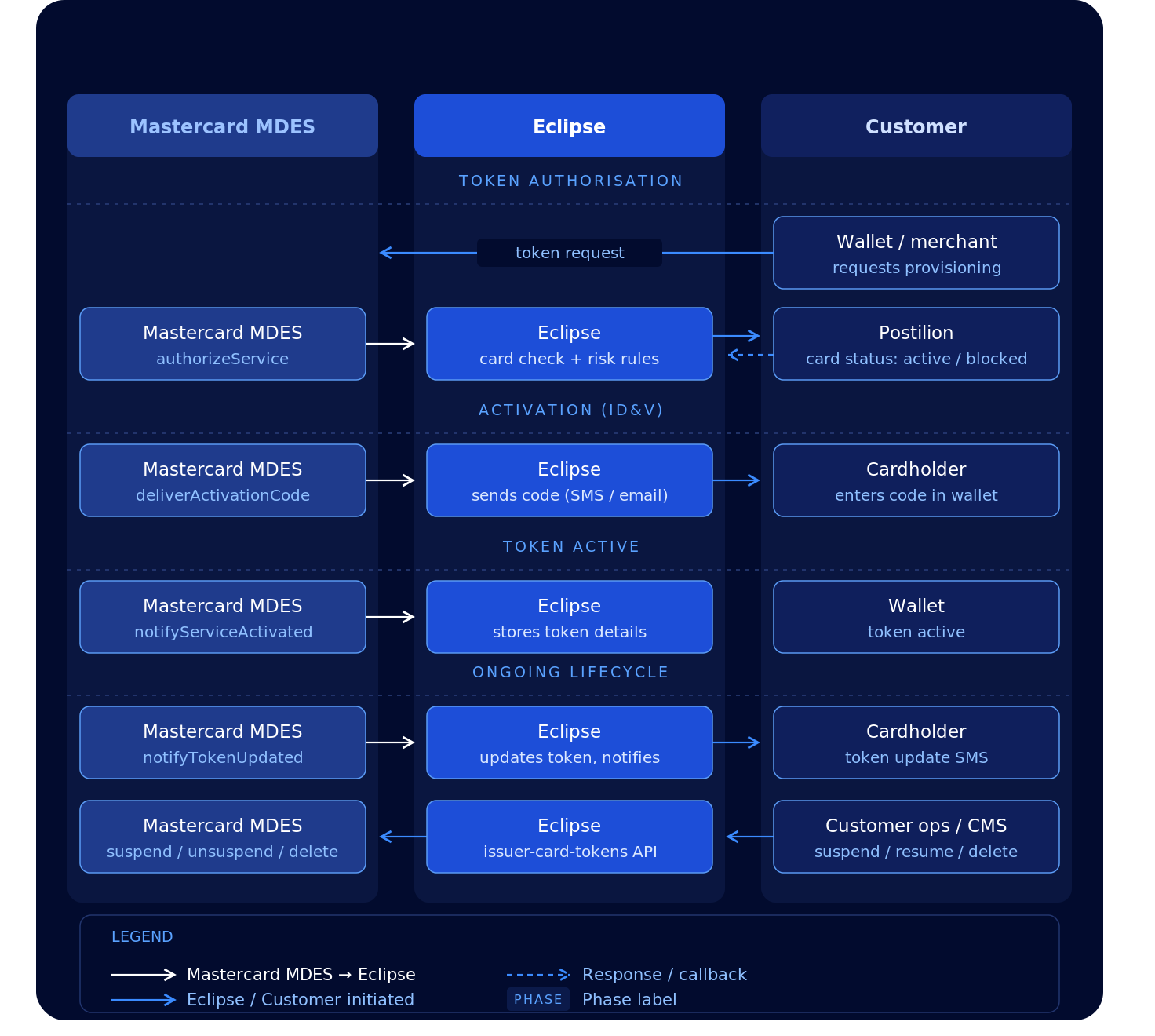
The diagram above shows the high-level flow across the three parties involved in Mastercard issuer tokenisation. Mastercard MDES (Mastercard Digital Enablement Service) initiates all inbound requests to Eclipse: token authorisation, activation and token notifications. Eclipse orchestrates the response. It checks the card with Postilion, applies the risk rules, sends activation codes to the cardholder, and keeps its own record of every token. The customer's systems interact with Eclipse via the tenant APIs for token lifecycle operations.
Mastercard encrypts the card data in MDES requests. Eclipse decrypts it with the issuer keys set up for your tenant during onboarding.
1. MDES Token Request Processing
When a wallet or merchant requests a token for a card, MDES calls Eclipse to authorise it. Eclipse decrypts the card details and sends a card status enquiry to Postilion. Any response other than 00 declines the request. If the card is in good standing, Eclipse applies the risk rules, stores a token record against the card, and returns its decision to MDES.
| Decision | Meaning |
|---|---|
APPROVED | The token is issued with no further checks |
REQUIRE_ADDITIONAL_AUTHENTICATION | The cardholder must complete activation (ID&V) before the token goes live. Eclipse returns the available activation methods with the decision |
DECLINED | The token is not issued |
Risk assessment rules
EFT Corporation sets up token risk rules for each card BIN. If a BIN has no rules, Eclipse uses the decision the wallet provider recommends, and declines the request if the wallet provider gives no recommendation.
The standard rule set:
- Declines the request when the wallet provider's device or account score is 1 or lower, and asks for additional authentication when it is 2 or 3
- Follows the wallet provider's recommendation to decline or to ask for additional authentication
- For device tokens (anything other than
CLOUD_TOKEN), asks for additional authentication when the wallet account is less than 30 days old, when the cardholder name or mobile number in the request doesn't match the card record, or when no security code (CVC) was captured - Declines the request when a token limit below is reached
| Limit | Config key | Default |
|---|---|---|
| Tokens for the same card | mdes.risk.tokenCountLimitSamePan | 20 |
| Tokens on the same device | mdes.risk.tokenLimitSetForSameDevice | 10 |
| Tokens on the same device in one day | mdes.risk.tokenOnDeviceInDay | 5 |
Each limit can be changed per BIN. Contact your EFT Corporation account manager to change the rules for your cards.
Key APIs (Mastercard calls Eclipse):
POST /eclipse-conductor/mdes/1/0/authorizeService2. MDES Token ID&V (Identity & Verification)
When the decision is REQUIRE_ADDITIONAL_AUTHENTICATION, the cardholder must prove they own the card before the token goes live. The cardholder picks one of the activation methods Eclipse offers in their wallet.
Three activation methods are available:
| Method | How it works | Notes |
|---|---|---|
TEXT_TO_CARDHOLDER_NUMBER | Eclipse sends an activation code by SMS to the cardholder's mobile number | Offered by default |
EMAIL_TO_CARDHOLDER_ADDRESS | Eclipse sends an activation code by email to the cardholder's email address | Must be enabled for the BIN |
CARDHOLDER_TO_CALL_MANNED_NUMBER | The cardholder calls your call centre, and your agent activates the token through the tenant API (CALL_CENTER_ACTIVATION) | Offered by default. The call centre number is set per BIN |
The methods offered are set per BIN during onboarding. Activation codes are sent with the issuer.tokenisation.otp.notification template.
Key APIs (Mastercard calls Eclipse):
POST /eclipse-conductor/mdes/1/0/requestActivationMethods
POST /eclipse-conductor/mdes/1/0/deliverActivationCode
POST /eclipse-conductor/mdes/1/0/notifyServiceActivated
notifyServiceActivated tells Eclipse that the token is live. Eclipse updates its token record with the final token, device and wallet details.
3. MDES Token Lifecycle Management (TLCM)
Once a token exists, it must be managed over its lifetime. Changes come from two directions.
Changes made by Mastercard
MDES calls notifyTokenUpdated when a token changes. Eclipse updates its token record according to the reasonCode:
reasonCode | What Eclipse does |
|---|---|
STATUS_UPDATE | Updates the token status (ACTIVE, INACTIVE, SUSPENDED, DEACTIVATED), who suspended it, and the token expiry |
REDIGITIZATION_COMPLETE | Stores the new token and token expiry |
FUNDING_ACCOUNT_UPDATE | Updates the card details linked to the token, for example after a card replacement |
AUTHENTICATION_PERFORMED | Updates the token expiry |
TOKEN_BINDING, ACCOUNT_BINDING | Stores the binding and authenticator details |
DELETED_FROM_CONSUMER_APP, PAYMENT_ACCOUNT_REFERENCE_UPDATED | No change |
After each update, Eclipse notifies the cardholder using the mdes.notify.token.updated template. SMS is used by default; the delivery method can be set per BIN.
Key APIs (Mastercard calls Eclipse):
POST /eclipse-conductor/mdes/1/0/notifyTokenUpdatedChanges made by you
| Event | Trigger | Action |
|---|---|---|
| Device reported lost or stolen | Customer ops | Suspend token |
| Device found | Customer ops | Resume token |
| Cardholder verified by call centre | Call centre | Activate token |
| Card cancelled | Customer ops or CMS | Delete token |
To suspend, resume, activate or delete a token, call the tenant API. Eclipse sends the change to MDES and updates its own record. The same call works for Visa tokens.
Key APIs (customer calls Eclipse):
PUT /eclipse-conductor/rest/v1/tenants/{tenantId}/cards/{cardId}/issuer-card-tokens/{tokenReferenceId}?tokenRequestorId={tokenRequestorId}
Authorization: Bearer {jwt}
Content-Type: application/json

{
  "operationType": "SUSPEND",
  "operationReason": "LOST_DEVICE"
}| Field | Type | Required | Description |
|---|---|---|---|
operationType | string | Yes | SUSPEND, RESUME, CALL_CENTER_ACTIVATION or DELETE |
operationReason | string | Yes | FRAUD, LOST_CARD, STOLEN_CARD, LOST_DEVICE, STOLEN_DEVICE, CUSTOMER_REQUEST, CLOSED, FOUND_DEVICE, FOUND_CARD or OTHER |
operationType | Token status afterwards |
|---|---|
SUSPEND | SUSPENDED |
RESUME | ACTIVE |
CALL_CENTER_ACTIVATION | ACTIVE |
DELETE | DEACTIVATED |
To find the tokenReferenceId and tokenRequestorId, list the card's tokens:
GET /eclipse-conductor/rest/v1/tenants/{tenantId}/cards/{cardId}/issuer-card-tokens?onUs=false
Authorization: Bearer {jwt}
With onUs=true (the default), Eclipse returns only the token data it holds. With onUs=false, Eclipse also fetches each token's current details from Mastercard. Token values are masked in the response.
4. MDES Suspicious Activity
MDES calls notifySuspiciousEvents when it detects suspicious activity while replenishing a cloud token on a device. Eclipse records each event, then suspends the token both in Eclipse and at Mastercard with the reason "Suspected fraud". To reinstate the token, use the RESUME operation above.
Key APIs (Mastercard calls Eclipse):
POST /eclipse-conductor/mdes/1/0/notifySuspiciousEventsMDES API Reference
Inbound from Mastercard (MDES — scheme-specific)
These endpoints implement Mastercard's MDES issuer specification. Mastercard's MDES system calls them on Eclipse during provisioning and lifecycle events. They are Mastercard-specific because the protocol is defined by Mastercard.
POST /eclipse-conductor/mdes/1/0/authorizeService
POST /eclipse-conductor/mdes/1/0/requestActivationMethods
POST /eclipse-conductor/mdes/1/0/deliverActivationCode
POST /eclipse-conductor/mdes/1/0/notifyServiceActivated
POST /eclipse-conductor/mdes/1/0/notifyTokenUpdated
POST /eclipse-conductor/mdes/1/0/notifySuspiciousEvents
When a notification can't be processed, Eclipse returns HTTP 200 with
errorCodeset in the response body:INVALID_FIELD_VALUE(for example an unknowntokenUniqueReference) orINTERNAL_SERVICE_FAILURE.
Outbound from Customer (MDES)
The tenant APIs for listing a card's tokens and changing their status are the same for Visa and Mastercard. See Outbound from Customer (Tenant APIs — scheme-agnostic) in the Visa section above. The single-token GET and the PAN update PUT are Visa only.
MDES eventsEclipse records an event for each MDES interaction:
mdes.notify.service.activated,mdes.deliver.activation.code,mdes.notify.token.updated,mdes.notify.suspicious.eventandmdes.token.lifecycle. These events are recorded at platform level, not against your tenant, so you can't route them with your tenant's event publisher configuration.
MDES Token Provisioning Flow
The following describes the full sequence when a cardholder adds a Mastercard to a digital wallet.
Phase 1 — Token authorisation
- Cardholder initiates "add card" in their wallet app
- Wallet sends a token request to Mastercard MDES
- MDES calls Eclipse:
POST /mdes/1/0/authorizeService - Eclipse queries Postilion via ISO message: is this card active and valid?
- Eclipse applies the risk rules and returns
APPROVED,DECLINEDorREQUIRE_ADDITIONAL_AUTHENTICATIONto MDES
Phase 2 — Activation (ID&V), only when additional authentication is required
- MDES presents the activation methods to the cardholder; it can call
POST /mdes/1/0/requestActivationMethodsto fetch them again - Cardholder chooses SMS or email; MDES calls
POST /mdes/1/0/deliverActivationCode - Eclipse sends the activation code to the cardholder
- Cardholder enters the code in the wallet, and MDES validates it
Phase 3 — Token active
- MDES activates the token in the wallet
- MDES calls Eclipse:
POST /mdes/1/0/notifyServiceActivated - Eclipse stores the final token details. The cardholder can now transact digitally
EFT Corporation can also provide an Issuer Wallet Token Requestor solution — available as an SDK or white-label mobile app — through a trusted technical partner.
Card Production File Creation
A card production batch orders a set of new physical cards for one of your card programmes. You send one request. Eclipse then places the order with Postilion and receives the generated personalisation (perso) file. It gives every card a card pack ID and a QR code, and delivers the completed file to your card bureau for printing. Once the cards are printed, you can link each one to a customer by its pack ID or QR code.
Prerequisites
- A physical card programme configured for your tenant. The
cardProgramNameyou send must match the Postilion card programme name, the same value set asSubProgramCodeForPhysicalCardon your card wallet type (see Card Enabled Wallet Type and Wallet configurations). - Your card bureau, card manufacturer and QR code format configured by EFT Corporation during onboarding.
- A callback URL that can receive
POSTrequests. - Valid JWT with the permissions listed below.
How the process works
- You request a production batch for a card programme and a number of cards.
- Eclipse places the card order with Postilion. The batch status becomes
SENT. - Postilion generates the perso file. Eclipse picks it up, checks its integrity and loads every card into the batch. The batch status becomes
DATA_LOADED, and the batch number changes from theBUILDINGplaceholder to the number in the perso file. - Eclipse assigns a card pack ID and a QR code to every card.
- Once every card has a QR code, the batch status becomes
DATA_UPLOADING. - Eclipse delivers the completed perso file to your card bureau. The batch status becomes
SUCCESS.
| Status | Meaning |
|---|---|
SENT | The card order was placed with Postilion |
DATA_LOADED | The perso file was received and loaded; card pack IDs and QR codes are being assigned |
DATA_UPLOADING | All cards have QR codes; the file is queued for delivery to your card bureau |
SUCCESS | The perso file was delivered to your card bureau. Final status |
FAILED | The order or the perso file load failed. The comment field gives the reason. Final status |
NoteEclipse does not send a callback or email when a batch reaches
DATA_UPLOADINGorSUCCESS. To confirm that the file reached your card bureau, poll the batch (Step 2) until the status isSUCCESSorFAILED.
Step 1 — Request a production batch
POST /eclipse-conductor/rest/v1/tenants/{tenantId}/batches
Authorization: Bearer {jwt}
Content-Type: application/json

{
  "type": "POSTILION_CARDS",
  "info": "{\"cardProgramName\": \"<card programme name>\", \"numberOfCards\": \"500\"}",
  "email": "[email protected]",
  "callbackUrl": "https://your-server.example.com/card-batches/callback"
}| Field | Type | Required | Description |
|---|---|---|---|
type | string | Yes | Must be POSTILION_CARDS |
info | string | Yes | A JSON object written as a string, with cardProgramName (the Postilion card programme name) and numberOfCards (how many cards to produce) |
email | string | No | Address that receives the batch confirmation email. If you leave it out, your tenant's configured card operations address is used |
callbackUrl | string | Yes | http or https URL, 10–2000 characters, that receives batch status callbacks |
Cards in the batch get an expiry date a set number of years from the request date. The default is 5 years; EFT Corporation can change this for your tenant.
Response (200 OK):
{
  "type": "POSTILION_CARDS",
  "info": "{\"batchId\":1234,\"tenantId\":688,\"batchNumber\":\"BUILDING\",\"qrcodeType\":\"RANDOM_10\",\"status\":\"SENT\",\"cardProgramName\":\"<card programme name>\",\"requested\":\"...\",\"email\":\"[email protected]\"}"
}
info is the new batch written as a JSON string. Keep the batchId: you use it to track the batch. batchNumber stays BUILDING until the perso file loads. If status is FAILED, the order was not placed.
Step 2 — Track the batch
Poll the batch until its status is SUCCESS or FAILED.
GET /eclipse-conductor/rest/v1/tenants/{tenantId}/batches/{batchId}?type=POSTILION_CARDS
Authorization: Bearer {jwt}
Response (200 OK):
{
  "type": "POSTILION_CARDS",
  "info": "{\"batchId\":1234,\"tenantId\":688,\"batchNumber\":\"000123\",\"qrcodeType\":\"RANDOM_10\",\"status\":\"SUCCESS\",\"batchType\":\"POSTILION_CARDS\",\"created\":\"...\",\"lastModified\":\"...\"}"
}
NoteProduction batches can't be downloaded through this API.
file=trueis not supported forPOSTILION_CARDS. Eclipse delivers the perso file straight to your card bureau.
Notifications
| When | What is sent |
|---|---|
| Batch requested | A confirmation email to email, and a callback to callbackUrl |
Perso file loaded (DATA_LOADED) | A callback to callbackUrl |
Batch failed (FAILED) | A callback to callbackUrl |
Callbacks are POST requests with this body:
{
  "batchId": 1234,
  "tenantId": 688,
  "batchNumber": "000123",
  "sequenceNumber": "01",
  "qrcodeType": "RANDOM_10",
  "status": "DATA_LOADED",
  "cardProgramName": "<card programme name>",
  "comment": null,
  "requested": "...",
  "lastModified": "..."
}
NoteThe callback sent when the batch is requested contains the same JSON as the Step 1
infovalue, but as a JSON string, so it must be parsed twice. The later callbacks are plain JSON objects.
Configure the confirmation email
Set the email template in the global property mustache.email.postilion.card.file.creation:
#From: ++comms.email.address++
#To: {{data.email}}

#Subject: Card production batch {{data.batchId}} requested for tenant ID {{data.tenantId}}

++email.top++

Batch ID: {{data.batchId}} <br>
Card programme: {{data.cardProgramName}} <br>
Status: {{data.status}} <br>
QR code type: {{data.qrcodeType}} <br>
Requested: {{data.requested}} <br>

++email.bottom++
Card pack IDs and QR codes
Every card in a batch gets a card pack ID and a QR code. These are printed on the card pack so the card can be linked to a customer. The QR code format is set for your tenant during onboarding:
qrcodeType | QR code source |
|---|---|
RANDOM_10 | Generated by Eclipse, unique within the platform |
ZA_MASTERPASS | A Masterpass QR code created by Eclipse for each card pack ID |
EXTERNAL_REF | Supplied by your card bureau or an external system |
Link a produced card to a customer
Once the card is printed and handed to the customer, create the card against the customer's wallet using its card pack ID, PAN or QR code. The flow is the same as Do a Physical Card Replacement, without a card being replaced.
Permissions Required
| Permission | Description |
|---|---|
EclipseTenantBatch.POSTILION_CARDS.CREATE.Allowed | Request a card production batch. EclipseTenantBatch.CREATE.Allowed also works, but covers every batch type |
EclipseTenantBatch.POSTILION_CARDS.READ.Allowed | Track a card production batch. EclipseTenantBatch.READ.Allowed also works, but covers every batch type |
Card Expiry Notifications
Eclipse can generate card expiry notifications to inform customers when their cards are approaching expiry. These notifications are produced as events and delivered through the standard Eclipse event-driven notifications framework.
The notification capability uses the same flexible mechanism described in the event-driven notifications section of the developer guide.
Using this approach, card expiry reminders are published as events, and tenants can configure how those events are delivered to customers. Notifications can be sent via email, SMS, or push, depending on the customer’s communication preference and the configured templates.
Prerequisites
Card expiry notifications are controlled at tenant level using the following configuration properties:
| Property | Description |
|---|---|
cardExpiryNotificationEnabled | Enables card expiry notification events for the tenant. Example value: true/false |
expireWithinMonth | Number of months before the card expiry date when notification events should be generated. Example value: 2 |
eventPublishers.card.expiry.notification | Publishes card expiry events to the Eclipse notification framework. Example value: com.ukheshe.eclipse.conductor.listener.EclipseEventNotificationListener |
events.notification.template.card.expiry.notification | Defines the Handlebars or Mustache template used for the notification. Example value: cardExpiryNotification |
Notification Templates
Notifications are generated using the Eclipse template engine. Tenants can define templates that send email, SMS, or other message types based on customer preferences.
The example below shows a Handlebars template that sends an email by default, or an SMS if the customer preference is set to SMS.
Example Handlebars template
#Type: Handlebars
{{!-- ================= EMAIL (default if null) ================= --}}
{{#if (and (or (eq data.communicationPreference "EMAIL") (eq data.communicationPreference null) (eq data.communicationPreference "")) data.email)}}
#EMAIL-Start
#From: ++comms.email.address++
#To: {{data.email}}
#Subject: Card Expiry Notification

<p>Dear {{data.name}},</p>

<p>We hope this email finds you well.</p>

<p>
This is a reminder that your card ending in
<strong>{{data.cardLastFour}}</strong>
will expire on <strong>{{data.expiry_month}}/{{data.expiry_year}}</strong>.
To avoid any disruption in your services, please update or renew your card details.
</p>

<p>To ensure uninterrupted service, you can update your card details by:</p>

<ul>
  <li>Logging into your account</li>
  <li>Visiting our website</li>
  <li>Contacting customer support</li>
</ul>

<p>
<strong>Important:</strong>
If your card is not updated before the expiry date, recurring payments or automatic transactions may fail.
</p>

<p>
If you have already updated your details, please ignore this message.
Otherwise, we recommend taking action at the earliest convenience.
</p>

<p>
Best regards,<br>
The EFT Team
</p>

#EMAIL-End
{{/if}}

{{!-- ===================== SMS ===================== --}}
{{#if (and (eq data.communicationPreference "SMS") data.phone)}}
#SMS-Start
#To: {{data.phone}}

Hi {{data.name}}, your card ending in {{data.cardLastFour}} will expire on {{data.expiry_month}}/{{data.expiry_year}}.
Please update your card details to avoid service disruption.

Sent by EFT
#SMS-End
{{/if}}
Updated 20 days ago