
Cards
Card management in the Eclipse Admin Portal — viewing, managing, and supporting customer cards.
Customer View
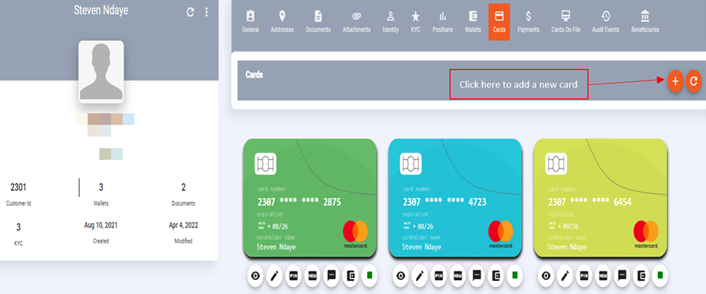
The customer-level cards view shows all active and inactive physical or virtual cards linked to a customer across all their wallets.
- Open the customer profile.
- Click the Cards tab.
- All cards for that customer are listed, regardless of which wallet they are linked to.
Wallet View
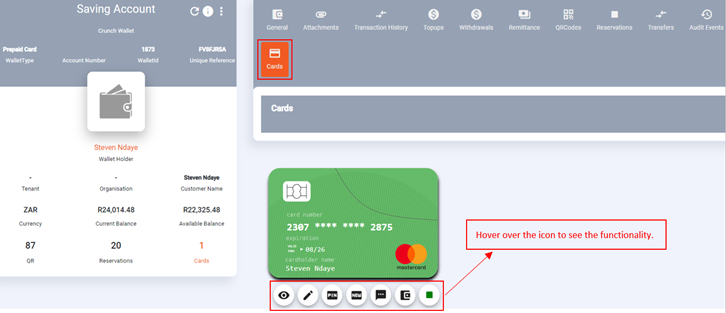
An admin user will be able to see any card linked to the associated wallet ID under this tab. You can view card details (pack ID, date created, expiry date, etc.), edit properties (change card status), reset PIN, send PIN to customer, and view card status.
Card Status Values
| Status | Meaning |
|---|---|
| ACTIVE | The card is functioning normally and can be used for transactions |
| STOPPED | The card has been temporarily stopped; transactions will be declined |
| BLOCKED | The card has been blocked, typically due to fraud or security concerns |
Changing Card Status
- Open the wallet and navigate to the Cards tab.
- Locate the card and click the edit / properties icon.
- Change the card status using the status field.
- Click Save.
Resetting a Card PIN
- Open the wallet and navigate to the Cards tab.
- Locate the card.
- Click the Reset PIN action.
- Confirm the action. The customer will receive their new PIN via the configured channel (SMS or in-app notification).
Payments
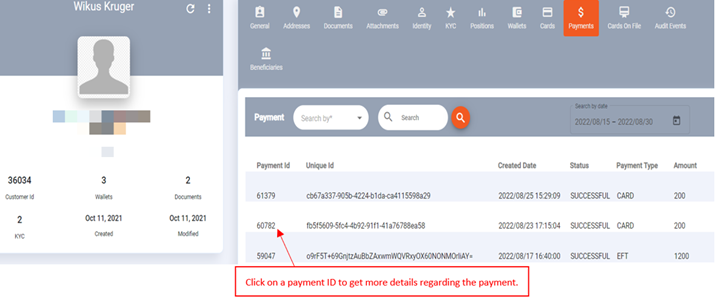
This is a list of payments made into the wallet. Clicking on a Payment ID provides more details about the payment received.
Card on File
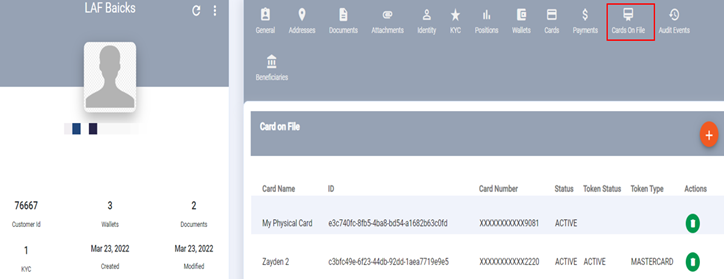
This page displays the customer's cards on file (personal debit/credit cards saved for top-up purposes). The customer uses these cards to top up their Eclipse wallet via a payment gateway.
NoteThe Masterpass gateway accepts any card provided the issuing bank authenticates via 3DS or AMT.
Audit Events
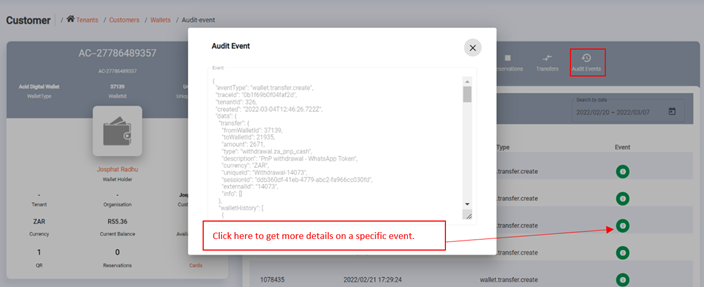
A list of all audit events for the wallet, giving full details of every transaction and state change on the wallet and wallet history.
Beneficiaries
A customer's list of saved payment beneficiaries (bank accounts or mobile money destinations they pay to). Admin users can view, add, edit, and delete beneficiaries from this screen.
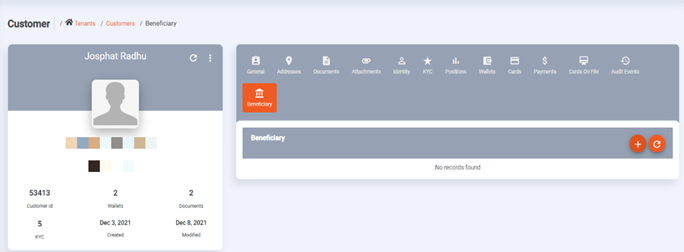
To add a beneficiary:
- Click the + icon on the Beneficiaries page.
- Complete the beneficiary details:
- Name — the beneficiary's full name
- Bank — the receiving bank
- Branch code — the bank's branch code
- Account number — the beneficiary's account number
- Account type — Current, Savings, or Transmission
- Reference — the payment reference shown on the beneficiary's bank statement
- Click Save.
Updated 4 months ago