
Organizations
Managing merchant and corporate organisations, KYB verification, wallets, cards, and terminals.
Organizations allow grouping of customers under a common entity — for example, a company with employee wallets, or a merchant with multiple staff members.
Viewing Organizations
Navigate to Configuration > Organizations to view all organizations configured on the tenant.
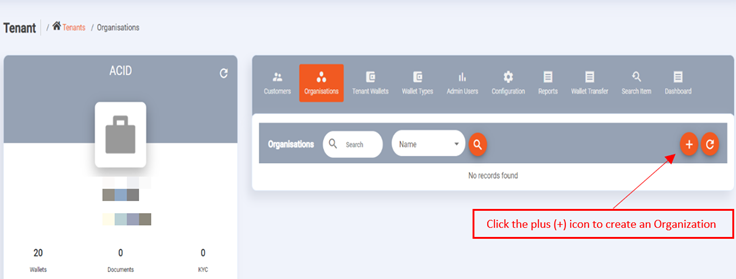
Creating an Organization
- Click the + (plus) icon on the Organizations page.
- Complete the organization information form:
- Name — the organization's trading or legal name
- Industry classification — the business sector
- Contact details — phone number and email
- Click Save.
Managing Positions
Once an organization exists, you can create positions within it and assign customers to those positions. Positions represent roles within the organization (for example, employee, manager, director).
To create a position:
- Open the organization record.
- Navigate to the Positions tab.
- Click + to add a new position.
- Enter the position name and any required attributes.
- Click Save.
To assign a customer to an organization position:
- Open the customer profile.
- Click the Positions tab.
- Click + to add a new position.
- Select the organization and position from the dropdowns.
- Click Save.
NoteA customer can hold positions in multiple organizations. Wallet limits and permissions can be configured at the organization level using the
Organisationgrouping type in the limit configuration.
Organisation Profile Tabs
Clicking on an organisation opens its profile, which contains the following tabs:
| Tab | Description |
|---|---|
| General | Name, status, contact details, industry classification, date created |
| Addresses | Physical or postal addresses for the organisation |
| Documents | KYB identity documents (company registration, director IDs, etc.) |
| Devices | Registered device fingerprints for the organisation's users |
| KYB | Business verification (Know Your Business) results and status |
| Positions | Hierarchy and role structure within the organisation |
| Wallets | All wallets linked to this organisation |
| Cards | Cards issued to wallets under this organisation |
| Cards on File | Stored payment card details for recurring billing |
| Payments | Payment history and initiate payments on behalf of the org |
| Beneficiaries | Registered bank accounts for outbound payments |
| Payment Links | Payment links associated with this organisation |
| Terminals | POS stores and terminals for card-present transactions |
| Attachments | Supporting documents (contracts, registration certificates, etc.) |
| Audit Events | Full audit trail of administrative actions on the record |
KYB (Know Your Business) Verification
Organisations undergo KYB verification — the business equivalent of KYC for individual customers. The KYB flow is configured via the Ratify rule set for organisations.
Viewing KYB Status
- Open the organisation profile and click the KYB tab.
- The page shows each verification check and its outcome.
Manually Overriding KYB
If automated checks fail on valid documents:
- Click the KYB tab.
- Use the manual review panel to review the submitted documents.
- Tick each verified check and provide a comment.
- Set the outcome to Approved or Rejected and click Save.
Merchant Onboarding Wizard
For merchants requiring POS terminal setup, the Merchant Onboarding Wizard provides a guided multi-step process:
- Navigate to Organisations and click Merchant Onboarding.
- Search or create the merchant organisation.
- Enter merchant details — trading name, MCC (merchant category code), address.
- Add QR tags — assign QR code tags to the merchant for scan-to-pay acceptance.
- Review and confirm — verify the merchant's details before finalising.
- Click Complete to activate the merchant.
The wizard creates the organisation record, assigns wallet types, configures the POS terminal setup, and links all QR codes in a single flow.
Organisation Wallets
Organisation wallets function identically to customer wallets and support the same sub-tabs:
- Transaction History — full transaction ledger with date filtering
- Top-Ups — top-up history and initiate new top-ups
- Withdrawals — withdrawal history
- Remittance — cross-border remittance transactions
- QR Codes — linked QR codes for payment acceptance
- Transfers — wallet-to-wallet transfers
- Reservations — pending/reserved funds
- Scheduled Withdrawals — automated recurring withdrawal jobs
- Audit Events — wallet-level audit trail
- Attachments — files attached to the wallet
- Cards — cards linked to this wallet
- Configurations — wallet-level limit and fee overrides
Card UI Branding Theme
Organisations and customers can have a custom card UI branding theme — this controls the visual appearance of the virtual card displayed in the customer-facing mobile application.
- Open the organisation profile.
- Click the Card UI Branding tab.
- Upload a card background image and set the colour scheme.
- Click Save.
The branding theme is applied to all virtual cards issued under this organisation.
Updated 4 months ago