
Card Not Present (E-Commerce) Use Cases
Eclipse provides a broad set of acquiring options that allow tenants to collect funds into designated wallets using a wide range of payment mechanisms. These capabilities are exposed through the Eclipse payment processing APIs described in the Payments Use Cases. Any supported payment option can be enabled by a tenant, subject to commercial and configuration prerequisites.
The acquiring options include, but are not limited to, the following:
Card Acquiring
-
E-commerce Card Not Present (CNP)
Supports standard CNP payments including 3DS and AMT.
Payment type: GLOBAL_ECOM_ACQUIRING -
Apple Pay
Apple Pay Payments -
Google Pay
Google Pay Payments -
Samsung Pay
Samsung Pay Payments -
Visa and Mastercard Click to Pay
Visa and Mastercard Integration
Bank and Alternative Payment Methods
-
Instant EFT (Ozow)
Payment type: ZA_OZOW -
Cash-In at Retailer (Pick n Pay)
Payment type: ZA_PNP_CASH
QR Code Acquiring
-
Scan to Pay QR
Enables Scan to Pay QR codes linked to Eclipse wallets.
Scan to Pay QR Acquiring -
Scan to Pay Deep Linking
Allows mobile apps to invoke Scan to Pay–enabled banking applications.
Scan to Pay Deep Linking -
Mastercard QR (MCQR)
QR payments using receive-only PANs linked to Eclipse wallets.
MCQR Acquiring -
Visa QR (EMVCo)
Payment type: GLOBAL_EMVCO
Payment Links
Eclipse supports flexible payment links that allow tenants to distribute payment requests using any of the supported payment mechanisms.
- Single-use payment links: GLOBAL_PAYMENT_LINK
- Reusable payment links: GLOBAL_REUSABLE_PAYMENT_LINK
Payment links can be shared via messaging channels such as WhatsApp or embedded directly into web and mobile applications.
Hosted Checkout
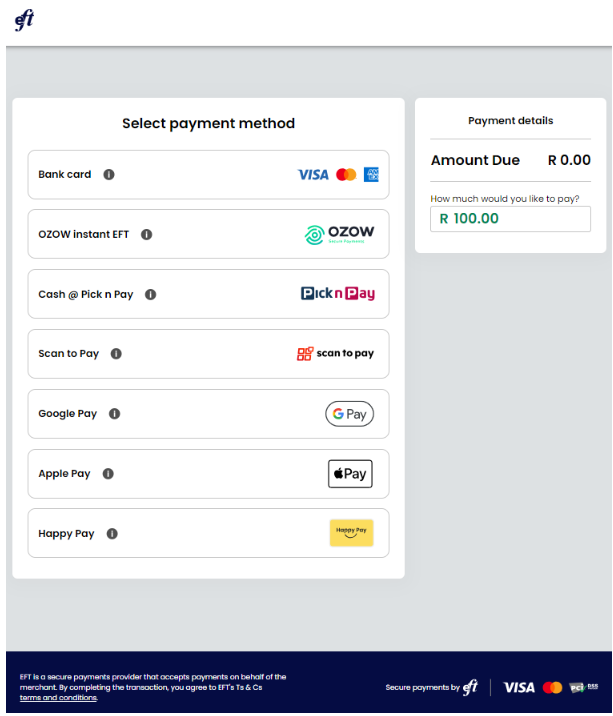
Tenants may integrate directly with Eclipse payment APIs for full control over the user experience, or they can use Eclipse Hosted Checkout for faster and simpler integration.
Hosted Checkout allows tenants to generate a secure payment URL using a single API call. This URL can be presented to customers to complete payment, with Eclipse handling the full card journey including card capture and 3DS authentication.
Hosted Checkout supports all Eclipse payment types that are enabled for the tenant. Payment methods are configured at tenant level using the paymentType settings in the tenant configuration. Supported values include mastercard, ozow, pnpcash, and eft.
Branding is fully supported, including tenant logos and colour schemes. Branding can be applied tenant-wide or per organisation.
Hosted Checkout Customisation
Enterprise Integration
For tenants requiring deeper control and tighter integration, Eclipse provides direct API access for each acquiring method. These integrations allow full ownership of the customer journey, UI, and orchestration logic.
Refer to the Payments Use Cases section for detailed API flows and prerequisites per payment type.
Card Acquiring – E-commerce
Eclipse supports e-commerce acquiring for tenants who want to securely store tokenised cards on file and process CNP payments, including 3DS.
Typical use cases include online retailers or digital platforms enabling card payments through their existing channels. Eclipse APIs can be used to:
-
Store and manage tokenised cards on file
Card on File Management -
Initiate card payments using stored cards with settlement into the designated merchant wallet
GLOBAL_ECOM_ACQUIRING
QR Acquiring – Scan to Pay
Scan to Pay QR acquiring enables tenants to generate QR codes linked to Eclipse wallets. Any Scan to Pay–enabled application can scan and complete a payment, with funds settling into the linked wallet.
Prerequisites
- Eclipse digital wallet created
- Wallet configured as a tenant or organisation wallet, depending on the acquiring model
- Merchant Category Code (MCC) configured on the tenant or organisation. (Refer to MCC List for MCC codes)
- Tenant registered as a Scan to Pay merchant
- Scan to Pay notification and security credentials configured on the tenant
QR codes can be generated, updated, or bulk-managed using Eclipse APIs. Codes may be open-ended or configured with specific amounts and expiry times.
Example request:
POST /eclipse-conductor/rest/v1/tenants/{tenantId}/wallets/{walletId}/qr-codes
{
	"amount": 0,
	"type": "ZA_MASTERPASS",
	"reference": "Test 123",
	"merchantName": "Richards Shop"
}
Example response:
{
    "additionalFields": [],
    "amount": 0,
    "code": "1596936300",
    "currency": "ZAR",
    "merchantName": "Richards Shop",
    "reference": "test 123",
    "type": "ZA_MASTERPASS",
    "walletId": 2539994
}
The Scan to Pay QR code is the 10 digit number returned in the code field.
QR Acquiring – Mastercard QR (MCQR)
Mastercard QR (MCQR) enables tenants to generate QR codes linked to receive-only cards. Payments are routed to a receive-only PAN associated with an Eclipse wallet.
Prerequisites
- Card issuing programme created for receive-only cards
- Eclipse wallet created with mode set to receive-only
- MCQR partner configuration enabled on the tenant
- Applications generating MCQR codes must be Mastercard certified
MCQR codes can be generated and distributed through tenant channels, and payments settle into the wallet associated with the receive-only PAN.
Updated 4 months ago