
Getting Access
How your first account is set up, how to reset a forgotten password, how to add team members, and how domain restrictions work
First-time access
Your first portal account is set up by your EFT Corporation account manager. You'll receive a welcome email with a link to set your password. Click the link, choose a password that meets the strength requirements shown on screen, and you're in.
Once your account is active, any Admin user in your organisation can add additional team members directly in the portal — you don't need to involve your account manager for new users. See Team Management.
NoteIf your welcome email doesn't arrive, check your spam folder. If it's still missing, contact your EFT account manager.
Signing in
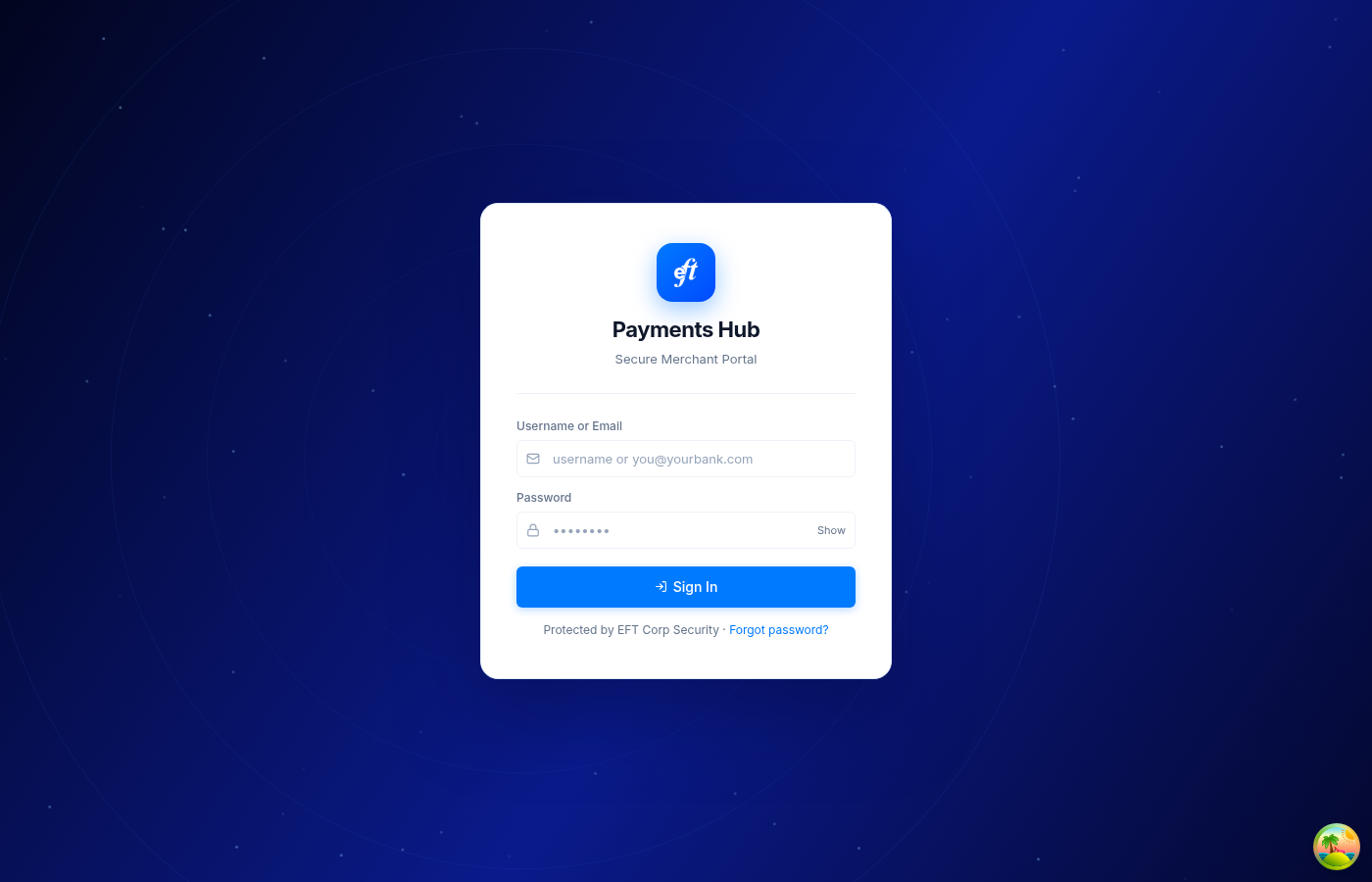
Navigate to your portal URL and enter your username or email address and your password.
Forgot your password
Click Forgot password? on the sign-in screen. Enter your username and click Send Reset Link. If that username is registered in the system, you'll receive an email with a link to set a new password.
NoteThe confirmation message always says "if this username exists" regardless of whether it does — this is intentional to prevent account enumeration.
Two-factor authentication (2FA)
If a 2FA code is required for your account, you'll be prompted to enter a 6-digit code from your authenticator app after entering your password. The code rotates every 30 seconds.
We strongly recommend enabling 2FA on all accounts, especially Admins. See Account Settings for how to set it up.
Domain restrictions
Your EFT account manager can restrict portal invitations to specific email domains — for example, so only @yourbusiness.com addresses can be added as team members. Contact your account manager to configure or update this.
Updated about 1 month ago