
Team Management
How to add, edit, and remove team members, and how to use custom scopes to control branch-level access — for Admin users only
Team Management is available to Admin users only. Navigate to Team in the sidebar.
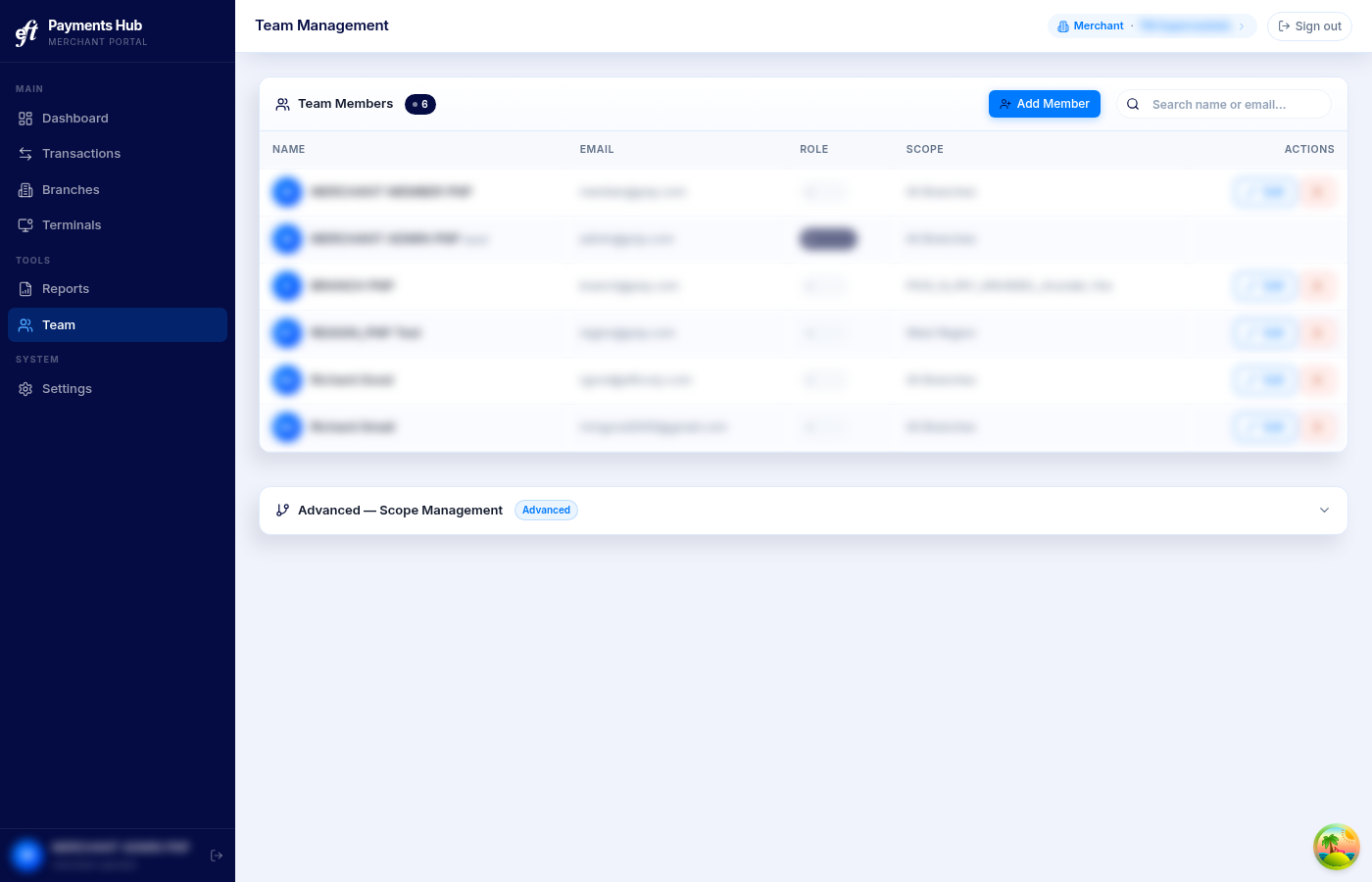
The Team Management page
Adding a team member
- Click Add Member.
- Search for the person by email address.
- If they don't yet have a portal account, fill in their name and email to create one.
- Select their Role — Admin, User, or Operations. See Roles and Access for what each role can see and do.
- Optionally assign them to a Scope to restrict their access to a specific branch group (see below).
- Click Add. The new member receives an email with a link to set their password — the same flow as the initial onboarding email.
NoteIf your organisation has domain restrictions configured, only email addresses at allowed domains can be added. Contact your EFT account manager to update the allowed list.
Changing a member's role or scope
Click Edit next to the member, change their role or scope, then click Save. Changes take effect immediately. You cannot edit your own role.
Removing a team member
Click the remove icon next to the member and confirm. Their access is revoked immediately.
Custom scopes
By default, each member has access to the entire organisation (all branches). You can create custom scopes to limit a member's view to a subset of branches — for example, "West Region" or "Airport Stores".
The scope configuration is in the Advanced — Scope Management panel at the bottom of the Team page. Click the header to expand it.
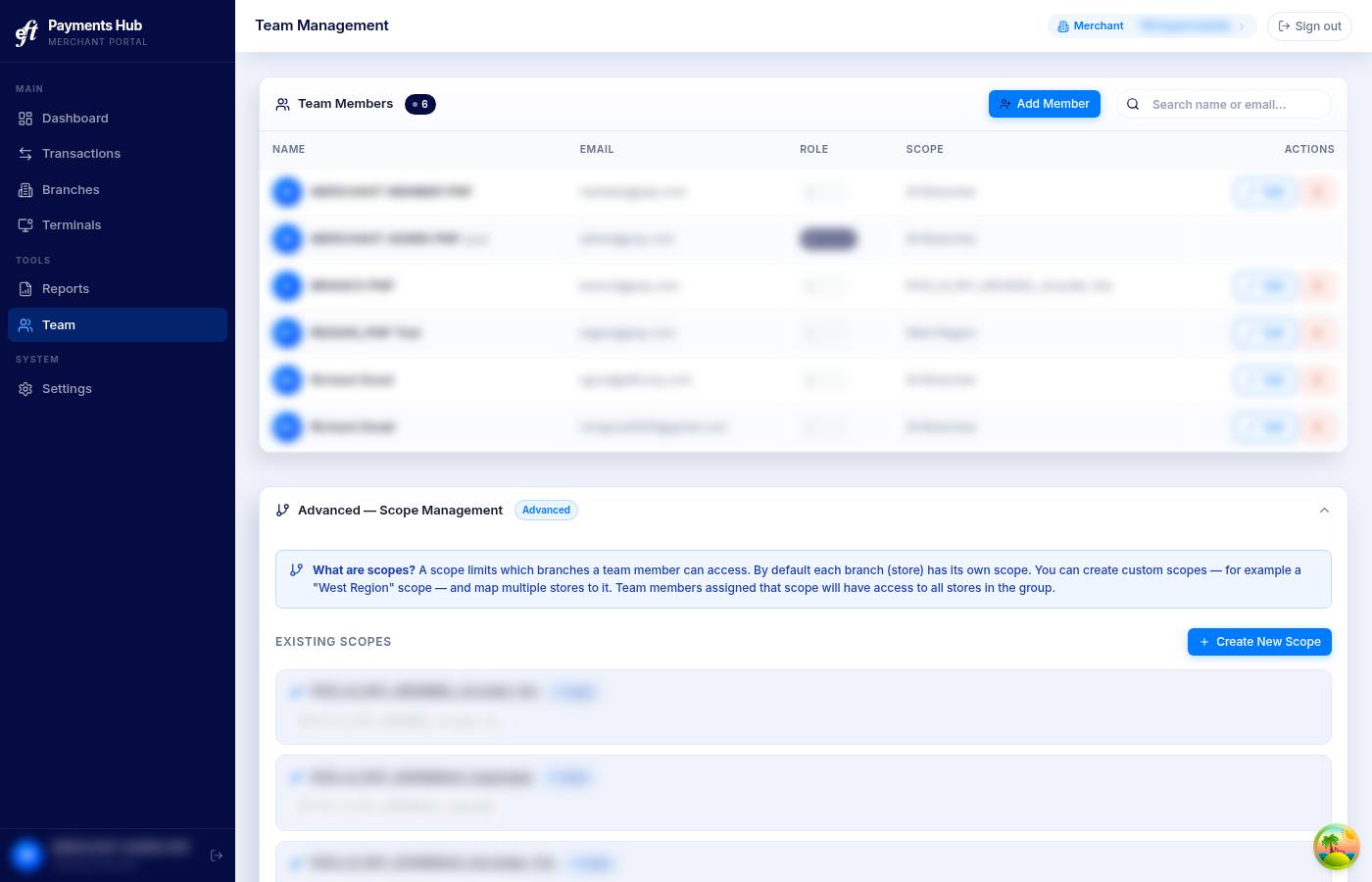
The Advanced Scope Management panel
To create a custom scope:
- Click Create New Scope.
- Enter a name (e.g. "West Region").
- Select the branches (stores) that belong to it.
- Click Create Scope.
Once a scope exists, you can assign it to a member when adding them or by editing their existing entry. A member assigned a scope sees only the branches included in that scope — across dashboard, transactions, terminals, and reports.
NoteSelecting All Branches (the default when no scope is chosen) gives the member access to everything in the organisation.
Updated about 1 month ago